If your shop still runs QuickBooks Desktop Point of Sale, the software has been without official support for a while now. It keeps working in a limited way, but nobody at Intuit is patching it, and the services around it are gone. This guide sets out what Intuit has actually said, what that means day to day, and how to leave in an orderly way.
What Intuit discontinued
According to Intuit's own notice, Intuit discontinued QuickBooks Desktop Point of Sale 19.0 on October 3, 2023, together with these connected services:
- QuickBooks Point of Sale Payments
- the Gift Card Service
- Mobile Sync
- Intuit Store Exchange
- the Webgility ecommerce integration
- live support by phone, email and chat
- the Vendor Lookup Service
What still works, and what that means
Intuit says you can keep using version 19.0 without those services. The same notice is blunt about the catch: "Discontinued products don't receive critical security patches or feature updates."
In practice:
- Security. The software will never get another fix, so a computer running it should not be where you browse the web or read email, and it should be kept behind your router's firewall.
- Payments. Card processing through Intuit's payment service is gone. If you took cards that way, you need another processor now.
- Anything that depended on the retired services. Mobile sync, store exchange between locations, the gift card service and the ecommerce link will not come back.
- Fixes. When something breaks, you are on your own. Our troubleshooting guides cover the common failures: Error 121, a company that will not open, Failed to open company, Error 193 in multi-store setups and POS that stops starting after a Windows update.
The risk grows with time: each Windows update is one more chance for an unsupported program to break.
Where Intuit points you
Intuit's notice recommends two directions: a mobile POS app that syncs transactions to QuickBooks Online and takes payments with Tap to Pay on iPhone or a Bluetooth card reader, and Shopify, which Intuit offers with a migration tool. Trade press reported at the time that other vendors were also courting these customers, and that some shops had stayed on QuickBooks POS for features beyond payments, which makes switching harder (Digital Transactions). Which replacement is right depends on your inventory size, number of stores and how much you use features like layaway, consignment or assemblies, so compare more than one before you commit.
What moves, and what you move yourself
Intuit says its free QuickBooks Desktop Connector moves some of your data to Shopify and leaves the rest behind:
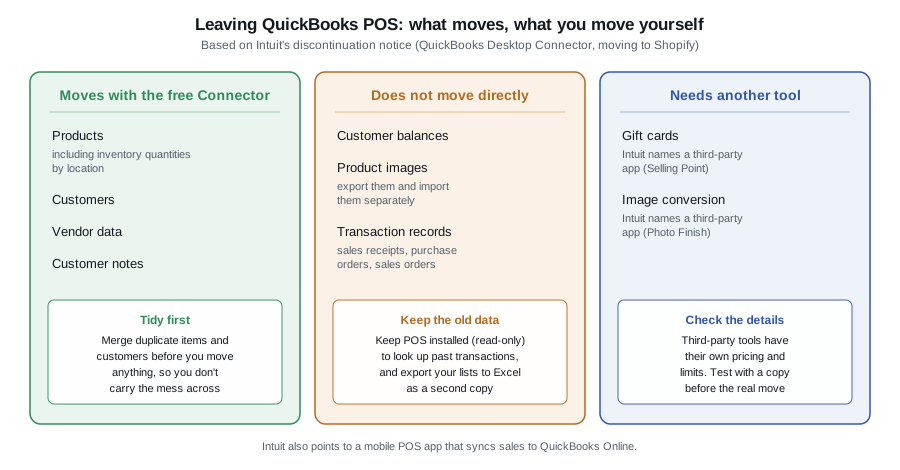
The connector moves products (including inventory quantities by location), customers, vendor data and customer notes. It does not move customer balances, product images, or transaction records such as sales receipts, purchase orders and sales orders. Intuit's advice is to keep Point of Sale around to look up past transactions, to export product images manually and import them with a separate app, and to use a third-party app to move gift cards. Intuit also advises cleaning up and merging data in the connector before you migrate. Check Intuit's page for the current details, since they may change.
A practical exit checklist
- Back up everything and copy it off the computer. A USB drive or cloud storage, not just another folder on the same PC. Keep your installer and license information somewhere safe too, because support can no longer help you recover them.
- Export your lists to Excel. That gives you a second copy that does not depend on Point of Sale: how to export customers, items and vendors.
- Export your item pictures, because they will not travel with the connector: item pictures guide.
- Clean the data before moving it. Merge duplicate items and customers and check the company file for damage: data clean-up guide.
- Settle gift cards and customer balances. Write down outstanding gift card and account balances, since neither moves automatically.
- Run both systems side by side for a short time if you can, and move over a quiet week, not the Christmas rush.
- Keep the old computer and data after you switch, offline, for as long as you need to answer questions about past sales.
When to move
If the software still works and you have a plan, there is no need to rush on a particular date. But the longer you wait, the more likely a Windows update or a hardware failure forces the move on your terms. The checklist above is worth starting now.
Comments (0)
No comments yet — be the first.
Sign in to leave a comment.