If your items have pictures in QuickBooks Point of Sale, you can add them in bulk instead of one record at a time, and you can copy them all out to a folder. The second skill matters more now: Intuit says its migration connector does not move product images, so exporting them is up to you.
Read this first. Intuit discontinued QuickBooks Desktop Point of Sale 19.0 on October 3, 2023. Its migration guidance says product images are not transferred by the connector. They have to be exported manually and imported with a separate app. See what to do now.
Edition note: the lower editions of Point of Sale cannot import or export item pictures. If the options are missing, that is why.
Exporting item pictures
Item pictures are exported differently from other lists. Instead of one spreadsheet, the wizard writes one image file per picture into a folder you choose.
Way 1: from the File menu (best for exporting everything, or by department, vendor or style):
- Choose File > Utilities > Export.
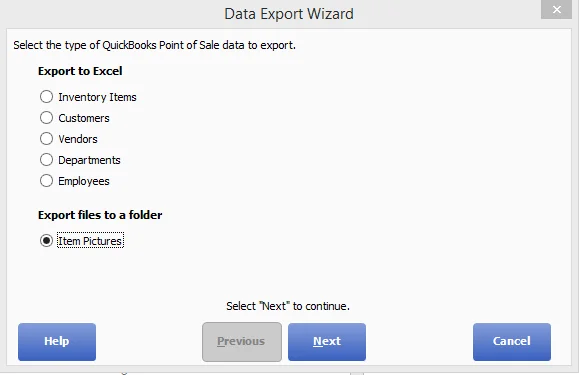
- In the Data Export Wizard, select Item Pictures under "Export files to a folder" and click Next.
- Follow the prompts to choose which items' pictures to export.
- Pick the destination folder, how the files should be named, and which pictures to export: the default view, the alternate view, the thumbnail, or all three.
- Click Export. Choose Open to look in the folder, or Finish to close the wizard.
Way 2: from the item list or Picture Album (best for a handful of items):
- Select the items whose pictures you want.
- Open I Want To > Export > Export Item Pictures for Selected Items.
- Continue from step 3 above.
The wizard's first screen, with Item Pictures selected:
Naming tip. Choose a naming option that includes the item name, attribute and size, so each file is unique and easy to match later. The wizard shows an example, such as a shirt name followed by its colour and size and a suffix marking it as the default picture.
Importing item pictures
Point of Sale matches each picture file to an item by its file name, so the file names must match an item field exactly.
Before you start:
- Put all the picture files in one folder.
- Name each file after the item information you will match on. You can match on Item Name_Attribute_Size (separated by underscores), Item Name, UPC, Alternate Lookup (ALU) or Item Number.
- Decide whether you are importing default pictures, alternate pictures, or both.
To import:
- Choose File > Utilities > Import. In network mode this is done on the server workstation.
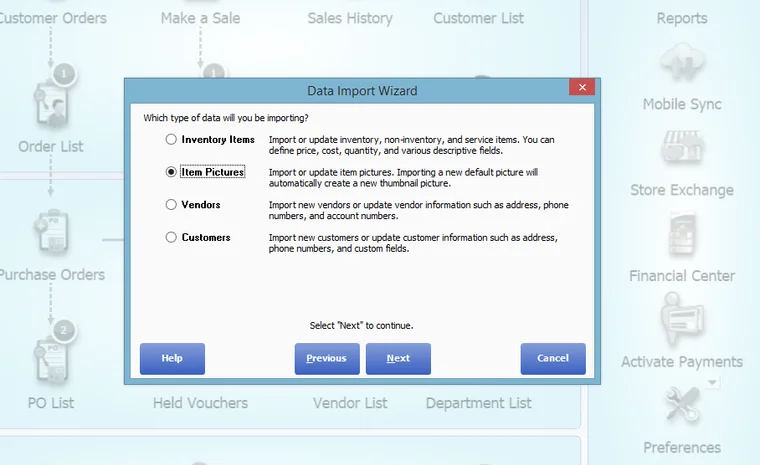
- Select Item Pictures as the type of data and click Next.
- Choose the folder with the pictures and the item field your file names match, then click Next.
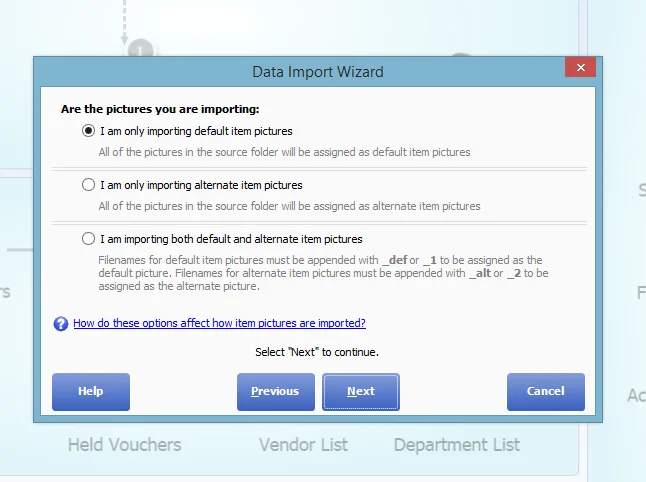
- Say which pictures you are importing: only default pictures, only alternate pictures, or both. If you import both at once, add _def or _1 to the end of each default file's name, and _alt or _2 to the end of each alternate file's name.
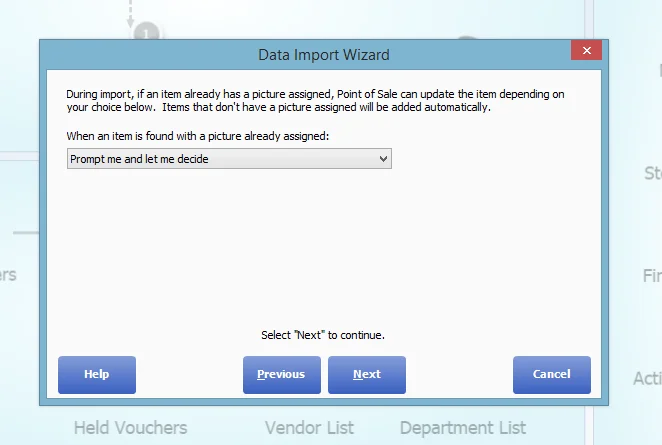
- Choose what to do when an item already has a picture: replace it, keep it, or be asked each time. The safe choice while you are testing is to be asked each time.
- Review the summary of pictures found. If some files could not be matched to items, Point of Sale lists them. Rename those files to match one of the formats above, then continue.
- Click Import, then Finish when it confirms the import is complete.
The wizard asking which type of data to import, with Item Pictures selected:
The step where you say whether you are importing default pictures, alternate pictures or both:
The step that decides what happens to items that already have a picture:
Importing a new default picture automatically creates the thumbnail for it, so you only need to supply one image per item.
Tips
- Test on a few items first. Import five pictures and check them before running the whole folder. Better still, test in a copy of your company file.
- Keep file names simple. Stray spaces, extra underscores and different spellings are the usual reason a file is not matched.
- Back up your company file before a big import.
- Keep your exported pictures. If you are leaving Point of Sale, the folder you export is the copy you will upload to your next system. Check what image formats and sizes it accepts before you convert them.
Related
- Import data with the Data Import Wizard
- Export customers, items and vendors to Excel
- QuickBooks POS is discontinued: what to do now
Comments (0)
No comments yet — be the first.
Sign in to leave a comment.