The Data Import Wizard in QuickBooks Point of Sale loads inventory items, vendors, customers or item pictures from a spreadsheet. It is quick when the file is right and frustrating when it is not. This guide covers the steps, how field mappings work, and the mistakes behind most failed imports.
Read this first. Intuit discontinued QuickBooks Desktop Point of Sale 19.0 on October 3, 2023. The wizard is still useful for maintaining an existing install, but if you are leaving Point of Sale, you will usually import into your new system instead. See what to do now.
What you can import
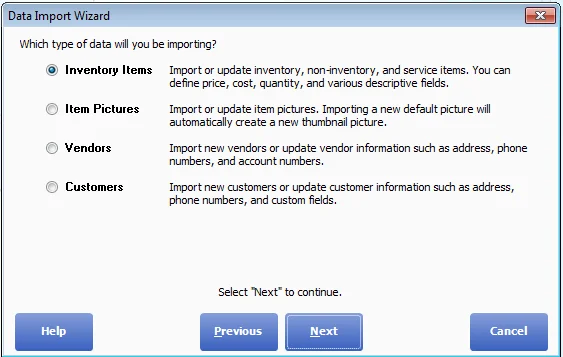
You can bring in Inventory Items, Item Pictures, Vendors or Customers, and only one type at a time. For pictures, see the item pictures guide. A few edition rules apply: in a network, the import runs from the server workstation only, in multi-store setups remote stores can import customers only, and the lower editions cannot import item pictures.
Before you start
- Back up your company file. The wizard offers to do it, but do it yourself first and copy the backup off the computer.
- Test first if the import is big. Create a new empty company file, import into that, and check the result before touching your real data.
- Get your data into Excel or a .csv file. If it comes from another program, use that program's export to an Excel or comma-delimited file.
The steps
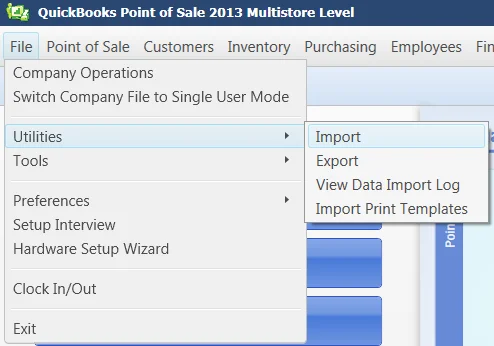
- Choose File > Utilities > Import on the server workstation.
- Read the overview, click Next, and pick the type of data to import.
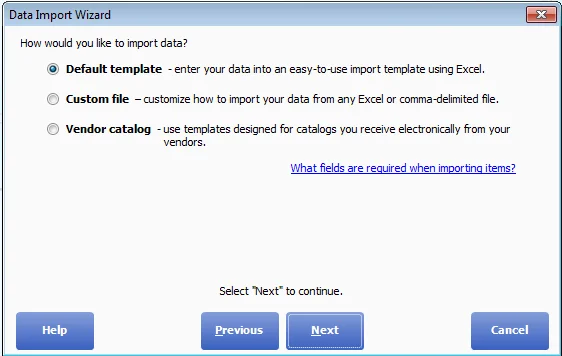
- Choose how you will import: the Default template (an Excel file supplied with Point of Sale), a Custom file (any Excel or comma-delimited file), or a Vendor catalog (items only, for catalogs sent electronically by your vendors).
- Follow the path that matches your choice, below.
- Choose how the wizard should detect and handle duplicate records, then click Next.
- The wizard analyses the file and reports the status, including errors. If there are serious errors, cancel and fix the file. For minor ones you can continue and tidy up in Point of Sale afterwards.
- Make sure other workstations have closed Point of Sale, then click Import.
- Afterwards, choose File > Utilities > View Data Import Log to review errors and any records that were not imported.
Here is what steps 1 to 3 look like on screen. First the menu:
Then the choice of data type:
Then the choice of how to import:
If you use the default template
- Open the import template from the wizard.
- Fill in the Vendors, Customers and Inventory worksheets you need. You do not have to use all three, and only what you enter is imported.
- Clear anything left over from a previous import, or you will create duplicates.
- Fill every required field (they are marked in bright green on the sheets), leave no blank rows, and type plain values, not formulas.
- Save and close the template without renaming it, then return to the wizard.
If you use a custom file or vendor catalog
- Browse to your file. A text file must have a .csv extension.
- Choose the sheet (Excel only) and the row where the data starts. Do not count heading rows.
- Choose an existing mapping, or choose Add New to create one.
Field mappings
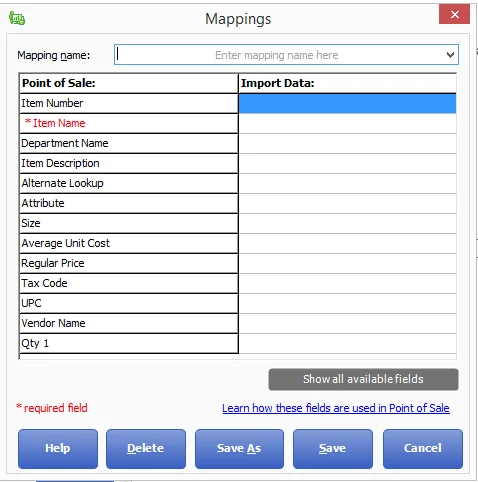
A mapping tells Point of Sale which column in your file feeds which Point of Sale field. On the mapping screen, Point of Sale fields are on the left and your columns go on the right. Required fields are marked with a red asterisk, such as Item Name for items. Choose Show all available fields to reveal the advanced ones, which most people do not need. Save the mapping with Save or Save As so you can reuse it. If you import the same catalog format regularly, saving a mapping per vendor saves a lot of time.
Why imports fail, and the fixes
- Currency symbols or changed formats. Do not type a $ in price or cost fields, and do not change a field's format (for example from number to text). Either will make the import fail.
- Formulas. Paste values only.
- Column names that don't match. Files from a vendor or another program often use different names. Rename the columns to match the Point of Sale names exactly, copy the data into the default template, or create a mapping.
- Names in the wrong shape. Point of Sale stores first and last names in separate fields. If your old data has one full-name column, split it first.
- Leftover data. If you reuse the default template, clear the old rows before adding new ones.
- Duplicate items. If an imported item has the same department, vendor, item name, attribute and size as an existing one, it is imported with a number added to the end of the name (so "Hammer" and "Hammer1"). Merge them afterwards: merge duplicate items.
- Text files saved with the wrong extension. Rename to .csv.
A handy trick: bulk edits
To change one value across many records, such as the department name for a group of items, export them to Excel, use find and replace there, and import the file back. Here is how to export.
In the Pro edition, if you use multiple units of measure, extra fields for each unit appear in the mapping options. You can also enter on-hand quantities for all your stores on the template at once.
Comments (0)
No comments yet — be the first.
Sign in to leave a comment.