Exporting your lists from QuickBooks Point of Sale gives you a spreadsheet copy of your customers, items, vendors, departments or employees. It is the simplest insurance against losing data, and the first step if you plan to move to another system.
Read this first. Intuit discontinued QuickBooks Desktop Point of Sale 19.0 on October 3, 2023, so an export is also your safety copy outside the software. See what to do now for the full picture.
What you need
- Microsoft Excel installed on the computer you are exporting from. The wizard writes to an Excel file.
- The right edition. Some editions limit what you can export. In the lower editions, customer, vendor and item quantity or cost data may not be exportable, and item pictures may not be available either. If an option is greyed out, that is why.
What the export wizard can send to Excel
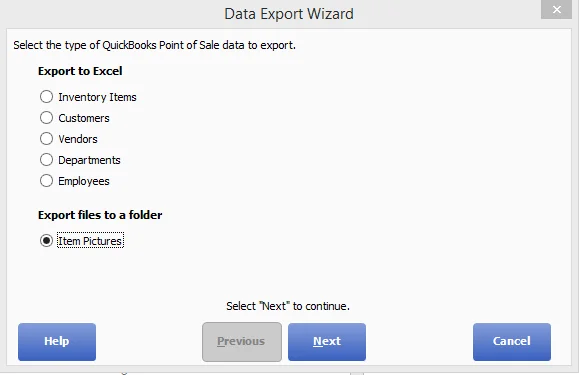
The Data Export Wizard lists five record types you can send to Excel: Inventory Items, Customers, Vendors, Departments and Employees. There is also an option to export Item Pictures to a folder, covered in our item pictures guide.
Way 1: Export from a list
- Open the list you want, for example the Customer List or the Item List.
- Filter, sort or select the records you want to export. To pick several, hold Ctrl while you click.
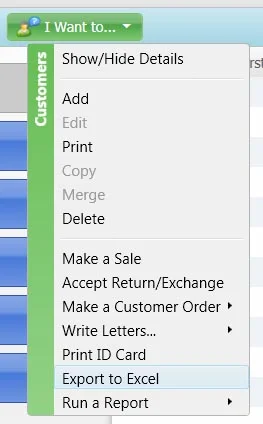
- Open the I Want To menu and choose Export to Excel.
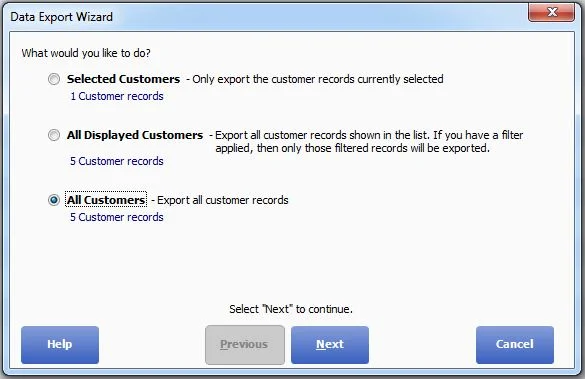
- In the wizard, choose how much to export: Selected records only, All Displayed records (the filtered view, if you applied a filter), or All records.
- Pick the Excel file to write to and the sheet, and say which row the export should start on. Column headings go on that row. Anything already in those rows of the sheet will be overwritten, so use a new file for a clean export.
- Choose an export template. The template decides which columns appear and how the data is laid out. A default template exists for each record type. If you need different columns, choose Manage Templates to edit one or create your own.
- Follow the remaining prompts to finish. Open the file in Excel and check the data before you rely on it.
Here is what steps 3 and 4 look like on screen. First the I Want To menu on the Customer List, with Export to Excel near the bottom:
Then the wizard's choice of how many records to export:
Way 2: Export customers from the Customer Center
The Customer Center adds a way to build a customer list from sales history and export it:
- Choose Customers > Customer Center.
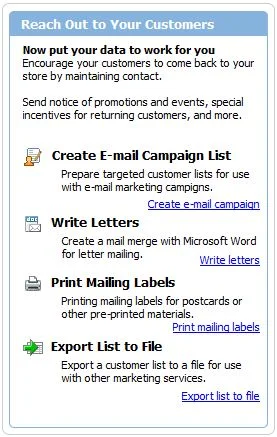
- In the Reach Out to Your Customers box, click Export list to a file.
- The wizard first shows the proposed customer list. Everyone is ticked by default; clear the boxes of anyone you want to leave out.
- Choose the destination Excel file (the older .xls format), the sheet and the starting row, then pick a template and finish as above.
The Reach Out to Your Customers box, with Export list to a file as the last option:
The Customer Center also offers ready-made groups, such as customers who bought in the last 30 days or customers with no recent activity, which helps if you only want to keep active customers.
Checking the export
- Open the file and spot-check a handful of records against the screen.
- Look for cut-off columns, missing departments or blank cost fields.
- Save a copy in a second place, and name the file with the date.
- Keep the template you used. If you export again later, the columns will match.
Next steps
- Clean duplicates first for a better export: merge duplicate items and customers.
- If you are importing into Point of Sale rather than leaving it, see the Data Import Wizard guide.
- Planning a move? Read QuickBooks POS is discontinued: what to do now.
Comments (0)
No comments yet — be the first.
Sign in to leave a comment.