Whichever way you leave QuickBooks Point of Sale, you do not want to carry its mess with you. Duplicate items split your stock history, duplicate customers split purchase history, and a damaged company file can quietly corrupt an export. Intuit's own migration advice for its Shopify move is to clean up and merge data before migrating. This guide covers the three clean-up jobs that matter most.
Read this first. Intuit discontinued QuickBooks Desktop Point of Sale 19.0 on October 3, 2023. Always make a backup, and copy it off the computer, before merging or repairing anything, because you should treat a merge as permanent. See what to do now.
Job 1: Merge duplicate inventory items
It is easy to enter the same item twice, or to decide two items should be tracked as one. A merge combines them into one record with the history of both.
The rules:
- Only two items at a time can be merged.
- Both must be the same item type (Inventory, Non-Inventory, Service and so on).
- In the Pro edition, merging assembly or group items needs both to contain the same component items.
- In a multi-store setup, merging is done at Headquarters only.
To merge two items:
- In the Item List, select the two items. Hold Ctrl and click to pick both.
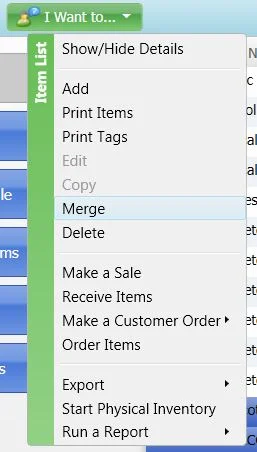
- Open the I Want To menu and choose Merge.
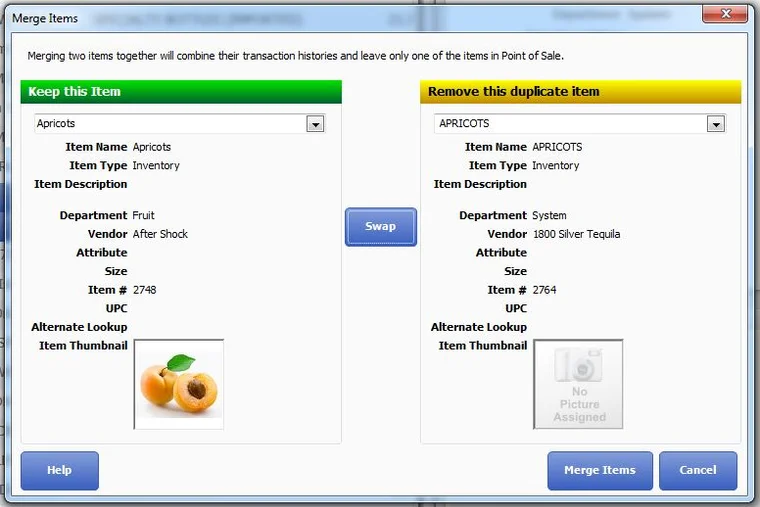
- In the Merge Items window, the item to keep is on the left and the duplicate to remove is on the right. Use Swap if they are the wrong way round.
- Click Merge Items. If the removed item appears on earlier transactions or inside an assembly, Point of Sale lists what will be affected. Confirm to continue.
The I Want To menu on the Item List, with Merge in the middle of the list:
The Merge Items window, showing "Keep this Item" on the left and "Remove this duplicate item" on the right, with the Swap button between them:
What happens to the data:
- Quantities are added together. Every other field is taken from the item you chose to keep, so edit the kept item afterwards if you need to correct anything.
- Point of Sale creates adjustment memos with the reason Merge Item to combine quantities and update inventory value when the two items had different average costs.
- The removed item is replaced by the kept one on history documents, order documents and unsaved physical inventory counts. Item costs on old documents are not recalculated.
- If you have printed price tags for the removed item, reprint them from the kept record so the item number, barcode and price are right.
- In multi-store setups, the inventory change goes to remote stores with the next store exchange, but remote stores' own history documents are not rewritten.
Job 2: Merge duplicate customers
The same customer often gets entered twice because someone spelled the name slightly differently and did not find the first record. Merging combines the sales history into one record and deletes the other.
- In the Customer List, select one or both records and choose I Want To > Merge. (In versions older than 10 the option is called Merge Customers.)
- In the merge window, check the record you want to keep is on the left. Use Swap to reverse them.
- If Point of Sale is linked to QuickBooks accounting software, the customer names as they appear there are shown to help you pick the right ones.
- Click Merge Customers. If asked, choose whether to delete the duplicate in QuickBooks as well.
Two things to know about the QuickBooks side:
- If you choose to delete it, that happens at the next financial exchange. If the customer has transaction history in QuickBooks, the customer is made inactive instead of deleted.
- If you do not delete or deactivate the duplicate there, the next financial exchange will recreate it in Point of Sale. Past documents are not re-sent to QuickBooks and its two customer records are not merged; only new transactions use the customer you kept.
Job 3: Check the company file for damage with Verify Data
Verify Data looks for damaged transactions, damaged lists and damaged database tables. It only finds the kinds of damage it was written to find, but it is the right first check when something is off.
Run it when:
- you suspect data damage,
- data is missing after an update or after upgrading a file to a newer version,
- errors appear only for certain customers, items or vendors,
- a list takes much longer than usual to open.
Before you start:
- Run it on the computer where the company data is stored. Point of Sale will not run it elsewhere.
- Have everyone else log out, so it runs without other users.
- Expect a few minutes for a small file and possibly hours for a large one. The window may say "not responding". If the mouse pointer still moves, it is working. Do not cancel it once it has started.
To run it:
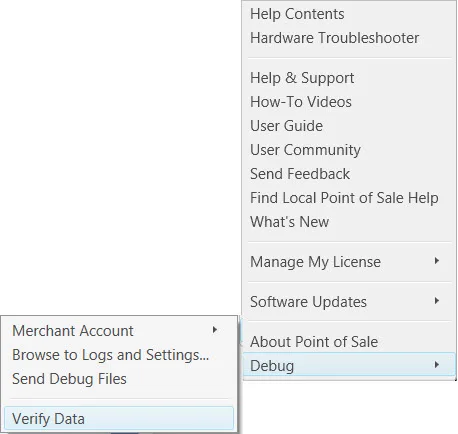
- Choose Help > About Point of Sale.
- Hold down Left Ctrl + Left Alt + D + B at the same time. Nothing visibly changes.
- Close the window, then open Help again. A Debug option now appears at the bottom.
- Choose Debug > Verify Data. (If Debug does not appear, repeat step 2. If it still does not, close Point of Sale, end the
HKCMD.exeprocess in Task Manager and try again.)
The Debug menu with Verify Data at the bottom:
Reading the result:
- "Validation completed successfully. No errors found." The file is not damaged in ways Verify can detect. If your problem persists, keep troubleshooting elsewhere.
- Any other message: write down the exact wording, then run the Clean Up Company Data utility (choose the option to compress the data) and run Verify again.
- If errors remain, restore a recent backup instead. See Failed to open company.
A good order
- Back up and copy the backup off the computer.
- Merge duplicate customers, then duplicate items.
- Run Verify Data and, if needed, Clean Up Company Data.
- Export your lists to Excel as a clean second copy.
- Then migrate, following the checklist in what to do now.
Comments (0)
No comments yet — be the first.
Sign in to leave a comment.