You try to open your company file in QuickBooks Point of Sale and get a short, unhelpful message: Failed to open company. There are two usual causes, and three fixes that work in a sensible order.
Read this first. Intuit discontinued QuickBooks Desktop Point of Sale 19.0 on October 3, 2023, and says discontinued products do not receive critical security patches or feature updates. These steps help you recover an existing install; they are not a long-term plan. See Intuit's notice.
Why it happens
- The company file is damaged. This is the most common cause, often after a power cut, a crash or a failed disk write.
- The file was converted on an old operating system. A company file that was converted to Point of Sale version 12.0 or higher on a Windows XP SP2 machine can fail to open afterwards.
Make a copy of your company folder before you change anything.
Fix 1: Create a test company, then open yours from inside it
Opening your file from a running company sometimes succeeds where opening it at start-up does not.
- Open Point of Sale. On the Start Company screen, choose Create new company and click Next.
- Type Test as the company name and click Create.
- With the Test company open, choose File > Company Operations and click Next.
- Select Open existing company, choose your real company file and click Next.
Fix 2: Restore a backup
If the company file is damaged, restoring a recent backup is the cleanest fix. You will lose anything entered after the backup was made, so check the date first.
- Open the Test company from Fix 1.
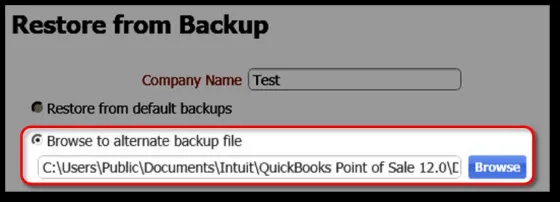
- Choose File > Company Operations, select Restore from backup and click Next.
- Choose Browse to alternate backup file and click Browse.
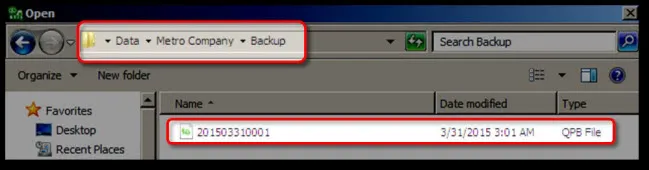
- Navigate to your company's backup folder:
C:UsersPublicDocumentsIntuitQuickBooks Point of Sale 12.0Data<Your Company Name>Backup(the version number in the path matches your version, for example 11.0). - Select the most recent backup file and click Next. This restores the company to the date and time that backup was made.
Here is what steps 3 and 4 look like on screen:
If your backups are missing or old, that is a warning sign. Set up a regular copy of the Backup folder to another drive or cloud storage.
Fix 3: Rename the company file
A stuck file name or path can also trigger the error.
- Go to the folder that holds your company file:
C:\Users\Public\Documents\Intuit\QuickBooks Point of Sale <version>\Data\<Your Company Name>. - Right-click the company file, choose Rename and give it a new name.
- Open Point of Sale again and open the renamed company.
If none of the three work
The file is probably too damaged to repair. Restore the most recent good backup you have, or move on to a data export if the software still starts. See POS won't open your company database for fixes aimed at the services rather than the file.
Avoid it next time
- Back up daily, and copy the backup off the computer.
- Shut Point of Sale down properly at the end of the day.
- Don't convert company files on very old Windows versions.
- Plan the migration. Intuit's notice describes using the free QuickBooks Desktop Connector to move products, customers and vendor data to Shopify, and keeping Point of Sale available to look up past transactions.
Comments (0)
No comments yet — be the first.
Sign in to leave a comment.