You start QuickBooks Point of Sale and it refuses to open your company, or the POS server will not start. Usually that comes down to one of two things: the company database is damaged, or something on the PC, often a recent update, is stopping the POS services from reading it. This guide covers the second case. If you suspect a damaged file, run Point of Sale's own Verify Data tool or restore a backup instead (see Failed to open company).
Read this first. Intuit discontinued QuickBooks Desktop Point of Sale 19.0 on October 3, 2023, and says discontinued products do not receive critical security patches or feature updates. These steps keep an old install running; they are not a long-term plan. See Intuit's notice.
Try the fixes in this order and stop as soon as one works. Back up your company Data folder before you start.
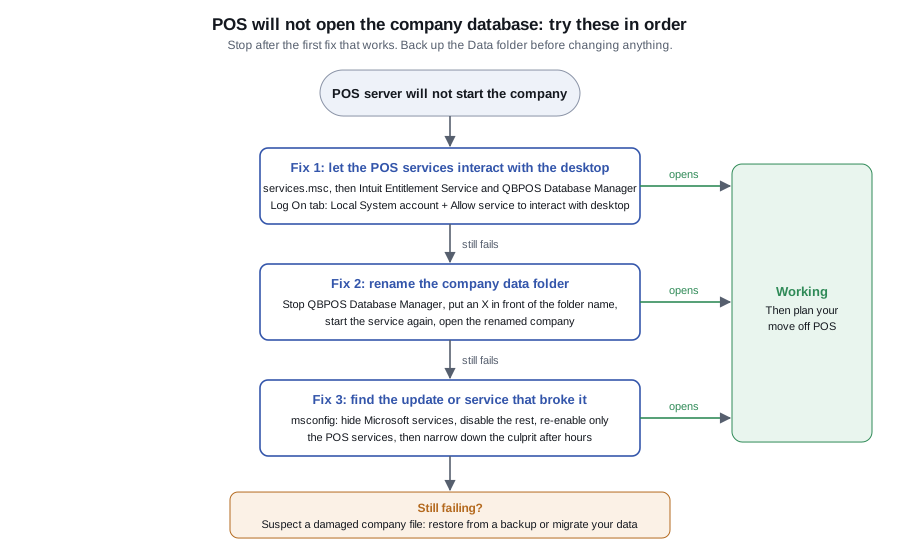
Fix 1: Let the POS services interact with the desktop
- Close Point of Sale.
- Press the Windows key, type
services.mscand press Enter. - Double-click Intuit Entitlement Service (if there is more than one, pick the highest version number).
- Open the Log On tab, choose Local System account and tick Allow service to interact with desktop. Click Apply and OK.
- On the General tab, check the status says Started. If it does not, click Start, or Stop and then Start again.
- Repeat steps 3 to 5 for QBPOS Database Manager X (X is the highest version listed).
- Open Point of Sale and try your company again.
Fix 2: Rename the company data folder
This works around a folder or file the services cannot read.
- Close Point of Sale.
- In
services.msc, right-click QBPOS Database Manager X and choose Stop. Leave the window open. - Open File Explorer and go to
C:\Users\Public\Documents\Intuit\QuickBooks Point of Sale X\Data(X is your version). - Right-click the folder named after your company, choose Rename, and put an
Xin front of the name. - Back in the Services window, right-click QBPOS Database Manager X and choose Start.
- Open Point of Sale, select the renamed company and open it.
- Once it opens, you can rename the company back from inside Point of Sale: in versions 2013 and 10, choose File > Company Operations > Rename company; in version 9 and earlier, choose File > Company Data > Rename.
Keep the folder name short. In practice, names under about 10 characters with no spaces avoid problems. That may sound odd, but it has resolved this error for many shops.
Client computers. If you renamed the company on the server, each client computer that connects to it needs two things deleted: everything in C:\Program Files (x86)\Common Files\Intuit\Entitlement Client\v8\ and the file C:\ProgramData\Intuit\QuickBooks Point of Sale 11.0\Ini\WSActivity.xml (adjust the version number to yours). Move them somewhere safe rather than deleting, because re-registering may no longer be possible on every version.
Fix 3: Find the update or service that broke it
If POS worked yesterday and a Windows update installed since, a background service may be the cause.
- Press the Windows key, type
msconfigand press Enter. - On the Services tab, tick Hide all Microsoft services, then click Disable all.
- Re-tick only the Intuit and POS services: Entitlement Client, Intuit Update Service, QBCFMonitorService, Intuit QuickBooks FCS, QBPOS Database Manager, QBIDPService and QuickBooksDB. Also keep any remote-support tool your IT provider uses.
- Restart the PC, start Point of Sale and open your company.
- If it works, one of the services you disabled was interfering. After store hours, switch them back on one at a time to find which. Then remove or reconfigure that one, and return the PC to normal startup.
Don't skip this
- A restart after each fix is cheap and rules out half-applied changes.
- Always work from a backup. If a fix makes things worse, you can put the old folder back.
- For a payment machine, do not leave services disabled long term. Narrow down the cause and restore the rest.
Comments (0)
No comments yet — be the first.
Sign in to leave a comment.