QuickBooks Point of Sale worked yesterday. Today you click it and nothing opens, or a form asks you to choose your database, you click Next, and the same form comes back. No error message, just a loop. When this happens on Windows 10, a recent Windows update is the first thing to check.
This guide comes from a real support case: Windows 10 computers running QuickBooks Point of Sale 12 stopped opening properly after Microsoft update KB3194496. Uninstalling the update brought POS back. The same pattern can happen with other updates, so the steps work in general.
Read this first. Intuit discontinued QuickBooks Desktop Point of Sale 19.0 on October 3, 2023, and says discontinued products do not receive critical security patches or feature updates. If your POS machine takes card payments, be careful about blocking Windows updates. See Intuit's notice.
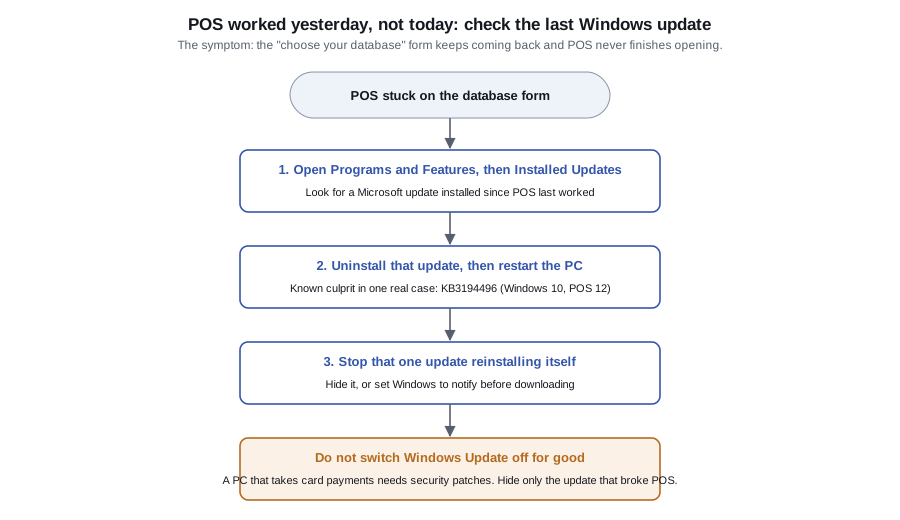
The symptom
- You open Point of Sale in the normal way.
- A form asks you to choose your database and click Next.
- The same form appears again, asking you to choose and open the database.
- It repeats, and Point of Sale never finishes opening.
Step 1: Find the update
- Press Windows key + R, type
appwiz.cpland press Enter. (Typing "programs and features" in the Start menu also works.) - Click View installed updates.
- Sort by Installed On. Look for Microsoft updates installed between the last day POS worked and today.
Step 2: Uninstall it and restart
- Select the suspect update (for example KB3194496), click Uninstall, and restart the PC.
- Open Point of Sale. If it starts normally, you have found the cause.
Remove only the update you suspect. If several were installed, remove the newest first and test after each one.
Step 3: Stop that update coming back
Uninstalling is only half of it. Windows will reinstall the update the next time it checks, and Point of Sale breaks again. The safest approach is to block only that update, not Windows Update as a whole.
Best option: hide the one update. Microsoft's "Show or hide updates" troubleshooter lets you pick an update and hide it so Windows does not install it again. It works on Windows 10 Home. It cannot hide security updates, and it does not work on Windows 10 Pro (use the Group Policy option below instead).
Windows 10 Pro: Group Policy.
- Press Windows key + R, type
gpedit.mscand press Enter. - Go to Computer Configuration > Administrative Templates > Windows Components > Windows Update.
- Open Configure Automatic Updates, choose Enabled, and set it to 2 - Notify for download and notify for install.
- Click OK.
Windows 10 Home: registry setting. Back up the registry first (File > Export in Registry Editor), because a mistake here can stop the PC working.
- Press Windows key + R, type
regeditand press Enter. - Go to
HKEY_LOCAL_MACHINE\SOFTWARE\Policies\Microsoft\Windows\WindowsUpdate\AU. - Open the
AUOptionsvalue and set it to2. Click OK and close the registry editor. - Restart the PC.
What not to do
An older version of this advice told readers to disable the Windows Update service entirely. That fixes the loop but leaves the PC unpatched, and a computer that processes card payments should not go without security updates. If you set automatic updates to "notify", install the updates you are told about after store hours, and test Point of Sale after each batch.
If POS still won't start
- Check whether the company database itself will open: POS won't open your company database.
- Run Point of Sale as an administrator once, to rule out a permission problem.
- If the PC is old and out of support, consider moving to a supported system. Intuit's notice describes a free QuickBooks Desktop Connector for moving products, customers and vendor data to Shopify.
Comments (0)
No comments yet — be the first.
Sign in to leave a comment.