Web Automation with Selenium and C#
Learn to automate real browsers from C# for reliable UI testing and repeatable data tasks. You start with Selenium 4, WebDriver, the .NET SDK and NUnit, and let Selenium Manager handle browser drivers. Then you master stable locators (CSS, XPath, relative locators, iframes and shadow DOM), correct explicit waits with your own lambda-based conditions, and interactions such as forms, dropdowns, alerts, windows, uploads, JavaScript and hover or drag actions. You structure suites with the Page Object Model and NUnit fixtures, data-driven tests fed from inline data, CSV and JSON, categories, and screenshots on failure. The final modules cover headless and parallel runs across Chrome, Edge and Firefox, a GitHub Actions workflow, Docker and Grid basics, plus responsible scraping-style automation (robots.txt, terms of service, rate limiting, and when HttpClient beats a browser). A capstone builds an end-to-end suite against a public practice site. You should know basic C#; no prior Selenium experience is needed.
Selenium 4 Overview and Project Setup
By the end of this module you will understand what Selenium and WebDriver are, be able to create a .NET test project with the right packages, and run your first browser script and your first NUnit test.
What Selenium and WebDriver are
Selenium is a family of tools for driving a real web browser from code. The core piece is WebDriver, a W3C standard protocol that lets a program send commands such as "open this URL", "find this element" and "click it" to a browser, and read results back.
Four pieces work together when your C# code runs:
- Your code, using the
Selenium.WebDriverlanguage bindings. - A browser driver:
chromedriverfor Chrome,msedgedriverfor Edge,geckodriverfor Firefox. - The real browser, started and controlled by that driver.
- The web page itself, which the browser loads exactly as a person would see it.
Selenium 4 speaks the W3C WebDriver protocol natively. It also added relative locators, an API for opening new tabs and windows, better Selenium Grid support, and Selenium Manager, which downloads matching browser drivers for you.
Selenium is not a test framework. It only drives the browser. You pair it with a test framework, and in this course that is NUnit.
Create the project
You need the .NET SDK installed. Check it with dotnet --version, then create a test project and add Selenium:
dotnet new nunit -n WebTests
cd WebTests
dotnet add package Selenium.WebDriver
dotnet add package Selenium.Support
The nunit template already references NUnit, the NUnit3TestAdapter (so dotnet test can find your tests) and Microsoft.NET.Test.Sdk. dotnet add package picks the current stable version of each package, so this course never hard-codes version numbers.
Selenium.Support is a small extra package. We need it in Module 4 for SelectElement. WebDriverWait lives in the main Selenium.WebDriver package.
You also need a browser installed: Chrome, Edge or Firefox.
Selenium Manager and browser drivers
In older Selenium versions you had to download chromedriver yourself, keep its version in step with Chrome, and point your code at it. Browsers update often, so this caused constant "session not created" errors.
Modern Selenium ships with Selenium Manager, a helper that runs automatically when you create a driver without giving a driver path. It detects your installed browser version, downloads a matching driver, and caches it in a folder under your user profile (.cache/selenium). Later runs reuse the cache.
Practical consequences:
- The first run needs internet access and takes a few extra seconds.
- You should not add old packages such as
Selenium.WebDriver.ChromeDriver. They pin one driver version and drift out of date. - If you work on a locked-down network, download the driver manually and pass its folder to
ChromeDriverService.CreateDefaultService(folder).
Your first script
Create a console app if you want to try the bare minimum. This program opens headless Chrome, reads two things from a page, and closes the browser:
using OpenQA.Selenium;
using OpenQA.Selenium.Chrome;

var options = new ChromeOptions();
options.AddArgument("--headless=new");

using IWebDriver driver = new ChromeDriver(options);

driver.Navigate().GoToUrl("https://the-internet.herokuapp.com/");
Console.WriteLine($"Title: {driver.Title}");

IWebElement heading = driver.FindElement(By.CssSelector("h1.heading"));
Console.WriteLine($"Heading: {heading.Text}");

driver.Quit();
the-internet.herokuapp.com is a public practice site built for exactly this purpose. Remove the two options lines if you want to watch the browser window open.
Key points:
IWebDriveris the interface you program against;ChromeDriver,EdgeDriverandFirefoxDriverimplement it.Navigate().GoToUrl(...)waits for the page load to finish before returning.FindElementreturns anIWebElement, or throwsNoSuchElementExceptionif nothing matches.Quit()closes every window and stops the driver process.
Your first NUnit test
The same idea inside a test. SetUp runs before each test and TearDown after it, so every test gets a fresh browser:
using OpenQA.Selenium;
using OpenQA.Selenium.Chrome;

namespace WebTests;

[TestFixture]
public class FirstTests
{
    private IWebDriver _driver = null!;

    [SetUp]
    public void SetUp()
    {
        var options = new ChromeOptions();
        options.AddArgument("--headless=new");
        _driver = new ChromeDriver(options);
    }

    [TearDown]
    public void TearDown()
    {
        _driver.Quit();
        _driver.Dispose();
    }

    [Test]
    public void HomePage_HasExpectedTitle()
    {
        _driver.Navigate().GoToUrl("https://the-internet.herokuapp.com/");

        Assert.That(_driver.Title, Is.EqualTo("The Internet"));
    }
}
Run it from the project folder:
dotnet testNUnit's Assert.That(actual, constraint) style is the standard in current NUnit versions. The older Assert.AreEqual methods live in ClassicAssert.
Common mistakes
- Forgetting
Quit(). Leaked browser and driver processes pile up and slow your machine. Always quit inTearDown, even when the test fails. - Adding a pinned driver NuGet package. Let Selenium Manager choose the driver.
- Sharing one driver between tests. State such as cookies and the current page leaks from test to test. Create one driver per test.
- Using
Thread.Sleepto wait for the page. Navigation already waits for load, and later modules show proper waits. - Running for the first time offline. Selenium Manager cannot download a driver without a network.
Check your understanding
- Which part of the stack translates your C# commands into browser actions, and what protocol do they use?
- What problem does Selenium Manager solve?
- Why does the test create the driver in
SetUpinstead of once for the whole fixture? - What is the difference between
Quit()and simply letting the test end?
Exercise
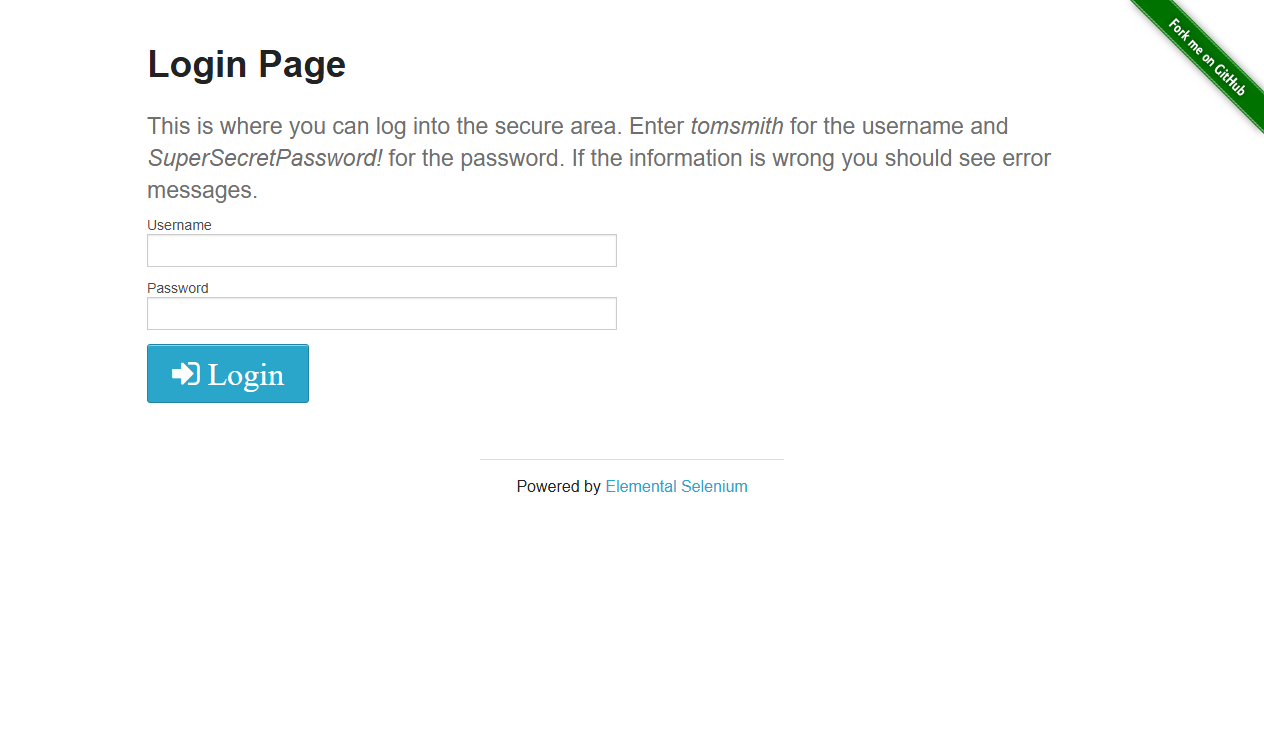
Write a test called LoginPage_ShowsHeading. Navigate to https://the-internet.herokuapp.com/login, find the h2 element, and assert that its text is Login Page. Then change the browser from headless to visible and watch the test run.
Locators: Finding Elements Reliably
By the end of this module you will be able to find elements with every locator strategy, choose locators that survive page changes, use relative locators, and reach into iframes and shadow DOM.
A small helper for the rest of the course
From here on, tests create their browser through one helper so that headless mode and window size are set in one place:
using OpenQA.Selenium;
using OpenQA.Selenium.Chrome;

public static class DriverFactory
{
    public static IWebDriver Create()
    {
        var options = new ChromeOptions();
        if (Environment.GetEnvironmentVariable("HEADLESS") != "false")
        {
            options.AddArgument("--headless=new");
        }
        options.AddArgument("--window-size=1920,1080");

        // Stop Chrome's password-manager prompts from interfering with login pages
        options.AddUserProfilePreference("credentials_enable_service", false);
        options.AddUserProfilePreference("profile.password_manager_enabled", false);
        options.AddUserProfilePreference("profile.password_manager_leak_detection", false);

        return new ChromeDriver(options);
    }
}
Set the environment variable HEADLESS=false to watch tests run. The three preferences matter later: when the practice shop's demo login is used, Chrome's password-leak warning can swallow clicks unless it is switched off. Module 7 extends this factory to more browsers.
The locator strategies
A locator is an instruction that says "find the element that looks like this". In C# you build one with the static By class:
By.Id("username")matches theidattribute.By.Name("password")matches thenameattribute.By.ClassName("figure")matches a single CSS class.By.TagName("h3")matches an element type.By.LinkText("Elemental Selenium")andBy.PartialLinkText("Elemental")match anchor text.By.CssSelector("form#login button[type='submit']")uses CSS syntax.By.XPath("//label[text()='Username']/following-sibling::input")uses XPath.
Here they are against the practice login page at https://the-internet.herokuapp.com/login:
IWebElement byId = driver.FindElement(By.Id("username"));
IWebElement byName = driver.FindElement(By.Name("password"));
IWebElement byCss = driver.FindElement(By.CssSelector("form#login button[type='submit']"));
IWebElement byXPath = driver.FindElement(
    By.XPath("//label[text()='Username']/following-sibling::input"));

Assert.That(byXPath, Is.EqualTo(byId));   // two locators, same element
FindElement returns the first match and throws NoSuchElementException when nothing matches. FindElements returns a list, which is simply empty when nothing matches. That makes FindElements(...).Count == 0 the safe way to ask "is this absent?".
Choosing stable locators
A good locator identifies what an element means, not where it happens to sit today. Prefer them in roughly this order:
- A dedicated test attribute such as
data-test,data-testidordata-qa, if the team agrees to keep it stable. - A meaningful
idorname. - A short CSS selector using semantic attributes, such as
button[type='submit']or[aria-label='Search']. - XPath when you need something CSS cannot do, such as matching visible text or walking up to a parent.
SauceDemo, the practice shop we use later, exposes attributes like data-test='login-button' for exactly this reason. Always inspect the page yourself (right-click, Inspect) instead of guessing ids.
Compare these two ways to reach the same button:
// Brittle: breaks if any wrapper div is added or reordered
By.XPath("/html/body/div[2]/div/div[3]/form/button");

// Stable: describes what the element is
By.CssSelector("[data-test='login-button']");
CSS is usually shorter and easier to read. XPath is more powerful for text and ancestors. Use whichever states the intent more clearly.
Why brittle selectors break
Selectors fail after harmless page edits when they depend on:
- Absolute positions (
/html/body/div[2]/...ordiv:nth-child(4)). - Generated class names like
css-1x2y3z, which change on every build. - Display text that gets translated or reworded.
- Long chains that mirror the page layout.
The cure is short selectors tied to meaning, and keeping every locator in one place, which Module 5 handles with page objects.
Relative locators
Selenium 4 added relative locators, which find an element by its position relative to another element. Use them when nothing else identifies the element but its neighbour does:
IWebElement username = driver.FindElement(By.Id("username"));

IWebElement below = driver.FindElement(
    RelativeBy.WithLocator(By.TagName("input")).Below(username));

Assert.That(below.GetAttribute("id"), Is.EqualTo("password"));
The available directions are Above, Below, LeftOf, RightOf and Near. Treat them as a fallback: they depend on layout, so a responsive page may return different results at a different window size.
Iframes
An iframe is a separate document embedded in the page. The driver only sees one document at a time, so you must switch into the frame before finding anything inside it, then switch back.
driver.Navigate().GoToUrl("https://the-internet.herokuapp.com/nested_frames");

driver.SwitchTo().Frame("frame-top");      // by name or id
driver.SwitchTo().Frame("frame-middle");   // nested inside frame-top
string text = driver.FindElement(By.Id("content")).Text;   // "MIDDLE"

driver.SwitchTo().ParentFrame();           // up one level
driver.SwitchTo().DefaultContent();        // back to the top document
You can switch by name, id, index or by passing an IWebElement for the <iframe>. If a frame is created by JavaScript, it may not exist yet, so you need a wait (Module 3).
Shadow DOM
A shadow root hides part of a component's markup from normal selectors. Find the host element, ask for its shadow root, then search inside it:
driver.Navigate().GoToUrl("https://the-internet.herokuapp.com/shadowdom");

IWebElement host = driver.FindElement(By.CssSelector("my-paragraph"));
ISearchContext shadow = host.GetShadowRoot();
string text = shadow.FindElement(By.CssSelector("p")).Text;
Use CSS selectors inside a shadow root. This support is designed for open shadow roots.
Common mistakes
- Copying an absolute XPath from the browser's "Copy XPath" menu and using it unchanged.
- Locating by text that marketing might reword, or by auto-generated class names.
- Forgetting to switch into an iframe, then wondering why a visible element is "not found".
- Forgetting to switch back with
DefaultContent(). - Using
FindElementinside atry/catchto check for absence instead ofFindElements.
Check your understanding
- What is the difference between
FindElementandFindElementswhen nothing matches? - Why is
[data-test='login-button']more stable thandiv:nth-child(3) > button? - When is XPath a better choice than CSS?
- What must you do before finding an element inside an iframe, and how do you return afterwards?
Exercise
On https://the-internet.herokuapp.com/login, write three separate locators for the Login button (one CSS, one XPath, one using a relative locator to the password field). Write a test asserting that all three return the same element. Then rank them by how likely each is to break, and explain your ranking in a code comment.
Waiting Correctly and Avoiding Flaky Tests
By the end of this module you will be able to wait for page state instead of guessing, write your own reusable wait conditions, and recognise the most common causes of flaky UI tests.
Why waiting matters
Web pages change after they load: data arrives from a server, buttons appear, spinners vanish. Your script runs far faster than a person, so if it looks for an element the instant a click returns, the element may not exist yet. The result is a NoSuchElementException that fails only sometimes. That is a flaky test.
The fix is never Thread.Sleep. A fixed sleep is either too short (the test still fails) or too long (the suite crawls). Instead, wait until a condition is true, up to a maximum time.
Implicit waits
An implicit wait tells the driver: "when FindElement cannot find something, keep retrying for up to N seconds".
driver.Manage().Timeouts().ImplicitWait = TimeSpan.FromSeconds(8);It is set once and applies to every lookup, which is convenient but limited. It only knows how to wait for existence, not for visibility, clickability or text. It also makes FindElements(...) on a missing element wait the full time before returning an empty list. Mixing implicit and explicit waits can produce unpredictable total waits, so pick one style. This course uses explicit waits and leaves the implicit wait at its default of zero.
Explicit waits with WebDriverWait
An explicit wait polls a condition you write. WebDriverWait repeats it (every 500 ms by default) until it returns something other than false or null, or until the timeout passes:
using OpenQA.Selenium.Support.UI;

driver.Navigate().GoToUrl("https://the-internet.herokuapp.com/dynamic_loading/1");
driver.FindElement(By.CssSelector("#start button")).Click();

var wait = new WebDriverWait(driver, TimeSpan.FromSeconds(10));
IWebElement message = wait.Until(d =>
{
    var el = d.FindElement(By.CssSelector("#finish h4"));
    return el.Displayed ? el : null;
});

Assert.That(message.Text, Is.EqualTo("Hello World!"));
In this example the element exists in the page from the start but is hidden, so we wait for Displayed. On dynamic_loading/2 the element does not exist until later. WebDriverWait ignores NotFoundException while polling, so the same style works for both.
When time runs out, WebDriverTimeoutException is thrown. You can improve its message and polling rate:
var wait = new WebDriverWait(driver, TimeSpan.FromSeconds(10))
{
    PollingInterval = TimeSpan.FromMilliseconds(250),
    Message = "The 'Hello World!' text never became visible."
};
wait.IgnoreExceptionTypes(typeof(StaleElementReferenceException));
No ExpectedConditions in Selenium 4 .NET
Older tutorials use ExpectedConditions.ElementIsVisible(...). That helper class is not part of the Selenium 4 Selenium.WebDriver package, so the code will not compile. The .NET bindings dropped it deliberately, and its implementation was moved out to a community-run repository (published as the DotNetSeleniumExtras.WaitHelpers NuGet package). That repository has no active maintainer, so treat it as a last resort rather than a drop-in replacement. The recommended replacement is a lambda, as above, or a small helper class of your own that returns lambdas:
public static class Conditions
{
    public static Func<IWebDriver, IWebElement?> ElementIsVisible(By locator) => driver =>
    {
        try
        {
            var element = driver.FindElement(locator);
            return element.Displayed ? element : null;
        }
        catch (NoSuchElementException) { return null; }
        catch (StaleElementReferenceException) { return null; }
    };

    public static Func<IWebDriver, bool> UrlContains(string fragment) => driver =>
        driver.Url.Contains(fragment, StringComparison.OrdinalIgnoreCase);

    public static Func<IWebDriver, bool> ElementIsGone(By locator) => driver =>
        driver.FindElements(locator).Count == 0;
}
Use it like this. Because Until returns a nullable element, add ! when you are sure the wait succeeded:
IWebElement message = wait.Until(Conditions.ElementIsVisible(By.CssSelector("#finish h4")))!;
wait.Until(Conditions.UrlContains("/secure"));
Add ElementIsClickable (visible and Enabled) and TextIsPresent in the same way. The next modules reuse this class.
Two other tools are worth knowing. DefaultWait<IWebDriver> is the fully configurable version of WebDriverWait. And to wait for the page itself, poll document.readyState through the JavaScript executor (Module 4).
Causes of flaky tests
Missing waits are the biggest cause, but not the only one:
- Stale elements. If the page re-renders, an
IWebElementyou saved earlier points at something that no longer exists and throwsStaleElementReferenceException. Look the element up again instead of holding on to it. - Overlays and animations. A spinner or modal covering a button causes
ElementClickInterceptedException. Wait for the overlay to go away, then click. - Shared state. Tests that depend on data or run order left by other tests fail unpredictably. Make each test set up its own data.
- Different window sizes. A responsive layout can hide a menu in a small window. Set
--window-sizeexplicitly. - Slow or unreliable environments. Test servers and CI machines are slower than your laptop, so timeouts that work locally may not work there.
- Third-party content. Ads, chat widgets and cookie banners appear randomly.
A small retry helper is a reasonable tool for stale elements, as long as it retries only that specific exception and a limited number of times:
public static T OnStale<T>(Func<T> action, int attempts = 3)
{
    for (int attempt = 1; ; attempt++)
    {
        try { return action(); }
        catch (StaleElementReferenceException) when (attempt < attempts) { }
    }
}
Never retry a whole failed test to hide flakiness. That only buries the real cause.
Common mistakes
- Using
Thread.Sleepbecause it "works on my machine". - Adding the unmaintained
DotNetSeleniumExtras.WaitHelperspackage to getExpectedConditionsback instead of writing (or reusing) the smallConditionshelper above. - Setting a large implicit wait and also using explicit waits.
- Waiting for the wrong condition, such as existence when you needed clickability.
- Writing a huge timeout to cover for a slow step instead of finding out why it is slow.
- Storing an
IWebElementin a field across page changes.
Check your understanding
- Why does
Thread.Sleep(5000)make a suite both slow and unreliable? - What two return values make
WebDriverWait.Untilkeep waiting? - Why won't
ExpectedConditionscompile in a Selenium 4 .NET project, and what do you use instead? - What causes
StaleElementReferenceException?
Exercise
Add a TextIsPresent(By locator, string text) method to the Conditions class. Use it on https://the-internet.herokuapp.com/dynamic_loading/2 to click Start and wait until the element with id finish contains Hello World!. Then temporarily lower the timeout to 2 seconds and read the WebDriverTimeoutException message.
Interacting with Pages
By the end of this module you will be able to fill in forms, work with dropdowns, alerts, windows and file inputs, run JavaScript, perform hover and drag actions, and take screenshots.
All examples use the practice site https://the-internet.herokuapp.com, and assume a driver from the helper in Module 2 and a WebDriverWait named wait with a 10-second timeout.
Forms and text input
SendKeys types into a field, Clear empties it, and Click presses buttons and links. Reading state is just as important as writing it:
driver.Navigate().GoToUrl("https://the-internet.herokuapp.com/login");
driver.FindElement(By.Id("username")).SendKeys("tomsmith");
driver.FindElement(By.Id("password")).SendKeys("SuperSecretPassword!");
driver.FindElement(By.CssSelector("button[type='submit']")).Click();

IWebElement flash = wait.Until(Conditions.ElementIsVisible(By.Id("flash")))!;
Assert.That(flash.Text, Does.Contain("You logged into a secure area!"));
The credentials are shown on the practice page itself. Useful members to remember:
element.Textis the visible text.element.GetDomProperty("value")reads what is currently typed in an input, andGetAttributereads attributes.Displayed,EnabledandSelectedreport state.SendKeys("text" + Keys.Enter)presses special keys via theKeysclass.
Checkboxes and dropdowns
Clicking a checkbox toggles it, so check its state first:
IWebElement box = driver.FindElements(By.CssSelector("input[type='checkbox']"))[0];
if (!box.Selected) box.Click();
For a native <select>, use SelectElement. It lives in the Selenium.Support package (namespace OpenQA.Selenium.Support.UI):
using OpenQA.Selenium.Support.UI;

driver.Navigate().GoToUrl("https://the-internet.herokuapp.com/dropdown");
var select = new SelectElement(driver.FindElement(By.Id("dropdown")));

select.SelectByText("Option 2");
Assert.That(select.SelectedOption.GetAttribute("value"), Is.EqualTo("2"));

select.SelectByValue("1");
Assert.That(select.Options, Has.Count.EqualTo(3));
SelectByIndex also exists. SelectElement only works on real <select> tags. Custom dropdowns built from divs are clicked like any other element.
JavaScript alerts
Alerts, confirms and prompts are browser dialogs, not page elements. Switch to the alert, act on it, and the driver returns to the page:
driver.Navigate().GoToUrl("https://the-internet.herokuapp.com/javascript_alerts");
driver.FindElement(By.CssSelector("button[onclick='jsPrompt()']")).Click();

IAlert alert = wait.Until(d => d.SwitchTo().Alert());
alert.SendKeys("hello");
alert.Accept();     // or alert.Dismiss()

Assert.That(driver.FindElement(By.Id("result")).Text, Is.EqualTo("You entered: hello"));
SwitchTo().Alert() throws NoAlertPresentException if no dialog is open, so wrapping it in a wait handles timing.
Windows and tabs
Every window or tab has a handle string. When a link opens a new window, list the handles, switch, and switch back:
driver.Navigate().GoToUrl("https://the-internet.herokuapp.com/windows");
string original = driver.CurrentWindowHandle;

driver.FindElement(By.LinkText("Click Here")).Click();
wait.Until(d => d.WindowHandles.Count == 2);

string newHandle = driver.WindowHandles.Single(h => h != original);
driver.SwitchTo().Window(newHandle);
Assert.That(driver.FindElement(By.TagName("h3")).Text, Is.EqualTo("New Window"));

driver.Close();                       // closes only the current window
driver.SwitchTo().Window(original);   // you must switch back manually
To open a tab yourself, use driver.SwitchTo().NewWindow(WindowType.Tab).
File upload and download
Upload is easy. Send the absolute path of a local file to the <input type="file">. Do not click the input, because that opens an operating system dialog Selenium cannot control:
string file = Path.Combine(Path.GetTempPath(), "upload-demo.txt");
File.WriteAllText(file, "hello");

driver.Navigate().GoToUrl("https://the-internet.herokuapp.com/upload");
driver.FindElement(By.Id("file-upload")).SendKeys(file);
driver.FindElement(By.Id("file-submit")).Click();
For downloads, configure the browser to save without prompting, click the link, then poll the folder until the finished file appears:
var options = new ChromeOptions();
options.AddUserProfilePreference("download.default_directory", downloadDir);
options.AddUserProfilePreference("download.prompt_for_download", false);
Chrome writes .crdownload files while downloading, so ignore those when polling.
The JavaScript executor
When Selenium has no direct API, you can run JavaScript in the page. Cast the driver to IJavaScriptExecutor:
var js = (IJavaScriptExecutor)driver;
js.ExecuteScript("window.scrollTo(0, document.body.scrollHeight);");

IWebElement heading = driver.FindElement(By.TagName("h3"));
js.ExecuteScript("arguments[0].scrollIntoView({block: 'center'});", heading);
string title = (string)js.ExecuteScript("return document.title;")!;
Use it sparingly. A JavaScript click skips the checks a real user click would face, so it can make a broken page look fine. Prefer real interactions and use JavaScript for scrolling, reading values, or last-resort workarounds.
Actions: hover and drag
The Actions class builds complex input such as hover, drag, and key chords. Call Perform() to execute:
using OpenQA.Selenium.Interactions;

IWebElement figure = driver.FindElements(By.CssSelector(".figure"))[0];
new Actions(driver).MoveToElement(figure).Perform();
Assert.That(figure.FindElement(By.CssSelector(".figcaption")).Displayed, Is.True);

new Actions(driver).DragAndDrop(source, target).Perform();
Drag and drop on the practice page /drag_and_drop worked in our Chrome test, but drag-and-drop implementations vary, so verify it in each browser you support.
Screenshots
Screenshot shot = ((ITakesScreenshot)driver).GetScreenshot();
shot.SaveAsFile(Path.Combine(Path.GetTempPath(), "page.png"));
This captures the visible page. Module 6 uses it to save a picture automatically when a test fails.
Common mistakes
- Calling
SelectElementon something that is not a<select>element. - Clicking a file input instead of sending it a path.
- Forgetting to switch back to the original window after closing another.
- Using JavaScript clicks to get around an overlay that real users would also hit.
- Reading
.Textof a hidden element, which returns an empty string.
Check your understanding
- Why check
Selectedbefore clicking a checkbox? - How do you interact with a JavaScript
confirm()dialog? - Why does
driver.Close()not automatically return you to the first window? - When is
ExecuteScripta bad idea?
Exercise
Write one test that opens /hovers, hovers over the second figure, and asserts that its caption contains user2. Then write a second test that logs in on /login, and takes a screenshot of the secure page into a folder of your choice.
The Page Object Model in C#
By the end of this module you will be able to structure a UI test project with the Page Object Model, write fluent page classes on top of a shared base page, and keep assertions where they belong.
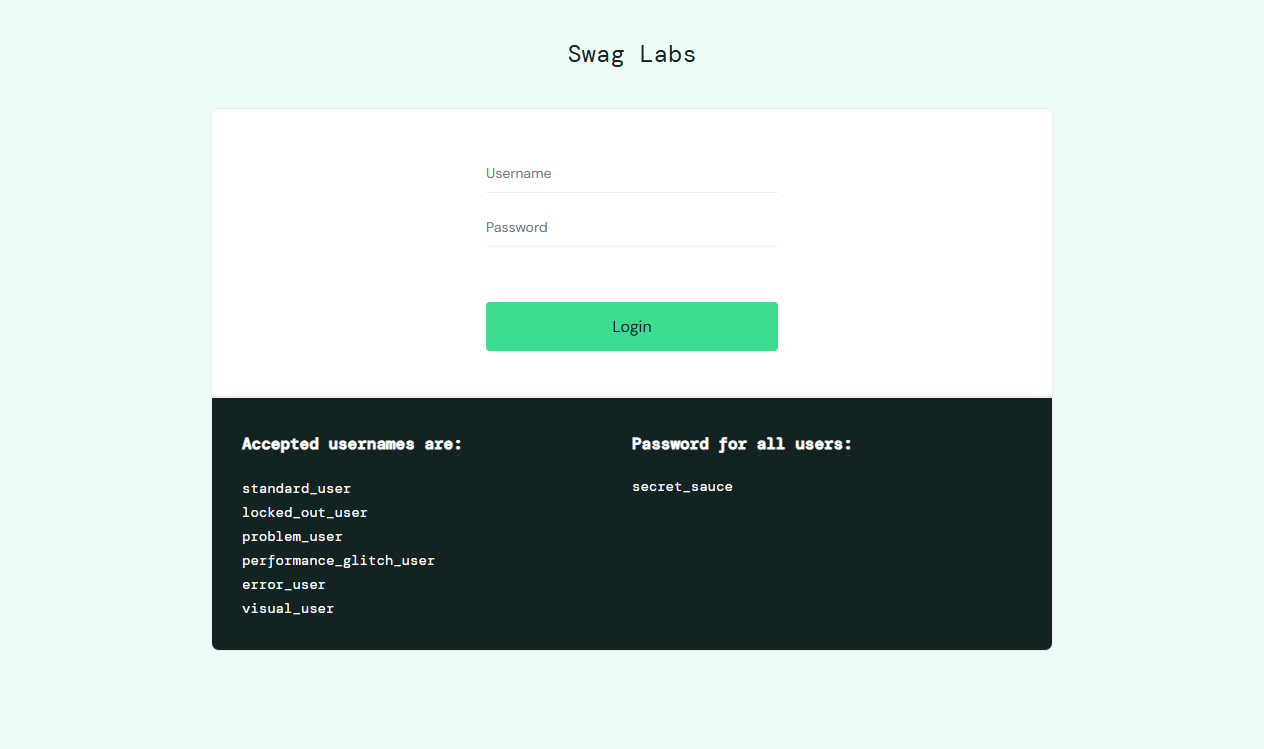
Code blocks omit using directives; your IDE can add them. The examples target SauceDemo, a public demo shop at https://www.saucedemo.com/ made for practising automation. Its login page displays the demo usernames and the shared password secret_sauce. Inspect the pages yourself as you go, because sites change.
The problem the pattern solves
Without structure, every test repeats locators and low-level steps:
driver.FindElement(By.CssSelector("[data-test='username']")).SendKeys("standard_user");
driver.FindElement(By.CssSelector("[data-test='password']")).SendKeys("secret_sauce");
driver.FindElement(By.CssSelector("[data-test='login-button']")).Click();
When the login page changes, you edit fifty tests. The Page Object Model (POM) fixes this: each page, or reusable part of a page, gets one class. The class hides locators behind methods that describe what a user does, so tests read like scenarios and a UI change is fixed in one file.
Project structure
A simple layout is enough:
WebTests/
  Pages/
    BasePage.cs
    LoginPage.cs
    InventoryPage.cs
    CartPage.cs
  Tests/
    LoginTests.cs
  Infrastructure/
    DriverFactory.cs
    Conditions.cs
The rules of thumb:
- One class per page or major component (header, navigation, modal).
- Locators are
private static readonly Byfields, never exposed. - Public methods are user actions or queries, such as
LoginAs(...)orCartCount. - The page class receives an
IWebDriver; it never creates one.
A base page
Shared behaviour goes in a base class. This one reuses the Conditions helper from Module 3:
public abstract class BasePage
{
    protected IWebDriver Driver { get; }
    protected WebDriverWait Wait { get; }

    protected BasePage(IWebDriver driver)
    {
        Driver = driver;
        Wait = new WebDriverWait(driver, TimeSpan.FromSeconds(10));
    }

    protected IWebElement WaitVisible(By locator) =>
        Wait.Until(Conditions.ElementIsVisible(locator))!;

    protected void Click(By locator) =>
        Wait.Until(Conditions.ElementIsClickable(locator))!.Click();

    protected void Type(By locator, string text)
    {
        IWebElement field = WaitVisible(locator);
        field.Clear();
        field.SendKeys(text);
    }

    protected string TextOf(By locator) => WaitVisible(locator).Text;
}
Because every interaction goes through these helpers, every interaction waits correctly. Individual pages never write a wait.
Fluent pages
A fluent page object returns the next page object (or itself) from each method. Navigation methods return the page you land on, so the type system tells you what is possible next:
public class LoginPage : BasePage
{
    private static readonly By Username = By.CssSelector("[data-test='username']");
    private static readonly By Password = By.CssSelector("[data-test='password']");
    private static readonly By LoginButton = By.CssSelector("[data-test='login-button']");
    private static readonly By Error = By.CssSelector("[data-test='error']");

    private LoginPage(IWebDriver driver) : base(driver) { }

    public static LoginPage Open(IWebDriver driver)
    {
        driver.Navigate().GoToUrl("https://www.saucedemo.com/");
        var page = new LoginPage(driver);
        page.WaitVisible(LoginButton);   // ready when its main control is
        return page;
    }

    public InventoryPage LoginAs(string user, string password)
    {
        Type(Username, user);
        Type(Password, password);
        Click(LoginButton);
        return new InventoryPage(Driver);
    }
}
The private constructor plus static Open method forces callers to load the page properly. The next page's constructor also waits for its own key element, so LoginAs returns only once the products page is ready.
public class InventoryPage : BasePage
{
    private static readonly By Title = By.CssSelector("[data-test='title']");
    private static readonly By CartLink = By.CssSelector("[data-test='shopping-cart-link']");
    private static readonly By CartBadge = By.CssSelector("[data-test='shopping-cart-badge']");

    public InventoryPage(IWebDriver driver) : base(driver) { WaitVisible(Title); }

    public string PageTitle => TextOf(Title);

    public int CartCount
    {
        get
        {
            var badges = Driver.FindElements(CartBadge);   // no badge means an empty cart
            return badges.Count == 0 ? 0 : int.Parse(badges[0].Text);
        }
    }

    public InventoryPage AddToCart(string productName)
    {
        Click(By.XPath($"//*[@data-test='inventory-item'][.//*[@data-test='inventory-item-name']" +
                       $"[normalize-space()='{productName}']]//button"));
        return this;
    }

    public CartPage OpenCart() { Click(CartLink); return new CartPage(Driver); }
}
A minimal CartPage can expose ItemsInCart by reading the elements with data-test='inventory-item-name'.
Tests that read like scenarios
[Test]
public void AddedProducts_AppearInCart()
{
    CartPage cart = LoginPage.Open(_driver)
        .LoginAs("standard_user", "secret_sauce")
        .AddToCart("Sauce Labs Backpack")
        .AddToCart("Sauce Labs Bike Light")
        .OpenCart();

    Assert.That(cart.ItemsInCart,
        Is.EquivalentTo(new[] { "Sauce Labs Backpack", "Sauce Labs Bike Light" }));
}
Keep assertions out of pages
Page objects describe the page; tests judge it. Return data and let the test assert:
- Good:
string ErrorMessage => TextOf(Error), thenAssert.That(login.ErrorMessage, Does.Contain("locked out"))in the test. - Bad: a page method
VerifyErrorIsShown()that asserts internally.
This keeps pages reusable, since one test may expect an error and another may expect none. It also keeps failure messages in the test, where the intent is visible. Waiting for a page to be ready is fine inside a page, because that is behaviour, not a verdict.
Common mistakes
- Exposing
Byfields orIWebElements publicly, which leaks page details back into tests. - Giant page classes. Split repeated regions such as headers into component classes.
- Building a page-object framework before you have three real tests.
- Putting
Thread.Sleepin page methods. - Hiding assertions inside page methods.
- Storing
IWebElementfields at construction time; they go stale when the page re-renders. Find elements when needed.
Check your understanding
- What single kind of change should require editing only one page class?
- Why does
LoginAsreturn anInventoryPagerather thanvoid? - Why is
ErrorMessagea better page member thanVerifyErrorShown()? - What goes in
BasePageand what does not?
Exercise
Add a LoginExpectingError(string user, string password) method to LoginPage that returns the same LoginPage after waiting for the error element. Write a test that logs in as locked_out_user and asserts the message contains locked out. Inspect the page to confirm the error element's data-test value.
NUnit Test Design and Data-Driven Tests
By the end of this module you will be able to structure NUnit fixtures with a shared base class, write data-driven tests from inline data, CSV and JSON, group tests with categories, and capture a screenshot whenever a test fails.
The tests reuse the page objects from Module 5.
Test lifecycle attributes
NUnit runs setup and cleanup code around your tests:
[OneTimeSetUp]and[OneTimeTearDown]run once per fixture (class).[SetUp]and[TearDown]run around every test.[Test]marks a test method, and[TestFixture]marks the class (optional on classes with tests, but it reads clearly).
For UI tests, start the browser in [SetUp] and quit it in [TearDown]. Starting a browser per test costs a second or two but keeps tests independent. NUnit does not guarantee test order, so no test may rely on another having run first.
A reusable base class
Put the driver lifecycle in one base class so every fixture inherits it:
using NUnit.Framework.Interfaces;
using OpenQA.Selenium;

public abstract class TestBase
{
    protected IWebDriver Driver { get; private set; } = null!;

    [SetUp]
    public void StartBrowser() => Driver = DriverFactory.Create();

    [TearDown]
    public void StopBrowser()
    {
        try
        {
            if (TestContext.CurrentContext.Result.Outcome.Status == TestStatus.Failed)
            {
                SaveScreenshot();
            }
        }
        finally
        {
            Driver.Quit();
            Driver.Dispose();
        }
    }
}
The finally block guarantees the browser closes even if the screenshot code throws. TestStatus comes from NUnit.Framework.Interfaces.
Screenshots on failure
Add this method to TestBase. It builds a safe file name from the test name, saves a PNG, and attaches it to the test result:
private void SaveScreenshot()
{
    try
    {
        string folder = Path.Combine(TestContext.CurrentContext.WorkDirectory, "screenshots");
        Directory.CreateDirectory(folder);

        char[] invalid = Path.GetInvalidFileNameChars();
        string safeName = string.Concat(
            TestContext.CurrentContext.Test.Name.Select(c => invalid.Contains(c) ? '_' : c));
        string path = Path.Combine(folder, $"{safeName}-{DateTime.UtcNow:yyyyMMdd-HHmmss}.png");

        ((ITakesScreenshot)Driver).GetScreenshot().SaveAsFile(path);
        TestContext.AddTestAttachment(path, "Screenshot taken at failure");
    }
    catch (WebDriverException ex)
    {
        TestContext.Out.WriteLine($"Could not capture screenshot: {ex.Message}");
    }
}
Sanitising the name matters because parameterised test names contain quotes and brackets that are illegal in file names. The catch keeps a broken browser from hiding the real test failure. For extra context you can also save Driver.PageSource or Driver.Url the same way.
Data-driven tests with TestCase
When several tests differ only by their data, use [TestCase] instead of copy-pasting:
[TestFixture, Category("Login")]
public class LoginTests : TestBase
{
    [TestCase("locked_out_user", "secret_sauce", "locked out")]
    [TestCase("standard_user", "wrong_password", "do not match")]
    [TestCase("", "secret_sauce", "Username is required")]
    [TestCase("standard_user", "", "Password is required")]
    public void InvalidLogin_ShowsExpectedError(string user, string password, string expectedFragment)
    {
        var login = LoginPage.Open(Driver).LoginExpectingError(user, password);

        Assert.That(login.ErrorMessage, Does.Contain(expectedFragment));
    }
}
NUnit reports each row as its own test, so one failing row does not hide the others. The expected fragments above match the demo shop's messages at the time of writing. If a site reworks its wording, update the data.
Data from CSV
For larger data sets keep the rows in a file. Save TestData/login-cases.csv:
username,password,expectedError
locked_out_user,secret_sauce,locked out
standard_user,wrong_password,do not match
,secret_sauce,Username is required
standard_user,,Password is required
Mark the file to be copied next to your test assembly, in the .csproj:
<ItemGroup>
  <None Update="TestData\**\*">
    <CopyToOutputDirectory>PreserveNewest</CopyToOutputDirectory>
  </None>
</ItemGroup>
Then feed the rows through [TestCaseSource], which points at a static method returning TestCaseData objects:
private static IEnumerable<TestCaseData> LoginCasesFromCsv()
{
    string path = Path.Combine(AppContext.BaseDirectory, "TestData", "login-cases.csv");

    foreach (string line in File.ReadLines(path).Skip(1).Where(l => !string.IsNullOrWhiteSpace(l)))
    {
        string[] cells = line.Split(',');   // fine for simple data only
        string label = cells[0].Length == 0 ? "EmptyUser" : cells[0];

        yield return new TestCaseData(cells[0], cells[1], cells[2]).SetName($"CsvLogin_{label}");
    }
}

[TestCaseSource(nameof(LoginCasesFromCsv))]
public void InvalidLogin_FromCsv(string user, string password, string expected) { /* as above */ }
Split(',') breaks on cells that contain commas or quotes. For real-world files, use a CSV library. SetName gives each case a readable name in reports.
Data from JSON
JSON handles structured data well, and System.Text.Json is built in:
public record CustomerData(string FirstName, string LastName, string PostalCode);

private static IEnumerable<CustomerData> CustomersFromJson()
{
    string path = Path.Combine(AppContext.BaseDirectory, "TestData", "customers.json");
    var options = new JsonSerializerOptions { PropertyNameCaseInsensitive = true };

    return JsonSerializer.Deserialize<List<CustomerData>>(File.ReadAllText(path), options)
           ?? throw new InvalidDataException($"{path} did not contain a customer list.");
}

[TestCaseSource(nameof(CustomersFromJson))]
public void Checkout_CompletesForEachCustomer(CustomerData customer) { /* ... */ }
Never put real customer data or real passwords in test files. Use fake data.
Categories
Tag tests so you can run subsets:
[Test, Category("Smoke")]
public void StandardUser_CanLogIn() { /* ... */ }
Run only smoke tests from the command line:
dotnet test --filter "TestCategory=Smoke"A common scheme is a small Smoke set that runs on every commit and a larger Regression set that runs nightly.
Common mistakes
- Tests that depend on running in a certain order.
- One giant test that logs in, shops, checks out and asserts twenty things. Prefer small focused tests.
- Parameterised names with characters that break file names.
- Swallowing exceptions in
TearDown, so the browser never closes. - Copying data files without setting
CopyToOutputDirectory, which givesFileNotFoundException. - Using the
Retryattribute to hide a flaky test.
Check your understanding
- What is the difference between
[OneTimeSetUp]and[SetUp]? - Why does
TearDownusetryandfinallyaround the screenshot code? - Why is
TestContext.CurrentContext.Test.Namecleaned before it becomes a file name? - Which command runs only tests tagged
Smoke?
Exercise
Add a customers.json file with two fake customers and write a [TestCaseSource] checkout test. Then add a test that fails on purpose (Assert.Fail("demo")), run it, and find the saved screenshot. Mark that test [Explicit] so it only runs when selected by name.
Headless, Parallel and CI Runs
By the end of this module you will be able to run tests headless in Chrome, Edge and Firefox, run them in parallel safely, execute them in a GitHub Actions workflow, and explain where Docker and Selenium Grid fit in.
Headless browsers
A headless browser runs without a visible window. It is what you want on CI servers, which usually have no display, and it is often faster on your own machine. Set the flag per browser:
- Chrome and Edge (Chromium):
--headless=new - Firefox:
-headless
Two habits keep headless runs trustworthy. First, always set a window size, because headless windows can default to a small viewport that triggers mobile layouts and hidden menus. Second, keep an easy switch to turn headless off so you can watch a failing test locally.
One factory for three browsers
Extend the helper from Module 2 so the browser and headless mode come from environment variables. The option classes are ChromeOptions, EdgeOptions and FirefoxOptions:
public static IWebDriver Create(string? browser = null, bool? headless = null)
{
    browser ??= Environment.GetEnvironmentVariable("BROWSER") ?? "chrome";
    var runHeadless = headless
        ?? !string.Equals(Environment.GetEnvironmentVariable("HEADLESS"), "false",
                          StringComparison.OrdinalIgnoreCase);

    IWebDriver driver = browser.ToLowerInvariant() switch
    {
        "chrome" => new ChromeDriver(ChromeSettings(runHeadless)),
        "edge" => new EdgeDriver(EdgeSettings(runHeadless)),
        "firefox" => new FirefoxDriver(FirefoxSettings(runHeadless)),
        _ => throw new ArgumentException($"Unsupported browser '{browser}'.", nameof(browser))
    };

    driver.Manage().Timeouts().PageLoad = TimeSpan.FromSeconds(60);
    return driver;
}
The option builders are short:
private static ChromeOptions ChromeSettings(bool headless)
{
    var options = new ChromeOptions();
    if (headless) options.AddArgument("--headless=new");
    options.AddArgument("--window-size=1920,1080");
    options.AddArgument("--disable-dev-shm-usage");
    if (Environment.GetEnvironmentVariable("CI") == "true") options.AddArgument("--no-sandbox");
    return options;
}

private static EdgeOptions EdgeSettings(bool headless)
{
    var options = new EdgeOptions();
    if (headless) options.AddArgument("--headless=new");
    options.AddArgument("--window-size=1920,1080");
    return options;
}

private static FirefoxOptions FirefoxSettings(bool headless)
{
    var options = new FirefoxOptions();
    if (headless) options.AddArgument("-headless");
    options.AddArgument("--width=1920");
    options.AddArgument("--height=1080");
    return options;
}
--no-sandbox and --disable-dev-shm-usage are typically needed when Chrome runs as root inside a container. --no-sandbox weakens browser isolation, so limit it to CI and only test sites you trust. Keep the password-manager preferences from Module 2 in the Chrome builder as well.
To run one suite in several browsers, let NUnit create one fixture instance per browser name:
[TestFixtureSource(nameof(Browsers))]
public class CrossBrowserTests
{
    private static readonly string[] Browsers = { "chrome", "edge", "firefox" };
    private readonly string _browser;
    private IWebDriver _driver = null!;

    public CrossBrowserTests(string browser) => _browser = browser;

    [SetUp] public void SetUp() => _driver = DriverFactory.Create(_browser);
    [TearDown] public void TearDown() { _driver.Quit(); _driver.Dispose(); }
}
Only include browsers that are installed on the machine running the tests.
Running tests in parallel
Parallel runs shorten a suite dramatically, but only if tests share nothing. NUnit controls parallelism with attributes, which you place once for the assembly:
[assembly: Parallelizable(ParallelScope.Fixtures)]
[assembly: LevelOfParallelism(4)]
ParallelScope.Fixtures runs different fixture classes at the same time, while tests inside one fixture run one after another. Because each fixture instance owns its own _driver field, this is safe.
If you use ParallelScope.All or Children, tests in the same fixture would share instance fields. Give every test its own fixture instance instead:
[TestFixture, FixtureLifeCycle(LifeCycle.InstancePerTestCase), Parallelizable(ParallelScope.All)]
public class SafeParallelTests : TestBase { /* ... */ }
You can also override the worker count at run time without editing code:
dotnet test -- NUnit.NumberOfTestWorkers=4Rules for safe parallel UI tests:
- One
IWebDriverper test or fixture, never static. - No shared mutable data. Two tests editing the same user account will collide.
- Independent tests, since order is no longer predictable.
- Sensible worker counts. Each browser uses real memory and CPU, and too many at once causes timeouts.
Running in GitHub Actions
A workflow file at .github/workflows/ui-tests.yml can build the project and run smoke tests on every push:
name: ui-tests
on:
  push:
    branches: [main]
  pull_request:

jobs:
  ui-tests:
    runs-on: ubuntu-latest
    timeout-minutes: 20
    steps:
      - uses: actions/checkout@v7
      - uses: actions/setup-dotnet@v6
        with:
          dotnet-version: '10.0.x'
      - name: Build
        run: dotnet build -c Release
      - name: Test headless Chrome
        env:
          BROWSER: chrome
          HEADLESS: 'true'
        run: dotnet test -c Release --no-build --logger "trx;LogFileName=results.trx" --filter "TestCategory=Smoke"
      - name: Upload results and screenshots
        if: always()
        uses: actions/upload-artifact@v7
        with:
          name: test-results
          path: |
            **/TestResults/*.trx
            **/screenshots/*.png
          if-no-files-found: ignore
The action versions above (checkout@v7, setup-dotnet@v6, upload-artifact@v7) are the current major versions as published on each action's own GitHub releases page at the time of writing. GitHub Actions versions these independently and fairly often, so before you copy this workflow, check each action's releases page for a newer major and use that instead; the with: options themselves have stayed stable across recent majors, so only the @vN tag typically needs bumping. Match dotnet-version to your project's target framework; 10.0.x targets the current .NET LTS release. GitHub sets CI=true automatically, which triggers the --no-sandbox line in the factory above. GitHub-hosted Ubuntu runners come with common browsers installed, and Selenium Manager fetches the matching driver. The if: always() line uploads screenshots even when tests fail, which is when you need them.
Docker and Selenium Grid
Two Docker uses are common. You can run your whole test project in a container that has the .NET SDK and a browser installed, which makes CI identical to local runs. Or you can run a ready-made browser container from the official `SeleniumHQ/docker-selenium` project and connect to it remotely.
Start a standalone Chrome container that speaks the WebDriver protocol on port 4444:
docker run -d -p 4444:4444 --shm-size="2g" selenium/standalone-chrome:<tag>Then point RemoteWebDriver at it instead of starting a local ChromeDriver:
var options = new ChromeOptions();
options.AddArgument("--window-size=1920,1080");
IWebDriver driver = new RemoteWebDriver(new Uri("http://localhost:4444"), options);
Two details matter for this to work reliably:
- Pin a full image tag, not
:latest. The project's own documentation recommends a full tag such as4.<selenium-version>-<build-date>so the browser and Grid version in your pipeline do not shift under you between runs. Check the docker-selenium releases or Docker Hub for the current tag rather than hard-coding one from an example. - Give the container shared memory.
--shm-size="2g"avoids Chrome crashing partway through a run; the default shared-memory allocation inside a container is too small for a real browser.
The standalone-chrome image runs one browser in one container and is enough for a single machine. Selenium Grid extends the same idea to a cluster: a router/distributor process accepts sessions and hands each one to an available browser node, so a large suite can scale across several node containers or machines instead of one. docker-selenium ships a docker-compose.yml with a full hub-and-node (or router/distributor) setup if you need that scale; for most course-sized suites, a single standalone-chrome (or standalone-firefox) container is simpler and sufficient.
Common mistakes
- Forgetting a window size in headless mode.
- Sharing a static driver and turning on parallelism.
- Running too many parallel browsers on a small CI machine.
- Not uploading screenshots and logs from CI.
- Installing browsers manually when the runner already has them.
Check your understanding
- Why is a fixed window size important in headless runs?
- What is the difference between
ParallelScope.FixturesandParallelScope.Allfor shared fields? - Why upload artifacts with
if: always()? - What does
RemoteWebDriverconnect to?
Exercise
Extend your workflow to run the same smoke tests in Chrome and Firefox by changing the BROWSER variable. Confirm that Firefox's headless flag is applied, and record how long the suite takes with 1 worker and with 4.
Responsible Automation and Capstone
By the end of this module you will be able to decide when a browser is the right tool for data tasks, collect data politely and legally, and build an end-to-end test suite as a capstone.
Automating data tasks responsibly
Selenium is often used for scraping-style work: reading listings, exporting your own account data, or checking prices. Doing this well is about respect as much as code. This is general guidance, not legal advice, so check the rules that apply to you.
- Read the terms of service. Many sites forbid automated access or reuse of their content. Terms are binding on you even if the site does not block your script.
- Check
robots.txt. It lives at the site root (/robots.txt) and states which paths automated clients should not visit. It is a convention, not a lock, but honouring it is the baseline of good behaviour. - Prefer official APIs and data exports. If the site offers one, use it.
- Avoid personal data. Collecting names, emails or profiles brings privacy law obligations.
- Do not bypass protections. Do not defeat logins, paywalls, CAPTCHAs or rate limits.
- Identify yourself. Use an honest user agent with a contact address.
- Go slowly. Every request costs the site money, and a script can send far more than any person.
Automate only sites you own, sites that invite automation (like this course's practice sites), or sites whose terms allow it.
Checking robots.txt in code
This deliberately simple check honours Disallow rules in the User-agent: * group. It does not handle wildcards, Allow rules or agent-specific groups, so use a maintained library for production work:
public static async Task<bool> IsAllowedAsync(HttpClient http, Uri target)
{
    using HttpResponseMessage response = await http.GetAsync(new Uri(target, "/robots.txt"));
    if (response.StatusCode == HttpStatusCode.NotFound) return true;   // no rules published
    response.EnsureSuccessStatusCode();

    bool inStarGroup = false;
    foreach (string raw in (await response.Content.ReadAsStringAsync()).Split('\n'))
    {
        string line = raw.Split('#')[0].Trim();

        if (line.StartsWith("user-agent:", StringComparison.OrdinalIgnoreCase))
        {
            inStarGroup = line["user-agent:".Length..].Trim() == "*";
        }
        else if (inStarGroup && line.StartsWith("disallow:", StringComparison.OrdinalIgnoreCase))
        {
            string prefix = line["disallow:".Length..].Trim();
            if (prefix.Length > 0 && target.AbsolutePath.StartsWith(prefix, StringComparison.Ordinal))
                return false;
        }
    }
    return true;
}
Rate limiting
Put a minimum gap between requests in one place, and call it before every page visit:
public sealed class Throttle
{
    private readonly TimeSpan _minimumGap;
    private DateTime _lastRequestUtc = DateTime.MinValue;

    public Throttle(TimeSpan minimumGap) => _minimumGap = minimumGap;

    public void Wait()
    {
        TimeSpan sinceLast = DateTime.UtcNow - _lastRequestUtc;
        if (sinceLast < _minimumGap) Thread.Sleep(_minimumGap - sinceLast);
        _lastRequestUtc = DateTime.UtcNow;
    }
}
Choose a gap that suits the site (a second or more is a typical starting point for sites that allow automation). If a server answers with HTTP 429 or 503, stop and back off for longer instead of retrying immediately, and honour a Retry-After header if one is sent.
When HttpClient beats a browser
A browser downloads scripts, images and fonts, runs JavaScript and renders everything. That is heavy. Compare the options:
- JSON or documented API available: use
HttpClient. It is faster, lighter and more stable than reading HTML. - Static HTML page: use
HttpClientplus an HTML parser. - Content built by JavaScript after load, or behind an interactive flow: use Selenium.
- Testing what a user sees and does: use Selenium. That is its real job.
Here is the static-HTML case, using the HtmlAgilityPack NuGet package (dotnet add package HtmlAgilityPack):
using var http = new HttpClient();
http.DefaultRequestHeaders.UserAgent.ParseAdd("CourseDemoBot/1.0 (+mailto:you@example.com)");

string html = await http.GetStringAsync("https://the-internet.herokuapp.com/");

var doc = new HtmlDocument();
doc.LoadHtml(html);

foreach (HtmlNode link in doc.DocumentNode.SelectNodes("//ul//li/a"))
{
    Console.WriteLine($"{link.InnerText} -> {link.GetAttributeValue("href", "")}");
}
No browser started, and it finishes in a fraction of a second. SauceDemo is different: it builds its pages with JavaScript, so a plain HTTP download of the page returns almost no product data. That is a job for Selenium. Add these members to InventoryPage from Module 5:
private static readonly By ItemNames = By.CssSelector("[data-test='inventory-item-name']");
private static readonly By ItemPrices = By.CssSelector("[data-test='inventory-item-price']");

public IReadOnlyList<string> ProductNames =>
    Driver.FindElements(ItemNames).Select(e => e.Text).ToList();

public IReadOnlyList<decimal> Prices =>
    Driver.FindElements(ItemPrices)
          .Select(e => decimal.Parse(e.Text.TrimStart('$'), CultureInfo.InvariantCulture))
          .ToList();
Then export to CSV, quoting values safely:
static string Csv(string v) => v.IndexOfAny(new[] { ',', '"', '\n' }) >= 0
    ? "\"" + v.Replace("\"", "\"\"") + "\"" : v;

var lines = new List<string> { "name,price" };
foreach ((string name, decimal price) in inventory.ProductNames.Zip(inventory.Prices))
{
    lines.Add($"{Csv(name)},{price.ToString(CultureInfo.InvariantCulture)}");
}
File.WriteAllLines("inventory.csv", lines);
Common mistakes
- Scraping first and reading the terms afterwards.
- Launching a browser for data that is available as plain HTML or JSON.
- Sending requests in a tight loop with no delay.
- Using a fake browser user agent to hide what your tool is.
- Retrying instantly when a site returns an error.
- Ignoring that Chrome's password-leak warning can swallow clicks on login pages. If clicks silently do nothing, switch off the password-manager preferences in your driver options (see Module 2).
Check your understanding
- Is
robots.txta technical barrier? Why should you still honour it? - Give two situations where
HttpClientis a better choice than Selenium. - What should you do when a site returns HTTP 429?
- Why is page-scraping personal data riskier than scraping product prices?
Capstone exercise: an end-to-end suite
Build a small suite against SauceDemo (https://www.saucedemo.com/). It is a public demo for practising automation, and the login page shows its demo users. Use the page objects from Module 5, the base test class from Module 6, and the headless factory from Module 7.
Add these pages, inspecting the site in your browser to confirm each locator (the cart button, the checkout form fields and the finish button all carry data-test attributes):
CartPage.Checkout()returningCheckoutInformationPage.CheckoutInformationPage.ContinueWith(first, last, postalCode)returningCheckoutOverviewPage.CheckoutOverviewPage.Finish()returningCheckoutCompletePage, which exposes the confirmation header text.InventoryPage.SortBy(string visibleText)usingSelectElement, and thePriceslist shown above.
Then write four tests:
- Sorting by "Price (low to high)" produces an ascending price list. Use
Assert.That(prices, Is.Ordered.Ascending). - A complete purchase of two products ends with a "Thank you" confirmation.
- Checkout with an empty postal code shows an error and stays on the form (add a
ContinueExpectingErrormethod to the page). - The locked-out user cannot log in.
Tag one test Smoke, run the suite headless, and force one failure to confirm a screenshot is saved.
Sign in to enroll in this course.