UiPath for Developers: From First Bot to Production
A practical eight-module course for developers and analysts who are new to RPA or to UiPath. You will learn when RPA is (and is not) the right tool, set up Studio, build resilient UI automations with selectors, work with variables, arguments, DataTables and LINQ, structure reusable workflows, and use the Robotic Enterprise Framework with its Config.xlsx, transaction items and business-versus-system exception handling. Later modules cover Try Catch, Retry Scope, logging and debugging, then Orchestrator queues, assets, credentials, folders, triggers, unattended robots and the Dispatcher/Performer pattern. The course ends with publishing, versioning, source control, security hygiene and maintenance, plus a capstone invoice queue-processing bot you build from a written specification. Each module has a Common mistakes section, self-check questions and a hands-on exercise. Assumes general programming literacy; examples use VB.NET expressions with C# equivalents noted where useful. UiPath menus and templates vary by version, so the course flags where to check your own version.
What RPA Is and Getting Started with Studio
After this module you will be able to decide whether a task is a good RPA candidate, explain the moving parts of the UiPath platform, install and orient yourself in Studio, and pick the right project type for a new automation.
What RPA is
Robotic Process Automation (RPA) software operates other applications the way a person does: it reads the screen, clicks, types, copies data between windows, and follows rules. The key idea is that it works through the user interface of systems that may offer no API, or whose API you cannot get access to.
That makes RPA a bridge technology. It is not a replacement for integration work, and it is not artificial intelligence. A classic RPA bot is deterministic: given the same input and the same screen, it does the same thing every time.
When RPA is a good fit
A process is a strong candidate when most of these are true:
- It is rule-based: a person could write the decision logic down as steps.
- It is repetitive and high volume, or it runs on a schedule.
- Inputs are structured or can be made structured (spreadsheets, CSV, database rows, standard emails).
- It spans several applications, at least one of which has no usable API.
- The process is stable, and the applications change rarely.
- Errors are costly enough that consistent execution has value.
When NOT to use RPA
Reach for something else when:
- An API exists. Calling a REST endpoint or a database directly is faster, more stable and easier to test than driving a screen. If you can use SQL Server, a web service or Power Automate connectors, prefer them.
- The process changes constantly. Every UI change can break a selector, so maintenance cost can exceed the saving.
- The input is unstructured and judgement-heavy. Free-text interpretation needs document-understanding or language-model tooling, not click-scripting.
- The process is broken. Automating a confusing manual process only makes the confusion faster. Fix the process first.
- Volume is tiny. If it happens twice a month and takes five minutes, the build and support cost is unlikely to pay back.
The UiPath platform in one view
UiPath is a set of cooperating components. Names and packaging change over time, so treat this as a conceptual map and check the official documentation at https://docs.uipath.com/ for your version.
- Studio is the development environment where you design workflows as
.xamlfiles. - Robot is the runtime that executes a published package. Attended robots run alongside a person on their desktop. Unattended robots run without a person, typically in their own Windows session on a machine.
- Orchestrator is the web-based control plane: it stores packages, queues and assets, schedules jobs and collects logs.
- Assistant is the desktop application where a user starts attended automations.
In this course we build in Studio, then use Orchestrator in modules 7 and 8.
Install and orient yourself in Studio
Installation options and licensing differ by edition and by whether you use a cloud or on-premises deployment. The general path is:
- Sign in to a UiPath cloud account or obtain an installer from your organisation. A free community offering has existed; check the current terms on the UiPath site.
- Install Studio and the Robot components on a Windows machine.
- Connect Studio to your account or Orchestrator so licensing and publishing work.
- Open Studio and confirm you can create a project.
Once open, learn these areas. Their exact placement can vary between versions.
- Designer panel: the canvas where you build workflows.
- Activities panel: the searchable list of building blocks.
- Properties panel: settings for the selected activity.
- Project panel: the files in your project.
- Variables, Arguments and Imports: panels along the bottom of the designer.
- Output and Locals/Watch: shown when running and debugging.
Project types and settings
When you create a new project, Studio's Start tab offers project types and built-in templates. The core project types are:
- Process: a standard automation with a starting workflow, usually
Main.xaml. - Library: reusable workflows packaged so other projects can use them.
- Test Automation: a project made of test cases.
- Template: lets you publish your own process as a reusable starting point for future projects.
On top of these core types, Studio ships several built-in starter templates in its template gallery, including the Robotic Enterprise Framework (a State Machine-based, queue-friendly template, covered in module 5) and a separate, simpler Transactional Process template built on a Flowchart. These are two different templates, not two names for the same thing, and both have shipped side by side in recent Studio versions. Check your version's template gallery for the current list and descriptions, since the set of built-in templates does change between releases.
You will also choose settings that are worth understanding early:
- Expression language: VB.NET or C#. This choice is made when you create the project and affects every expression. In this course, code examples use VB.NET unless a block says C#. Where practical we show the C# form too.
- Compatibility: Windows (the current default, running on .NET) or Cross-platform (also on .NET, for automations that need to run outside a full Windows desktop). An older Windows-Legacy compatibility (.NET Framework, predating the 2021.10 release) still exists so older projects can be opened and edited, but recent Studio releases no longer offer it by default when creating a brand-new project. Unless you have a specific reason to target Windows-Legacy, use Windows or Cross-platform, since new activities and features increasingly target only those two.
- Design experience: Modern or Classic activities. Module 2 covers the difference conceptually.
Every project has a project.json file recording its name, version, dependencies and settings. Dependencies are added through Manage Packages, where you install activity packages such as the UI Automation, Excel or Mail packages.
Your first workflow
Build a tiny project to confirm your setup.
- Create a Process project named
HelloBot. - Open
Main.xaml. - Add a Message Box activity and set its text to
"Hello from UiPath", including the quotes, because the field takes an expression. - Add a Log Message activity with level Info and message
"HelloBot finished". - Run the project and watch the Output panel.
The quotation marks matter: fields accept expressions, so a bare word is treated as a variable name.
Common mistakes
- Choosing RPA for a process that has a stable API.
- Building before documenting the manual process step by step.
- Picking the expression language casually. Switching later means rewriting expressions.
- Installing every package "just in case". Unused dependencies slow loading and complicate upgrades.
- Forgetting that a text field holds an expression, so strings need quotes.
Check your understanding
- Name three properties of a process that make it a good RPA candidate.
- Why is an available API usually better than UI automation?
- What is the difference between an attended and an unattended robot?
- Which decisions are made when a project is created that are painful to change later?
Exercise
Choose a process from your own work. In a plain text file, write the numbered manual steps, list the applications involved, mark which have APIs, and give a verdict: automate with RPA, automate another way, or do not automate. Then create the HelloBot project and run it successfully.
UI Automation and Selectors
After this module you will be able to read a selector, make it resilient with wildcards and variables, use UI Explorer to repair a failing one, and choose between selectors, anchors and image or OCR methods.
What a selector is
A selector is a text description of a UI element, written in an XML-like format. Studio generates one when you indicate an element on screen, and at run time the robot searches the live UI tree for an element matching it. Each selector is a chain of nodes, from the application window down to the target control.
All selectors below are illustrative examples shaped like real UiPath selectors. Your applications will produce different attribute values.
<html app='chrome.exe' title='Invoice Portal' />
<webctrl tag='input' id='invoiceNumber' />
The first node identifies the browser window. The second identifies an input element inside the page.
Anatomy of a selector
- Node: one tag such as
<html />,<webctrl />,<wnd />or<ctrl />. The tag reflects the technology used to reach the element: web content, a Windows window, or an accessibility control. - Attribute: a name and value pair, such as
id='invoiceNumber'. - Common attributes:
app(process),title,tag,id,name,class,cls,innertext,aaname(accessibility name) andidx(index among similar siblings). Which attributes exist depends on the technology.
A desktop example, also illustrative:
<wnd app='notepad.exe' cls='Notepad' title='Untitled - Notepad' />
<wnd cls='Edit' />
Prefer stable attributes
Good selectors rely on attributes that do not change between runs:
- A developer-assigned
idornameis usually stable. - Visible text such as a button caption is often stable but breaks if the language changes.
- Attributes that contain generated numbers, session tokens or long random strings are fragile.
idxdepends on element order, so treat it as a last resort.
Studio may pre-select attributes it considers useful. Always review them in the selector editor.
Wildcards
Two wildcard characters are supported inside attribute values:
*matches any number of characters, including none.?matches exactly one character.
<html app='chrome.exe' title='Invoice Portal*' />
<webctrl tag='input' id='row?_amount' />
Use wildcards when a part of the value changes, for example a title that appends a customer name. Do not replace a whole value with *, because that removes the identifying power.
Dynamic selectors with variables
To build a selector at run time, put a variable name in double curly braces inside the value. The variable must be in scope and hold a string.
<html app='chrome.exe' title='Invoice Portal*' />
<webctrl tag='a' innertext='{{invoiceNumber}}' />
Here invoiceNumber is a String variable. If the value is not a String, convert it first. In VB.NET that could be an Assign with invoiceNumber = row("Number").ToString.
The braces syntax is the same in Modern and Classic activities, but the place where you edit the selector differs, so check your version's editor.
UI Explorer
UI Explorer is a tool for building and testing selectors. Its location can vary by version; look for it from the selector editor or the Studio tools area. Typical workflow:
- Open it and indicate the target element.
- Inspect the generated selector and the tree of ancestors.
- Uncheck attributes that vary and edit values by hand.
- Use the validate or highlight function to confirm the selector finds exactly one element.
- Copy the result back into your activity.
Validate with the target application in the same state the robot will see. A selector that works on a filled form may fail on an empty one.
Anchors
Sometimes the target has no stable attributes, but a nearby label does. An anchor ties the target to a stable element and uses their relative position. A classic case is an input next to the label "Invoice Number", where the input itself has a changing id.
In Classic activities you wrap the action in an Anchor Base activity: the anchor goes in one part and the action in another. The activity searches to the left, right, top or bottom of the anchor and takes the closest matching element, so pick an anchor position that actually reflects the layout. In Modern activities, anchors are managed as part of the target definition, often chosen automatically or selectable when indicating. Check the documentation for your version because the interface differs.
Image and OCR as a last resort
Some surfaces expose no UI tree, such as remote desktop sessions or virtualised applications. Then you fall back to:
- Image matching: find a screenshot fragment on screen.
- OCR: read text from pixels.
- Computer Vision: a model-based targeting method, shipped as part of UiPath's UI Automation activity packages, that identifies elements such as buttons, text fields and checkboxes visually rather than through the accessibility tree. It is commonly reached for on Citrix, RDP and other virtualised surfaces where no UI tree is exposed.
These methods are slower and sensitive to resolution, scaling, colour themes and fonts. Use them only when selectors are impossible, and standardise the machine's display settings.
Modern versus Classic design experience
Conceptually:
- Classic activities are separate: you pick a Click, Type Into or Get Text activity and indicate the element for each. Many technical options appear as separate properties.
- Modern activities are designed around a container (a "Use Application/Browser" style scope) and a unified target. UiPath's own documentation describes the Modern UI Automation activities as combining several identification technologies inside one target definition — strict selector, fuzzy selector, image, Computer Vision and native text — wrapped in a single anchor-based targeting algorithm, so if the primary method fails at run time the others can act as fallbacks without you building separate activities for each.
Modern generally aims for less manual selector work and more resilience, but availability and behaviour depend on the Studio version and package versions. Check what your version offers before designing standards for your team.
Waiting and verifying
Never assume the page is ready. Use activities that check for an element or wait for it to appear, such as Element Exists or a Wait for Element style activity, and act on the result. Prefer these over fixed delays, which are either too long or too short.
Common mistakes
- Accepting the auto-generated selector without inspecting it.
- Depending on
idxor on a window title containing a changing value without a wildcard. - Using
*for the entire attribute value. - Building selectors from variables that hold non-string types.
- Using fixed delays instead of waiting for an element.
- Using OCR when a proper selector was available.
Check your understanding
- What do the
appandtagattributes describe? - Write a selector fragment for a link whose text is held in a variable.
- When would you choose an anchor over editing attributes?
- Why are image-based methods risky?
Exercise
Open any web form in a browser. Use UI Explorer to generate a selector for one input. Identify which attributes look stable and which look fragile, then remove the fragile ones. Convert a fixed part into a wildcard and make one part dynamic using a variable. Validate the result in UI Explorer and write down what you removed and why.
Data: Variables, Arguments and DataTables
After this module you will be able to declare variables and arguments correctly, read Excel and CSV data into a DataTable, create tables in code, filter rows, and write basic LINQ expressions. Examples use VB.NET expressions unless labelled C#.
Variables
A variable stores a value while a workflow runs. You create them in the Variables panel, or by pressing Ctrl+K in an activity field in many versions. Each variable has:
- Name: meaningful and consistent, such as
invoiceTotalordtInvoices. - Type: String, Int32, Boolean, DateTime, Double, Decimal, DataTable, DataRow, and many more, including any .NET type you browse for.
- Scope: the container in which it is visible. A variable declared on a Sequence is visible to activities inside it and not outside. Keep scope as narrow as practical.
- Default value: an expression assigned when the scope starts.
Assign values with the Assign activity:
invoiceTotal = 0D
customerName = "Acme Ltd"
isLate = DateTime.Now > dueDate
0D is a VB Decimal literal. In a C# project you would write 0m.
Arguments
Arguments pass data into and out of a workflow file. Each has a direction:
- In: the caller supplies it; the workflow reads it.
- Out: the workflow sets it; the caller receives it.
- In/Out: passed in, possibly modified, and returned.
Arguments are declared in the Arguments panel. A common convention is a prefix: in_, out_ or io_. Module 4 shows how to supply them when invoking a workflow.
Working with DataTable and DataRow
A DataTable is a .NET in-memory table of columns and rows. Most UiPath data work uses it. A DataRow is one row. Typical operations:
' number of rows
dtInvoices.Rows.Count

' first row, column named "Vendor", as a string
dtInvoices.Rows(0)("Vendor").ToString

' column by index
dtInvoices.Rows(0)(2).ToString

' column names
dtInvoices.Columns(0).ColumnName
Use For Each Row to loop over rows. Its row variable is a DataRow.
Cells hold objects, and empty cells may contain DBNull.Value. Check before converting:
If IsDBNull(row("Amount")) OrElse row("Amount").ToString.Trim = "" Then
    ' treat as missing
End If
Reading Excel and CSV
For Excel, use a Read Range activity to load a sheet range into a DataTable. In the Modern experience this sits inside a Use Excel File scope activity, which opens the workbook once and makes it available to every child activity inside it; Classic activities instead take a workbook path directly on the Read Range activity itself. Set the sheet name, optionally a range, and whether the first row is headers. Check your version's activity properties, since exact names and options differ.
For CSV files use Read CSV, which loads a delimited file into a DataTable. Specify the delimiter (common built-in choices are tab, comma, semicolon, caret and pipe) and whether the file has a header row.
A key point: values read from a file are often strings or loosely typed objects. Convert explicitly:
amount = CDec(row("Amount"))
dueDate = DateTime.ParseExact(row("DueDate").ToString, "yyyy-MM-dd", Globalization.CultureInfo.InvariantCulture)
Dates and decimals depend on culture. Parsing with an explicit format and invariant culture avoids surprises on machines with different regional settings.
Build Data Table
The Build Data Table activity opens a dialog where you define columns and their types and add sample rows, then it outputs a DataTable. It is useful for results tables and test data.
To add rows in a loop, use Add Data Row, which takes the table and an array of values in column order:
{invoiceNumber, vendorName, amount}The array must match the column count and types. If your Studio version rejects this literal, use a form your version accepts, such as New Object() {invoiceNumber, vendorName, amount}. In a C# project use new object[] { invoiceNumber, vendorName, amount }.
Filtering
Filter Data Table provides a wizard for selecting rows and columns by condition. It suits simple filters. For more complex logic, use LINQ.
LINQ basics
LINQ (Language Integrated Query) lets you query collections with expressions. A DataTable needs AsEnumerable() first. You may need the System.Data namespace in the Imports panel.
VB.NET, filtering to rows over 1000 into a list:
dtInvoices.AsEnumerable().
    Where(Function(r) CDec(r("Amount")) > 1000D).
    ToList()
To get a DataTable back use CopyToDataTable(). It throws an InvalidOperationException when no rows match, so check first:
dtLarge = If(dtInvoices.AsEnumerable().Any(Function(r) CDec(r("Amount")) > 1000D),
             dtInvoices.AsEnumerable().Where(Function(r) CDec(r("Amount")) > 1000D).CopyToDataTable(),
             dtInvoices.Clone())
Sum and distinct values:
total = dtInvoices.AsEnumerable().Sum(Function(r) CDec(r("Amount")))
vendors = dtInvoices.AsEnumerable().Select(Function(r) r("Vendor").ToString).Distinct().ToArray()
The same filter in C#:
dtInvoices.AsEnumerable()
    .Where(r => Convert.ToDecimal(r["Amount"]) > 1000m)
    .ToList()
Long expressions in a single field are hard to read. If a query becomes complicated, split it into several Assign activities.
Sorting and other table tasks
Sorting can use Sort Data Table where available, or LINQ OrderBy. Removing duplicates is possible with a Remove Duplicate Rows activity, which keeps the first occurrence of each duplicate, or a LINQ grouping. Merging tables uses a Merge Data Table activity, which appends one table's rows onto another with a few predefined options for schema mismatches, or a LINQ join. Activity names may vary by package version, so search the Activities panel.
Common mistakes
- Reading numbers from Excel and comparing them as strings, so "100" sorts before "20".
- Calling
CDecon an empty cell orDBNull. - Assuming
CopyToDataTable()returns an empty table when nothing matches. - Forgetting to declare the variable type as DataTable.
- Modifying a table inside a loop that iterates over that same table.
- Depending on the machine's regional settings for dates.
Check your understanding
- What is the difference between an Out and an In/Out argument?
- How do you access the third column of the first row?
- Why can
CopyToDataTable()fail? - Why parse dates with an explicit format?
Exercise
Create a CSV with columns InvoiceNumber, Vendor, Amount, Status and at least eight rows including one missing amount. Read it into a DataTable. Use a For Each Row loop to log each invoice. Then use a LINQ expression to compute the total for rows with Status "Approved" while skipping empty amounts, and log the result.
Control Flow, Invoking Workflows and Reusability
After this module you will be able to choose the right control-flow constructs, split an automation into invoked workflows with clear arguments, and apply naming and folder conventions that keep projects maintainable. Examples use VB.NET expressions.
Sequence, Flowchart and State Machine
UiPath workflows are built from container types:
- Sequence runs activities top to bottom. Use it for linear steps.
- Flowchart lets you draw decisions and branches. It suits logic with several paths, but large flowcharts become tangled.
- State Machine models a set of states with transitions between them. It fits processes that loop through phases, which is why the REFramework uses one.
A good rule is to use the simplest container that expresses the logic. Most workflow files are Sequences containing control-flow activities.
Conditions
- If evaluates a Boolean expression and has Then and Else sections.
- Else If chains multiple conditions.
- Switch compares one expression against several values. Set its type, for example String, and provide a default branch.
invoiceAmount > 10000D AndAlso Not String.IsNullOrWhiteSpace(approverName)Use AndAlso and OrElse in VB.NET so evaluation short-circuits. In C# use && and ||.
Loops
- For Each iterates a collection such as a list or array.
- For Each Row iterates a DataTable's rows.
- While and Do While repeat while a condition holds. Do While runs at least once.
- Break exits a loop early. A Continue activity skips to the next iteration in versions that provide it. Check your Activities panel.
Guard while-loops so they cannot run forever. Include a counter or a timeout in the condition.
attempts < 5 AndAlso Not fileReadyDelays and timing
Avoid fixed Delay activities as a synchronisation method. Wait for an element or a file condition. If a delay is unavoidable, keep it short and document why.
Invoking workflows
Split logic into separate .xaml files and call them with Invoke Workflow File:
- Create a new workflow file, for example
Workflows\ParseInvoice.xaml. - In it, open the Arguments panel and add arguments such as
in_InvoiceText(In, String) andout_Amount(Out, Decimal). - In the caller, add Invoke Workflow File and select the file.
- Use Import Arguments on the activity to list the arguments, then supply an expression for each: a value for In arguments and a variable for Out arguments.
A workflow with a single purpose and clear inputs and outputs is easy to test and reuse. Aim for that.
Designing arguments
- Pass only what the workflow needs. A pile of unrelated arguments suggests the workflow does too much.
- Prefer passing a configuration object or dictionary, as the REFramework does, over a long list of individual settings.
- Do not rely on shared global state. Arguments make dependencies visible.
- Remember that Out and In/Out arguments hold their result only after the invoked workflow completes, including when it throws. Handle exceptions explicitly in the caller.
Reusability and libraries
If several projects need the same workflows, such as logging into a common application, package them in a Library project. Publish it, then add it as a dependency through Manage Packages in the projects that use it. The workflows then appear in the Activities panel. Version libraries carefully because changing a shared workflow affects every consumer.
Inside a single project, keep shared workflows in a folder such as Common.
Naming and structure conventions
Conventions are less about taste and more about letting a colleague read your project. Agree on a set and apply it consistently. A sensible starting set:
- Workflows: PascalCase names describing an action, such as
LoginToPortal.xamlorExtractInvoiceFields.xaml. - Variables: camelCase, with an optional type hint for tables such as
dtInvoicesandrow. - Arguments: prefixes
in_,out_,io_. - Activity display names: rename generic titles to explain intent, such as "Click Submit Button" instead of "Click".
- Folders: group by function, for example
Framework,Workflows,Data,Common, andTests. - Annotations: add short notes on non-obvious steps.
Studio includes a Workflow Analyzer that can check rules such as naming and unused variables. Its rules are configurable, and the set available depends on your version.
Keeping workflows small
Very large workflows are hard to debug and slow to open. As a guideline, when a workflow does not fit on a few screens or does more than one job, split it. Each piece should be describable in one sentence.
A worked example
A dispatcher reads invoices from a CSV and processes each row. A clean structure:
Main.xaml
Workflows\
    ReadInvoices.xaml        out_dtInvoices : DataTable
    ValidateInvoice.xaml     in_Row : DataRow, out_IsValid : Boolean
    LogValidationResult.xaml in_InvoiceNumber : String, in_Message : String
Data\
    Config.xlsx
Main.xaml reads the data, loops over rows, invokes validation, and logs. Every workflow has a single job, and the top-level file reads like a summary.
Common mistakes
- Placing all logic in one giant Main file.
- Using a Flowchart for straightforward linear logic.
- Vague names like
Sequence1,Workflow2andAssign. - Forgetting to click Import Arguments after adding arguments, so the caller's argument list is out of date.
- Using unbounded While loops.
- Passing sensitive values as loose Strings through many layers; see module 8.
- Changing a library workflow's arguments without bumping the version and updating callers.
Check your understanding
- When would you choose a State Machine over a Flowchart?
- What does Import Arguments do?
- Why should you use
AndAlsorather thanAndin VB.NET conditions? - Give two signs that a workflow should be split.
Exercise
Take the invoice-reading project from module 3 and refactor it. Create three invoked workflows: one to read data, one to validate a row and return a Boolean plus a message, and one to log the result. Use arguments with in_, out_ prefixes, rename all activities meaningfully, and organise files into folders. Run the Workflow Analyzer if your version has it and fix the issues it reports.
The Robotic Enterprise Framework (REFramework)
After this module you will be able to describe how the Robotic Enterprise Framework (REFramework) is structured, walk through its four states, configure Config.xlsx, and explain how it separates business exceptions from system exceptions and handles retries.
Template internals can differ between Studio versions, and the template has been revised over time even though its name has stayed "Robotic Enterprise Framework" across recent releases. Names in this module reflect the standard REFramework layout as published in UiPath's own template. Open the template in your own Studio version and confirm each name before relying on it, since minor internal changes do happen between releases.
Why a framework
A production bot that processes many items must survive bad data, slow applications and crashes without losing track of which items are done. Instead of every developer inventing this, UiPath ships a template built as a State Machine that already handles initialisation, transaction loops, logging, retries and cleanup. You start from it and add your business logic.
To create one, choose the Robotic Enterprise Framework template from Studio's template gallery when creating a new project. Studio separately offers a Transactional Process template built on a Flowchart instead of a State Machine — that is a different, lighter template meant for simpler transactional loops, not a renamed REFramework, so do not substitute one for the other without checking what it actually contains.
The four states
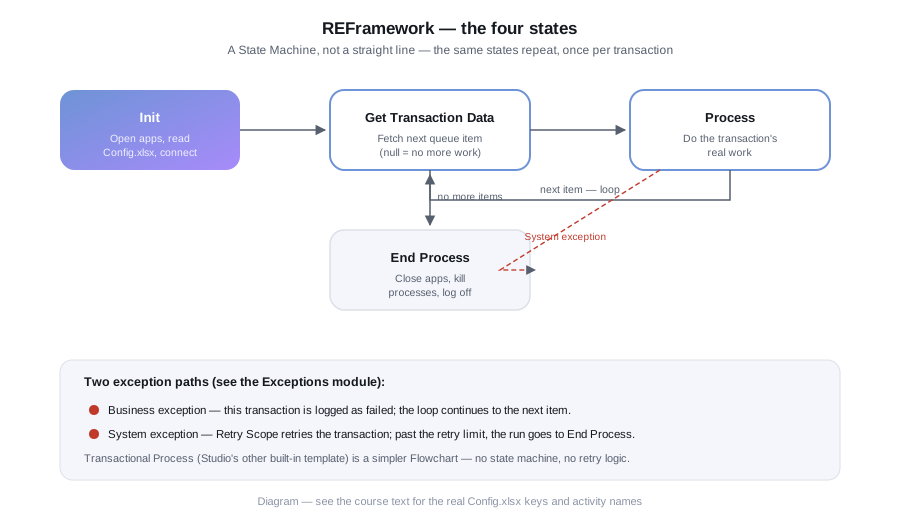
The State Machine in Main.xaml has four states.
- Init runs once at start (and again after certain failures). It loads
Config.xlsxinto a dictionary, initialises the logging fields, and opens or logs into the applications the process needs. - Get Transaction Data fetches the next work item. A transaction item is typically a queue item from Orchestrator, but it can come from a DataTable row or another source if you change the framework.
- Process Transaction runs your business logic on the current item.
- End Process closes applications, logs the outcome and finishes.
The transitions, in outline:
- Init goes to Get Transaction Data if initialisation succeeds, or to End Process if it fails.
- Get Transaction Data goes to Process Transaction when an item was retrieved, or to End Process when there are no more items or a failure occurred.
- Process Transaction returns to Get Transaction Data after a success or a business exception. After a system exception it goes back to Init when retries remain, or to End Process when they are exhausted.
Reading these transitions in the template is the fastest way to understand it.
Files in the template
The template splits the work across workflows. Typical ones are in a Framework folder:
InitAllSettings.xamlreads the configuration.InitAllApplications.xamlopens and logs in to your applications. You edit this.KillAllProcesses.xamlalso runs during Init, beforeInitAllApplications.xaml, to make sure no leftover instances of your target applications are running before the bot opens fresh ones.GetTransactionData.xamlretrieves the next item.Process.xamlholds your business logic. You edit this most.SetTransactionStatus.xamlmarks the item successful or failed and logs.CloseAllApplications.xamlandKillAllProcesses.xamlclean up at the end of a transaction or the process.TakeScreenshot.xamlcaptures the screen on failure.
Your job is mostly to fill in the application, processing and cleanup workflows and leave the machinery alone.
Config.xlsx
Data\Config.xlsx externalises settings so you change behaviour without editing workflows. It normally has three sheets.
- Settings: values you want to vary by environment, such as the Orchestrator queue name or a business process name used for logging. Columns are typically Name, Value and Description.
- Constants: values that should not vary between environments, such as retry limits. The standard template's Constants sheet includes entries such as
MaxRetryNumber(how many times a failed transaction is retried before it is given up on) andMaxConsecutiveSystemExceptions(how many system exceptions in a row are tolerated before the process stops instead of continuing to retry against a broken environment). Exact key names can vary slightly by template revision, so read your own copy ofConfig.xlsxrather than assuming. - Assets: names of Orchestrator assets the framework should fetch at start, such as credential asset names, so values themselves live in Orchestrator.
The framework loads these into a dictionary, commonly named Config, and passes it to workflows as an argument. Access a value like this:
in_Config("OrchestratorQueueName").ToStringSet the key names to match your file. Never store real passwords in Config.xlsx.
Transaction items
A transaction item is the unit of work. When it comes from an Orchestrator queue, it is a queue item object whose data is in its SpecificContent dictionary. Accessing a field:
in_TransactionItem.SpecificContent("InvoiceNumber").ToStringThe framework also keeps a transaction number counter, and the item's Reference is useful for logging and diagnosing failures.
Business rule exceptions versus system exceptions
This distinction is the heart of the framework.
A BusinessRuleException means the item cannot be processed because of a data or business condition, such as a missing purchase order or an amount over the allowed limit. Retrying will not help, because the outcome would be the same. The framework marks the item as failed with a business error and moves on to the next item without restarting applications.
A system exception (any other exception) means something technical went wrong: a selector was not found, an application froze, a timeout occurred. This might be transient, so the framework takes a screenshot, closes and re-opens applications, and retries as configured.
You raise a business exception in your own logic with the Throw activity:
New BusinessRuleException("Invoice " & invoiceNumber & " has no purchase order")The class is in the UiPath.Core namespace. If your project also references a package that defines its own BusinessRuleException type, the name can become ambiguous; qualify it as New UiPath.Core.BusinessRuleException(...) if Studio complains. Use clear messages, since they appear in Orchestrator.
Retry logic
Two mechanisms are involved, and it helps to keep them apart.
- Framework retry: the template counts retries for the current item against
MaxRetryNumberand also tracks consecutive system exceptions againstMaxConsecutiveSystemExceptions, so a broken environment does not loop indefinitely. When either limit is hit, the process ends. - Queue auto-retry: Orchestrator queues can be configured to retry failed items automatically, up to a number of times, when the failure is an application exception. The setting is on the queue.
When using queues, decide deliberately which mechanism does the retrying so you do not multiply retries unintentionally. Read the template's documentation for your version, which describes exactly how it behaves.
Customising the template
- Fill in
InitAllApplications.xamlto open and log in to systems. - Implement
Process.xamlfor one item usingin_TransactionItem. - Update
CloseAllApplications.xamlandKillAllProcesses.xaml. - Update
Config.xlsxwith your queue and asset names. - Rename and log meaningfully.
Common mistakes
- Editing the state machine transitions without understanding them.
- Throwing a plain Exception for a data problem, causing pointless retries and application restarts.
- Throwing BusinessRuleException for a technical problem, so real failures are hidden as business outcomes.
- Storing credentials in
Config.xlsx. - Leaving
Process.xamlhuge instead of invoking smaller workflows. - Not handling the case of an empty queue.
Check your understanding
- What happens after a business exception in Process Transaction?
- What is the difference between the Settings and Constants sheets?
- Why should applications be reopened after a system exception?
- Which object typically carries an item's data when using a queue?
Exercise
Create a project from the REFramework template. Without changing logic, read Main.xaml and draw the states and transitions on paper. Then add a Log Message in Process.xaml that logs one SpecificContent field, add a rule that throws a BusinessRuleException when a field is empty, and note how the state machine responds when you run it against a local test data source or queue.
Exceptions, Logging and Debugging
After this module you will be able to handle errors deliberately with Try Catch and Retry Scope, write logs that help you diagnose failures, and use Studio's debugging tools to find defects. Examples use VB.NET expressions.
Exceptions in UiPath
UiPath runs on .NET, so failures are .NET exceptions. Some common ones:
System.Exceptionis the base type.UiPath.Core.SelectorNotFoundExceptionis raised when an element cannot be found.UiPath.Core.BusinessRuleExceptionrepresents a business or data rule violation. It is used by convention, as module 5 explained.System.IO.FileNotFoundException,System.TimeoutExceptionand other framework exceptions arise from their respective operations.
An unhandled exception stops the workflow and the job is marked faulted. Handling means deciding what should happen instead.
Try Catch
Try Catch has three areas:
- Try contains the activities that might fail.
- Catches are one or more handlers, each for an exception type. Handlers are matched in order, so put specific types before general ones.
- Finally always runs, whether the Try succeeded or not. Use it for cleanup such as closing a file or application.
Inside a Catch, the exception is available as a variable, typically named exception:
"Failed to read invoice " & invoiceNumber & ": " & exception.MessageHandle only what you can meaningfully handle. If a Catch cannot fix the problem, log it and rethrow rather than swallowing it silently.
Throw and Rethrow
- Throw raises an exception you create:
New BusinessRuleException("Amount exceeds limit: " & amount.ToString)- Rethrow is used inside a Catch to pass the original exception up so a caller or the framework can respond.
Swallowing exceptions with an empty Catch is dangerous because the bot continues in an unknown state and reports success.
Retry Scope
Retry Scope re-runs a block of activities when it fails or when a condition is not met. It has an action area and a condition area, plus two properties worth knowing the defaults for: NumberOfRetries (how many attempts to make; defaults to 3) and RetryInterval (the wait between attempts; defaults to 5 seconds). Don't leave the defaults unexamined — tune both to match how quickly the target system actually recovers.
Use it for transient problems, such as a page that occasionally loads slowly. A typical pattern: the action clicks Search, and the condition checks that a results element exists. If the element does not appear, the scope repeats the action.
Be careful that the action is safe to repeat. Retrying a "Submit payment" click without checking whether the first attempt worked could cause duplicates.
Global exception handler
Studio lets you flag one workflow per project as a Global Exception Handler (in current versions, from the Design ribbon: New → Global Handler), which runs for exceptions that nothing else in the project caught. It carries two arguments you should not remove: an errorInfo In argument describing the error and the workflow that threw it, and a result Out argument that tells the robot what to do next. The result can be set to:
- Continue: skip the activity where the error occurred and move to the next one.
- Ignore: act as if nothing happened and continue from the next activity.
- Retry: run the failed activity again.
- Abort: stop execution right after the exception.
A Global Exception Handler cannot be used on a library project or on Main.xaml itself, and only one is active per project. Exact naming and availability can still vary by Studio version, so check your version's documentation. Do not rely on it as a substitute for local Try Catch handling — it is a safety net for the unexpected, not your primary error-handling mechanism.
Logging with Log Message
The Log Message activity writes to the Output panel while developing, and to Orchestrator when running from it. It has a level:
- Trace: very detailed diagnostic information.
- Info: normal progress messages.
- Warn: something unexpected that did not stop the process.
- Error: a failure.
- Fatal: a failure that stops the process.
The robot has a configured minimum logging level, and messages below it are not recorded. Check your robot and Orchestrator settings so you know which levels are kept.
Good log messages:
"Processing invoice " & invoiceNumber & " (vendor: " & vendor & ")"- Include an identifier so you can trace one item through the log.
- Log the start and end of significant steps.
- Log decisions ("Skipped: status is Paid").
- Log the exception message and where it happened.
- Never log passwords, tokens or personal data that should not be in plain text.
You can add custom fields to every subsequent log entry with the Add Log Fields activity, and remove them with Remove Log Fields. Fields you add stay attached to every Log Message that follows until you remove them, so pair every Add Log Fields with a matching Remove Log Fields, placed somewhere that always runs (a Finally block) so an exception mid-transaction doesn't leave stale fields attached to the next item's logs. The REFramework uses this pattern for values such as the business process name.
Screenshots on failure
When a system exception happens, save a screenshot. The REFramework template includes a screenshot workflow for this. If you build your own error handling, use the Take Screenshot activity in your Catch and store the file path in your log message. Be aware that a screenshot may capture sensitive on-screen data.
Debugging in Studio
Studio provides a Debug mode that runs your workflow with extra controls. The Debug ribbon tab lists what is available in your version.
- Breakpoints: set on an activity, commonly with F9, to pause execution before it runs.
- Step Into, Step Over and Step Out: commonly F11, F10 and Shift+F11 respectively, but shortcut keys can differ, so check the ribbon or your version's keyboard shortcuts documentation.
- Slow Step: runs activities one at a time with a visible delay so you can watch the flow.
- Highlight Elements: flashes the UI element each activity is about to use.
- Locals panel: shows the current values of variables and arguments in scope while paused.
- Watch panel: lets you enter expressions to track. This is useful for
dt.Rows.Countor a computed condition. - Immediate panel: while paused, lets you evaluate expressions.
- Call Stack panel: shows which invoked workflow you are in.
- Output panel: shows log messages and errors.
Debugging workflow: reproduce the failure, place a breakpoint before it, inspect Locals, watch the suspect expression, step forward, and compare what you expect with what you see.
Debugging selectors
When a UI activity fails:
- Confirm the target application is in the expected state.
- Copy the selector into UI Explorer and validate it.
- Compare it against the current UI. Look for changed titles, ids or hidden elements.
- Adjust with wildcards or a more stable attribute.
Common mistakes
- Wrapping the entire workflow in one Try Catch that logs and continues.
- Catching System.Exception first, so specific handlers never run.
- Using Retry Scope around non-repeatable actions.
- Logging too little to diagnose or too much sensitive data.
- Leaving breakpoints or Slow Step assumptions in production expectations.
- Confusing a business exception with a technical one.
Check your understanding
- When does a Finally block run?
- Why should specific Catch handlers come before general ones?
- Which log level fits a skipped invoice that is not an error?
- What is the difference between the Locals and Watch panels?
Exercise
Extend the invoice workflow: wrap the amount conversion in a Try Catch that logs the invoice number and message at Error level, then rethrows. Add a Retry Scope around a step that opens a file, with three retries. Set a breakpoint on the conversion, run in Debug, and use Locals and Watch to inspect the row being processed. Deliberately include a bad amount value to trigger the Catch.
Orchestrator: Queues, Assets, Triggers and Robots
After this module you will be able to explain what Orchestrator manages, use queues, assets and credentials from workflows, organise resources in folders, schedule runs with triggers, and design a Dispatcher and Performer pair.
Orchestrator's interface and menu layout change between releases, and cloud and on-premises deployments differ. This module names concepts and typical locations. Confirm details in the official documentation at https://docs.uipath.com/ for your version.
What Orchestrator does
Orchestrator is the server-side component that coordinates robots. It provides:
- Storage and versioning of published packages.
- Queues, assets and credentials.
- Machines, robots and their assignment to folders.
- Job execution: start now, or on a schedule or event.
- Centralised logs, monitoring and audit information.
- Role-based access control.
Without Orchestrator you can run attended automations from a desktop. Unattended, scheduled and queue-driven production work is what Orchestrator exists for.
Unattended robots
An unattended robot runs a job without someone at the keyboard. In outline:
- A machine (physical or virtual) is registered with Orchestrator.
- A robot identity, tied to a Windows user account that can log in to that machine, is configured. Newer versions of the platform use different terminology for these accounts and connections, so check yours.
- A job is started, and Orchestrator instructs the machine to open a session, run the package and report back.
Unattended automations that use a UI need a Windows session available, and the screen resolution and scaling need to be consistent. Sessions being locked or disconnected are common causes of UI failures.
Folders
Folders organise and secure Orchestrator resources. Processes, queues, assets and machines are associated with folders, and users get roles per folder. Use them to separate business areas and to keep development, test and production apart, or to separate them across tenants or environments as your organisation prefers.
Orchestrator's folder model is hierarchical ("modern" folders), which lets you nest folders and assign roles at any level, matching your organisation's structure. An older flat ("classic") folder model existed in earlier Orchestrator versions, but UiPath began deprecating classic folders starting in late 2022, so a current Orchestrator instance you encounter today has almost certainly already been migrated to modern folders, or was created on them from the start. If you work with a long-lived on-premises deployment that has not been upgraded in years, confirm which model it uses, since permission behaviour differs between the two.
Assets
An asset is a named value stored centrally so it is not hard-coded in the workflow. Orchestrator's built-in asset types are Text, Bool, Integer and Credential; newer versions also add a Secret type for values like API keys that aren't a username/password pair. Assets can be global or hold different values per robot, depending on the configuration.
Activities you use:
- Get Asset retrieves a Text, Bool or Integer asset by name.
- Get Credential retrieves a Credential asset and returns a username as a String and a password as a SecureString.
For Get Credential you supply the asset name, for example the value of a String variable credentialName read from Config.xlsx, and it outputs a String username and a SecureString password into variables you create.
Pass the SecureString password directly to activities that accept it, such as a Type Into for a password field or a secure-text property, rather than converting it to plain text. Never write it to logs.
Queues
A queue is a persistent list of work items. Queues give you:
- Durability: items survive a robot crash.
- Parallelism: several robots can take items from the same queue.
- Status tracking per item and retry rules.
- Reporting on throughput and failures.
Each queue item has a reference (an identifier you choose), a priority, an optional deadline and postpone time, and a SpecificContent dictionary holding your data. Items move through statuses: New when first added, In Progress while a robot works it, then a final status of Successful, Failed (it did not meet a business or application requirement and was explicitly set to Failed), Abandoned (it sat In Progress for a long time, roughly 24 hours, without being resolved), or Retried (it failed with an application exception and was automatically retried; the status changes again to Failed or Successful once retries finish).
When creating a queue you can enable auto retry with a maximum number of attempts, and you can enable enforcement of unique references so the same reference cannot be added twice. Both settings are useful, and their availability and naming depend on your version.
Common activities:
- Add Queue Item adds one item.
- Bulk Add Queue Items adds many items from a DataTable in a single call, which is far more efficient than looping over Add Queue Item for a large file. Orchestrator currently caps a single bulk add at 15,000 rows per call (per the activity's own documentation) — check your version's docs for the current limit, and chunk larger files if you hit it.
- Get Transaction Item takes the next item and marks it In Progress.
- Set Transaction Status marks the item Successful or Failed, with an error type for failures.
Adding an item, in outline: set the queue name, the reference, and populate SpecificContent using the activity's dictionary property.
Triggers and schedules
A trigger starts jobs without a person. Common types:
- Time triggers use a schedule, often expressed as a cron expression, with a time zone set explicitly on the trigger itself, independent of the tenant's time zone. Orchestrator's scheduler accounts for daylight saving time automatically, so a job scheduled for a given time keeps running at that same local time across the DST change.
- Queue triggers start a job when a queue has items waiting, and can be tuned by how many pending items they require.
- Other trigger types, such as API-based ones, exist in newer versions.
Consider what happens if a job is already running when the trigger fires, and whether an overlapping run is acceptable. Check your version's options for handling this.
Dispatcher and Performer
Splitting a process into two automations is a durable pattern.
The Dispatcher finds work and adds it to a queue. It reads a source such as a spreadsheet, folder, database or inbox, and creates one queue item per unit of work. It does no heavy processing.
The Performer takes items from the queue and processes them, usually built on the REFramework, marking each Successful or Failed.
Benefits:
- The work list is separated from execution, so a failure processing one item does not lose the rest.
- You can scale by adding more robots running the Performer.
- Retries and reporting work per item.
- The Dispatcher can run less frequently than the Performer.
A safe Dispatcher uses a business key, such as invoice number, as the Reference. With unique references enforced, running it twice does not create duplicates. Design the Dispatcher so a re-run is harmless.
Connecting Studio to Orchestrator
For development you connect Studio to Orchestrator, which is normally done in Studio's settings or sign-in flow. Activities like Get Asset and Add Queue Item then work when you debug locally, provided the resources exist in a folder your account can access. If activities fail with a not-found error, check the name, the folder and your permissions first.
Common mistakes
- Hard-coding credentials or asset values instead of using Orchestrator assets.
- Dispatchers that add duplicates on re-run.
- Marking an item Successful before the work is verified.
- Not setting a time zone on a schedule.
- Leaving items In Progress after a crash, then ignoring them.
- Granting robots or users more folder permissions than needed.
Check your understanding
- Why does a queue survive a robot crash better than an in-memory list?
- What kinds of value belong in an asset rather than in Config.xlsx?
- What does the Dispatcher's Reference achieve?
- When would you choose a queue trigger over a time trigger?
Exercise
In a test Orchestrator folder, create a queue named InvoicesToProcess and a credential asset for a test login. Build a Dispatcher that reads your CSV from module 3 and adds one queue item per invoice, with the invoice number as Reference and other columns in SpecificContent. Run it twice and observe what happens with duplicates, then adjust the queue or logic so the second run is harmless.
Publishing, Maintenance, Security and Capstone
After this module you will be able to publish and version an automation, keep it under source control, apply basic security hygiene, plan maintenance, and build a capstone invoice-processing solution from a specification.
Publishing
Publishing packages your project as a versioned artifact that robots can run. The general flow:
- Make sure the project passes analysis and runs successfully in debug.
- Choose Publish in Studio.
- Set the version and choose the destination, such as your Orchestrator feed, a tenant or personal feed, or a local or custom folder. Options vary by version.
- Add release notes describing what changed.
- In Orchestrator, create or update a process that uses the new package version and assign it to the right folder.
Packages are typically NuGet-style packages containing your workflows and a record of dependencies.
Versioning
Use a predictable scheme. A common one is major.minor.patch:
- Increase patch for bug fixes that change no behaviour contract.
- Increase minor for backward-compatible features.
- Increase major for changes that alter inputs, outputs or behaviour significantly.
Studio can also generate versions automatically based on date or a counter, depending on version and settings. Choose one approach and keep it. Record what each release contains, and know how to roll back by pointing the Orchestrator process at the previous package version.
Environments and promotion
Keep separate environments, such as development, test and production, using separate folders or tenants. Promote the same package version from one to the next rather than rebuilding, so what you tested is what you run. Environment differences belong in Orchestrator assets and queue names, not in code.
Source control
Studio integrates with Git and other systems through its Team features. Their location and supported providers depend on your version.
Practices that work:
- Put every project in a repository from the start.
- Commit small changes with clear messages.
- Use branches for features and pull requests for review.
- Exclude machine-generated or local folders from the repository. Studio creates helper folders inside projects, so check which ones your version makes and add them to
.gitignore. - Never commit secrets.
Workflow files are XML, so merge conflicts can be hard to resolve manually. Reduce them by keeping workflows small and having one person change a given file at a time. Studio provides a diff view for workflows in versions that support it.
Testing
Studio supports test cases as a project type or as files within a project. Write tests for reusable logic such as validation rules, parsing and calculations, using known inputs and expected outputs. UI-dependent tests are less reliable, so focus on the logic that is separable from screens.
Security hygiene
- Credentials: store them as Orchestrator credential assets. Do not put them in Config.xlsx, code, selectors, argument defaults or logs.
- SecureString: keep passwords as SecureString and pass them straight to activities that accept them.
- Least privilege: give the robot's Windows account, Orchestrator roles and application accounts only the access they need.
- Dedicated accounts: use service accounts for bots instead of a person's account so actions are traceable and passwords are not shared.
- Sensitive data: avoid putting personal or financial data in queue items, logs and screenshots unless necessary, and know your retention rules.
- Access control: limit who can edit assets and publish to production folders.
- Rotation: plan for changing credentials without redeploying code, which assets allow.
- Dependencies: only use packages from trusted feeds and review changes when upgrading.
Maintenance
An automation is not finished when it is published.
- Monitor: review failed jobs and failed queue items regularly, and set alerts where your platform supports them.
- Triage: distinguish business exceptions (fix data or process) from system exceptions (fix selectors or environment).
- Application changes: coordinate with application owners so you learn about upgrades before they break selectors.
- Upgrade dependencies: test package and Studio upgrades in a non-production environment.
- Document: keep a process definition, an architecture note, configuration descriptions and a runbook for operators.
- Retire: remove automations that are no longer needed.
Capstone: invoice queue-processing bot
You will build a Dispatcher and Performer pair. Work through the specification and treat the acceptance criteria as your test list.
Business scenario
A finance team receives a daily CSV of invoices. Each valid invoice must be checked against a purchase-order table and recorded as approved or rejected. Invalid invoices must be reported, not silently dropped.
Sample input
InvoiceNumber,Vendor,PONumber,Amount,Currency,InvoiceDate
INV-1001,Acme Ltd,PO-501,1250.00,USD,2026-03-01
INV-1002,Globex,PO-777,89.99,USD,2026-03-01
INV-1003,Acme Ltd,,430.00,USD,2026-03-02
INV-1004,Initech,PO-909,abc,USD,2026-03-02
Dispatcher requirements
- Read the CSV from a folder path set in
Config.xlsx. - Skip the header, trim values, and reject rows missing an invoice number.
- Add one queue item per row to a queue named in
Config.xlsx, withInvoiceNumberas the Reference and remaining columns in SpecificContent. - Running the Dispatcher twice with the same file must not create duplicates.
- Log how many rows were read, queued and skipped.
Performer requirements
- Build it on the REFramework.
- In Process, parse the Amount as a decimal using invariant culture.
- Look up the PO number in a lookup source of your choice, such as a SQL Server table, another CSV or an Excel sheet. If you use SQL Server, use the database activities from the database activities package, and pass values as parameters rather than concatenating SQL strings.
- Throw a BusinessRuleException if the PO is missing, unknown, or the amount is not numeric.
- Throw a BusinessRuleException if the amount exceeds a limit stored in the Constants or Settings sheet.
- Let technical failures, such as a missing file or connection error, surface as system exceptions.
- Write the result of each item to an output CSV or the queue item's output.
- Log the invoice number at the start and end of each item.
Non-functional requirements
- No credentials in the project files. Any database login comes from an Orchestrator credential asset.
- All workflows use the naming conventions from module 4.
- Every invoked workflow has a documented purpose in an annotation.
- The project is in Git with at least three meaningful commits.
- Published with version 1.0.0 and release notes.
Acceptance checks
- INV-1001 and INV-1002 succeed if their POs exist in your lookup source.
- INV-1003 fails as a business exception with a clear message and is not retried.
- INV-1004 fails as a business exception for a non-numeric amount.
- Stopping the lookup source mid-run causes system exception handling and retries as configured.
- A second Dispatcher run adds no duplicate items.
Common mistakes
- Publishing without testing the packaged version in a clean environment.
- Committing Config.xlsx with real values.
- Changing production directly instead of promoting a tested version.
- Treating a failed queue item as done because the job itself finished.
- Building SQL statements by string concatenation from item data.
- Skipping documentation because the code seems obvious.
Check your understanding
- Why promote one package through environments rather than rebuild it?
- Which changes justify a major version increase?
- Name three places credentials must never appear.
- What would you check first when a previously working bot starts failing with selector errors?
Exercise
Complete the capstone above. When finished, write a one-page runbook covering how to start the bot, where to find logs and failed items, how to tell a business exception from a system exception, and how to roll back to a previous version.
Sign in to enroll in this course.