Self-Hosting Open-Source AI: From GPU Server to Your Own API
A hands-on course for developers and sysadmins who want to run open-weight language models on their own hardware and serve them as an OpenAI-compatible API and as tools for AI assistants. You will learn when self-hosting makes sense (and when it does not), how to size GPU memory with simple arithmetic, how to set up an Ubuntu or WSL2 server with the NVIDIA driver, Docker and the NVIDIA Container Toolkit, and how to run models with Ollama and serve many users with vLLM or llama.cpp. You will choose and evaluate quantized models against your own test set, check licences, and expose the service safely behind a TLS reverse proxy with API-key authentication, firewall rules, rate limits, logging, health checks and GPU monitoring. Finally you will call your endpoint from curl, Python and C#, connect it to tools that accept a custom base URL, and build a small MCP (Model Context Protocol) server. Each module ends with review questions and a hands-on exercise, and a capstone project ties everything together.
Why Self-Host (and When Not To)
By the end of this module you will be able to decide whether self-hosting a language model is the right choice for a given project, name the three layers every self-hosted setup consists of, and estimate whether the economics are worth investigating for your workload.
What "self-hosting an LLM" actually means
Self-hosting means that the model runs on hardware you control (a workstation, a rented GPU server, an on-premises box) instead of behind a commercial API. Your application sends text to your machine and gets text back.
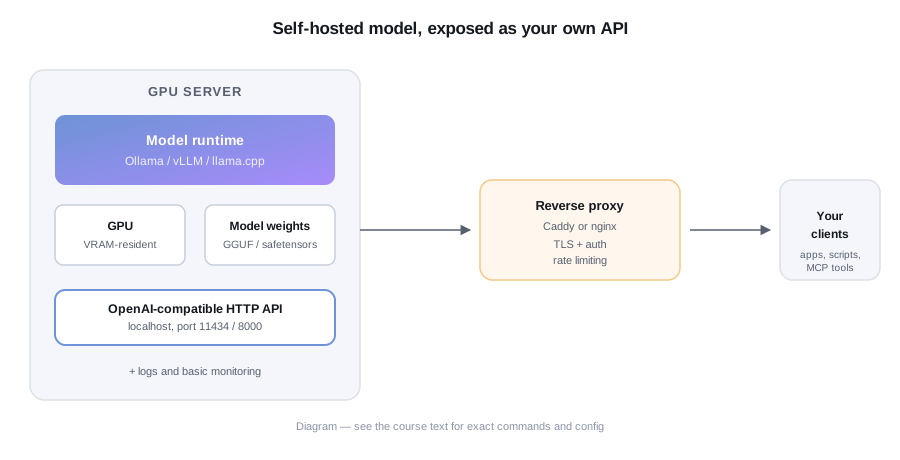
Almost every setup in this course is built from three layers:
- Model weights. A large file (or set of files) containing the trained parameters. "Open-weight" models publish these files so you can download them. Common distribution points are Hugging Face and the Ollama model library.
- Inference engine. The program that loads the weights into memory and turns prompts into tokens. Examples covered later are Ollama, vLLM and llama.cpp.
- API layer. The HTTP interface your applications call. Most engines expose an OpenAI-compatible API, meaning the request and response JSON look like the OpenAI Chat Completions format. That lets many existing libraries and tools work by changing only a base URL.
Keeping these three layers separate in your head makes troubleshooting much easier. A slow answer is usually an engine or hardware problem, a wrong answer is usually a model problem, and a connection error is usually an API or network problem.
Reasons to self-host
Privacy and data control
When you call a hosted API, your prompts leave your network. Providers publish data-handling terms, and you can read and rely on them, but some organisations cannot or will not send certain data outside their own infrastructure: patient records, source code under strict contracts, internal legal documents. Running the model locally keeps prompts and outputs on machines you control. This is the most common serious reason to self-host.
Cost at volume
Hosted APIs typically charge per token. A self-hosted server has a mostly fixed cost: hardware (or a monthly rental), electricity and your time. That shifts the maths as volume grows. Compare them with this back-of-envelope formula:
self-hosted monthly cost = hardware amortised per month + power + hosting + your maintenance time
break-even tokens per month = self-hosted monthly cost / (API price per token)
If your real monthly token count is far below the break-even figure, the API is cheaper. If it is far above and the GPU would be busy most of the day, self-hosting may win. Two cautions: use your own measured volume rather than guesses, and remember that a GPU sitting idle still costs the same. Look up current API prices yourself, because they change.
Latency and availability
A model on your local network avoids internet round trips and is not affected by a provider's outage or rate limits. Note that local latency is still bounded by your hardware: a small GPU running a large model can be slower than a hosted service running on much bigger machines.
Control and offline use
You choose the exact model file, the quantization, the system prompt and the sampling settings, and nothing changes underneath you unless you update it. You can also run in air-gapped or intermittent-connectivity environments, since after the download nothing needs the internet.
The honest downsides
Self-hosting is not free of trade-offs, and it is worth being blunt about them.
- Operational burden. You now own driver updates, disk space, restarts, monitoring, security patches and capacity planning. When it breaks at 2 a.m., it is your problem.
- The quality gap varies by task. Open-weight models that fit on affordable hardware are generally smaller than the largest hosted models. For some tasks (classification, extraction, summarisation of short text, simple rewriting) a small model can be entirely adequate. For others (long multi-step reasoning, complex coding, nuanced instruction following) the gap can be significant. Do not assume either way; test on your task, which Module 6 teaches.
- Upfront and idle cost. GPUs are expensive to buy or rent, and utilisation matters. Bursty, low-volume workloads rarely justify a dedicated machine.
- Feature gaps. Hosted services often bundle extras such as very long context windows, built-in tools, or multimodal features. Local engines support some of these, but support depends on the model and the engine version.
- Scaling. Serving one developer is easy. Serving fifty concurrent users needs a different engine setup and more memory.
A quick decision guide
Self-hosting is worth a serious look when at least one of these is true: data must not leave your infrastructure, your token volume is high and steady, you need offline operation, or you need tight control over model behaviour and versioning.
An API is usually the better choice when your volume is small or unpredictable, when you need the strongest available model quality, or when nobody on the team wants to operate GPU servers. Many teams end up hybrid: a small local model for sensitive or high-volume simple work, and a hosted model for hard problems.
Common mistakes
- Comparing the API's per-token price against only the electricity bill and ignoring hardware, hosting and maintenance time.
- Assuming a model that scores well in general will perform well on your specific task without testing it.
- Buying hardware before measuring your real token volume and concurrency.
- Treating "runs on my laptop" as proof that it will serve a team.
- Forgetting that self-hosting moves security responsibility to you (Module 7).
Check your understanding
- Name the three layers of a self-hosted LLM setup and give one example of each.
- Why can a self-hosted GPU be more expensive than an API even though it has no per-token fee?
- Give two situations where an API remains the better choice.
- What does "open-weight" mean, and what does it not guarantee?
Exercise
Write a one-page decision note for a real or imagined project. List the data it handles, its expected monthly token volume (measure a sample if you can), its concurrency, and its quality requirements. Fill in the break-even formula with your own numbers from current API pricing and a hardware quote, then state whether self-hosting, an API, or a hybrid is justified and what evidence would change your mind.
Hardware and Sizing: VRAM, RAM and Power
By the end of this module you will be able to estimate how much memory a model needs, decide whether it fits a given GPU, and reason about CPU-only setups, consumer versus datacenter cards, multi-GPU, and the supporting hardware (RAM, disk, power, cooling).
VRAM is the constraint
To generate text quickly, the whole model (or as much of it as possible) has to sit in the GPU's own memory, called VRAM. If it does not fit, the engine either refuses to load it or offloads some layers to system RAM, which is dramatically slower because data has to cross the PCIe bus and be processed by the CPU.
Token generation is mostly limited by memory bandwidth: for every token, the GPU reads (roughly) all the model weights once. This is why a high-bandwidth card with enough VRAM feels fast, and why a smaller (more heavily quantized) model is faster than a larger one on the same card. It also means raw compute figures on a spec sheet tell you less than VRAM size and bandwidth.
Estimating memory: the rule of thumb
All figures below are approximate. Real usage depends on the engine, quantization format, context length and batch size. Treat the result as a first filter, then confirm by loading the model.
Total memory is roughly the sum of three parts:
weights   = parameters x bytes per weight
kv cache  = 2 x layers x kv_heads x head_dim x bytes per value x tokens x concurrent requests
overhead  = about 1-2 GB for the runtime, CUDA context and working buffers
Bytes per weight depend on precision: 16-bit (FP16/BF16) is 2 bytes, 8-bit is about 1 byte, and 4-bit is about 0.5 bytes. Real 4-bit formats also store scaling factors, so plan on roughly 4.5 to 5 bits (0.56 to 0.62 bytes) per weight in practice.
Worked example: an illustrative 8-billion-parameter model
Assume 8 billion parameters, 32 layers, 8 key/value heads and a head dimension of 128 (typical of models in this size class; read your model's real values from its config.json).
Weights:
- 16-bit: 8 x 10^9 x 2 bytes = 16 GB
- 8-bit: about 8 GB (a little more in practice)
- 4-bit: about 4.5 to 5 GB after allowing for scaling factors
KV cache, stored in 16-bit (2 bytes per value), per token:
2 x 32 layers x 8 kv_heads x 128 head_dim x 2 bytes = 131,072 bytes = 128 KiB per token
8,192 tokens of context = 8,192 x 128 KiB = 1 GiB per request
32,768 tokens of context = 4 GiB per request
Now combine them:
- 4-bit weights (about 5 GB) + 1 GiB KV cache for one 8k-token conversation + about 1 GB overhead is roughly 7 GB. That fits an 8 GB card only barely and a 12 GB card comfortably.
- 16-bit weights (16 GB) + four simultaneous 8k-token conversations (about 4.3 GB of KV cache) + about 1.5 GB overhead is roughly 22 GB. That is tight on a 24 GB card.
The lesson: the KV cache is small for one short chat but grows linearly with both context length and the number of concurrent users. Long contexts and many users are what push a server past its VRAM.
A real small-model sanity check
The published config of the small Qwen2.5 0.5B model lists 24 layers, 2 key/value heads, hidden size 896 and 14 attention heads, so its head dimension is 896 / 14 = 64. The formula gives 2 x 24 x 2 x 64 x 2 bytes = 12,288 bytes (12 KiB) per token, or about 50 MB for a 4,096-token context. Its Q4_K_M file in the Ollama library is about 398 MB, and with a 4,096-token context Ollama reported roughly 480 MB loaded. That is close to weights (398 MB) plus KV cache (about 50 MB) plus a little working memory. Notice also that this file works out to about 6.4 bits per weight, not 4.5: in small models the embedding tables are a large share of the parameters and are stored at higher precision. Rules of thumb are approximate, and small models drift furthest from them.
You can check a model's dimensions yourself:
curl -sL https://huggingface.co/Qwen/Qwen2.5-0.5B-Instruct/resolve/main/config.jsonLook for num_hidden_layers, num_key_value_heads, num_attention_heads and hidden_size. If there is no explicit head_dim, use hidden_size / num_attention_heads.
CPU-only versus GPU
CPU inference works. Engines built on llama.cpp (including Ollama) run quantized models on the CPU with no GPU at all. It is a legitimate choice for small models, occasional use, offline experiments and machines without a GPU. The limits are memory bandwidth (system RAM is much slower than VRAM) and throughput under concurrency. Expect small models to be usable and large ones to be painfully slow.
Partial offload, where some layers run on the GPU and the rest on the CPU, sits in between. It lets a model that almost fits run at all, but the speed tends to fall toward the slow side.
Consumer versus datacenter GPUs
- Consumer cards (GeForce class) offer the most VRAM per unit of money and are ideal for learning, development and small teams. They are typically limited in VRAM per card, lack ECC memory and were designed for intermittent gaming loads. NVIDIA's driver licence has terms about datacenter use, so read it if you plan to deploy in a hosted environment.
- Datacenter and workstation cards offer larger VRAM per card, ECC, high-bandwidth interconnects, designs for 24/7 operation and vendor support. They cost considerably more.
- Other vendors. AMD GPUs (via ROCm) and Apple silicon (unified memory, via Metal) are supported by some engines, including Ollama. Support and speed depend on the exact chip and engine version, so check the engine's documentation before buying.
Multi-GPU, conceptually
When a model is larger than one card's VRAM, engines can split it across GPUs. Tensor parallelism splits each layer's matrices across cards, which needs frequent, fast communication between them. Pipeline parallelism puts different layers on different cards, which needs less communication but can leave cards idle. Two 24 GB cards give you about 48 GB to place weights in, but the split is never perfectly efficient, and fast interconnects (NVLink on datacenter cards, otherwise PCIe) affect speed. Mixing very different cards usually limits you to the slowest one.
RAM, disk, power and cooling
- System RAM. Aim for at least as much as the largest model you will load, more if you allow offload. Loading reads weights through system memory first.
- Disk. Models are gigabytes to hundreds of gigabytes each, and you will keep several versions. Use an NVMe SSD with generous free space; loading from a slow disk delays every cold start.
- Power. A GPU under sustained inference load draws close to its rated power for long periods. Size the power supply with headroom, and use the correct dedicated PCIe power cables rather than splitters.
- Cooling. Servers run hot around the clock. Ensure case airflow, dust filters and monitored temperatures. You can lower a card's power limit with
sudo nvidia-smi -pl <watts>to reduce heat at some cost in speed.
Common mistakes
- Sizing for the weights only and forgetting the KV cache and overhead.
- Planning for one user, then serving ten, without recomputing the KV cache.
- Assuming "24 GB of VRAM" and "24 GB model file" fit together; there is no room left for context.
- Buying a card on compute specs and ignoring VRAM size and bandwidth.
- Expecting partial offload to CPU to be nearly as fast as a full fit.
Check your understanding
- Why is VRAM, rather than raw compute, usually the first limit you hit?
- Compute the KV cache per token for a model with 40 layers, 8 KV heads, head dimension 128 and 16-bit values.
- Why does the KV cache requirement grow when you add concurrent users?
- Give one reason to choose CPU-only and one reason to avoid it.
Exercise
Pick a model you might run. Fetch its config.json, read the layer, KV-head and hidden-size values, and compute weights (at 16-bit and at roughly 4.5 bits per weight), KV cache for your target context length and user count, and the total with 1.5 GB overhead. State which GPU sizes it fits, and how the answer changes if you double the context length.
Setting Up the Server: Drivers, Docker and GPU Access
By the end of this module you will be able to prepare a Linux server (or a Windows machine using WSL2) for GPU inference: install the NVIDIA driver, verify it with nvidia-smi, install Docker, and give containers access to the GPU with the NVIDIA Container Toolkit.
Choosing the platform
Ubuntu LTS is the most widely documented choice for GPU servers, and the commands below assume it. Other distributions work, but package names and repositories differ, so follow that distribution's NVIDIA documentation.
Windows users have two routes. You can use native Windows tools (Ollama ships a Windows installer), or use WSL2, which runs a real Linux environment on Windows and can see the GPU. WSL2 is a good way to follow this whole course on a Windows PC. Keep in mind that vLLM targets Linux, so on Windows you would run it inside WSL2 or a Linux server.
Before installing anything, confirm the operating system can see the GPU:
lspci | grep -i nvidiaIf nothing is listed, check the card's seating and power cables, or the virtual machine's GPU passthrough settings, before touching software.
Step 1: the NVIDIA driver
The driver is the one piece you must install on the host. On Ubuntu, the simplest route is the distribution's own tool, which picks a recommended proprietary driver for your card:
sudo apt update
sudo ubuntu-drivers devices
sudo ubuntu-drivers install
sudo reboot
ubuntu-drivers devices lists the detected GPU and the recommended driver package. On older Ubuntu releases the install subcommand may be called autoinstall. If Secure Boot is enabled, the installer may ask you to set a one-time password and enrol a key on the next boot; follow the on-screen prompts, or disable Secure Boot in firmware if that suits your policy.
Verify with nvidia-smi
After the reboot, run:
nvidia-smiA healthy result shows a table with the driver version, the GPU model, total and used memory, temperature, power draw and a list of processes. Two details cause confusion:
- The CUDA Version printed in the header is the highest CUDA version this driver supports. It does not mean the CUDA toolkit is installed.
- The memory column is what you care about for sizing. Compare it with the estimate from Module 2.
For scripting, ask for specific fields in CSV form:
nvidia-smi --query-gpu=name,driver_version,memory.total,memory.used,temperature.gpu --format=csvDo you need the CUDA toolkit?
Usually not. Ollama and the official vLLM Docker image bring what they need, and pip installs of vLLM pull in a PyTorch build that bundles its own CUDA runtime libraries. The full CUDA toolkit (which provides nvcc) is only required if you compile CUDA code yourself. Installing it "just in case" is a common source of version conflicts, so add it only when a specific tool asks for it.
Step 2: Docker
Containers keep inference software and its dependencies isolated from the host, which makes upgrades and rollbacks easier. Install Docker Engine by following the official instructions for your release at docs.docker.com/engine/install/ubuntu, then check it:
docker --version
sudo docker run --rm hello-world
To run Docker without sudo, add your user to the docker group and log in again:
sudo usermod -aG docker $USERBe aware that membership of the docker group is effectively root-equivalent on that machine, so grant it only to trusted accounts.
Step 3: the NVIDIA Container Toolkit
Docker cannot see the GPU by default. The NVIDIA Container Toolkit adds a runtime that exposes the host driver and GPU devices to containers. Install it using NVIDIA's current instructions, since the repository setup steps change over time: NVIDIA Container Toolkit install guide.
After installing the package, register the runtime with Docker and restart it:
sudo nvidia-ctk runtime configure --runtime=docker
sudo systemctl restart docker
Then prove that a container can see the GPU:
docker run --rm --gpus all ubuntu nvidia-smiIf that prints the same table you saw on the host, containers can use the GPU. You can also limit a container to particular cards, for example --gpus '"device=0"'.
WSL2 notes
- Install the NVIDIA driver on Windows only. Do not install a Linux NVIDIA driver inside WSL2; the Windows driver provides GPU access to WSL.
- Install a distribution with
wsl --install -d Ubuntufrom an administrator terminal, then runnvidia-smiinside Ubuntu to confirm the GPU is visible. - WSL2 caps its memory by default. You can raise it in a
.wslconfigfile in your Windows user profile folder, under a[wsl2]section with amemory=line, then restart WSL withwsl --shutdown. - Docker Desktop with the WSL2 backend can expose the GPU to containers, but check its current documentation for the exact requirements.
- Keep model files inside the Linux filesystem (your home directory in WSL), not under
/mnt/c, which is far slower.
Keeping the server stable
Kernel updates can break the GPU driver until it is rebuilt or reinstalled. On a server that matters, decide when driver and kernel upgrades happen rather than letting them happen at random. One approach is to hold the driver package after you confirm it works:
sudo apt-mark hold <your-nvidia-driver-package-name>Also create a normal non-root user for daily work, log in with SSH keys, and keep a note of the driver version and Docker image tags that work, so you can roll back.
Common mistakes
- Installing the driver but skipping the reboot, then wondering why
nvidia-smicannot talk to the driver. - Reading the "CUDA Version" in the
nvidia-smiheader as the installed toolkit version. - Installing a full CUDA toolkit and a second driver on top of an existing one, creating conflicts.
- Installing a Linux NVIDIA driver inside WSL2.
- Forgetting the container runtime step, so
docker run --gpus allfails with a message about a missing GPU runtime or driver.
Check your understanding
- What does the CUDA Version shown by
nvidia-smiactually tell you? - Why is the full CUDA toolkit usually unnecessary for running models?
- Which command registers the NVIDIA runtime with Docker, and what must you do afterwards?
- In WSL2, where should the NVIDIA driver be installed?
Exercise
Set up a machine (a real server, a cloud GPU instance, or WSL2) so that both of these succeed: nvidia-smi on the host, and docker run --rm --gpus all ubuntu nvidia-smi. Save the query-CSV output from nvidia-smi into a text file together with your Docker version and the driver version. If you have no GPU, complete only the Docker portion (hello-world) and write down which steps you skipped and why.
Running Models with Ollama
By the end of this module you will be able to install Ollama, download and run a model, customise its behaviour with a Modelfile, call its native REST API and its OpenAI-compatible endpoint with curl, and control where models are stored and how long they stay in memory.
Why Ollama first
Ollama bundles an inference engine (built on llama.cpp), a model library with ready-made downloads, and an HTTP server into one tool. It is the quickest route from "nothing installed" to "a working API", which makes it a good starting point for development, small teams and single-machine setups. Module 5 covers when you should move to something built for higher throughput.
The examples use a tiny model, qwen2.5:0.5b, so that they work on a laptop CPU. Substitute any model from the Ollama library that fits your hardware. Model names and tags change over time, so browse the library for what is current instead of copying names from a tutorial.
Install
On Linux, the official installer script installs the binary and, on systemd machines, a service:
curl -fsSL https://ollama.com/install.sh | shAs with any script piped to a shell, you can download it and read it first. On Windows and macOS, use the installer from ollama.com/download. To run in Docker with an NVIDIA GPU (which needs the toolkit from Module 3):
docker run -d --gpus=all -v ollama:/root/.ollama -p 127.0.0.1:11434:11434 --name ollama ollama/ollamaBinding the port to 127.0.0.1 keeps it private to the host. Confirm the server is up:
ollama --version
curl http://localhost:11434/
The second command returns the text Ollama is running.
Pull and run a model
ollama pull qwen2.5:0.5b
ollama list
ollama run qwen2.5:0.5b "Explain what a reverse proxy is in one sentence."
pull downloads, list shows what is stored locally, and run starts a chat (or answers a single prompt if you pass one). Running ollama run <model> without a prompt opens an interactive session; type /bye to leave. Add --verbose to ollama run to print timing statistics after each answer. Other useful commands are ollama ps (what is loaded right now), ollama show <model> (details), ollama cp, and ollama rm <model> (delete).
The Modelfile
A Modelfile is a small recipe for a customised model: a base, default parameters and a system prompt. The most common instructions are FROM, PARAMETER, SYSTEM and TEMPLATE.
FROM qwen2.5:0.5b
PARAMETER temperature 0.2
PARAMETER num_ctx 4096
SYSTEM You answer in one short sentence.
Save that as Modelfile, then build and use it:
ollama create short-answers -f Modelfile
ollama run short-answers "What is VRAM?"
ollama show short-answers --modelfile
The new name behaves like any other model, including in the API. Creating it does not copy the weights; it reuses the base model's files. num_ctx sets the context window in tokens, which matters more than it looks: prompts longer than the configured window are truncated, and a larger window costs more memory (the KV cache from Module 2). Check the default of your installed version, since defaults change between releases, and set num_ctx explicitly when your prompts are long.
The native REST API
The server listens on port 11434. Two main endpoints handle generation.
/api/generate takes a single prompt:
curl http://localhost:11434/api/generate -d '{
  "model": "qwen2.5:0.5b",
  "prompt": "Say hi.",
  "stream": false
}'
/api/chat takes a list of role-tagged messages:
curl http://localhost:11434/api/chat -d '{
  "model": "qwen2.5:0.5b",
  "messages": [{"role": "user", "content": "Say hi."}],
  "stream": false
}'
The chat reply looks like this (trimmed):
{"model":"qwen2.5:0.5b","message":{"role":"assistant","content":"Hello! How may I assist you today?"},"done":true,"done_reason":"stop","total_duration":3441737600,"eval_count":10}By default these endpoints stream: they return a series of JSON objects, one per line, as tokens are generated. Set "stream": false to get one complete object. Durations are in nanoseconds. You can pass sampling settings in an options object, for example "options": {"temperature": 0.2, "num_ctx": 8192}. Other useful endpoints are /api/tags (list local models), /api/ps (loaded models) and /api/show.
The OpenAI-compatible endpoint
Ollama also serves the OpenAI Chat Completions shape under /v1, so tools written for OpenAI can talk to it:
curl http://localhost:11434/v1/chat/completions \
  -H "Content-Type: application/json" \
  -d '{
    "model": "qwen2.5:0.5b",
    "messages": [
      {"role": "system", "content": "You are terse."},
      {"role": "user", "content": "Say hi in three words."}
    ]
  }'
The response follows the familiar structure: choices[0].message.content holds the text, finish_reason says why it stopped, and a usage object reports prompt and completion token counts. GET /v1/models lists models. With "stream": true the server sends Server-Sent Events, lines starting with data: containing incremental delta fragments. Requests using response_format with {"type": "json_object"} are accepted as well.
Two points to remember. Clients usually insist on an API key, so give them any placeholder string; Ollama ignores it, and that is exactly why Module 7 puts real authentication in front. And compatibility is partial: not every OpenAI parameter or feature is supported, and features such as tool calling depend on the model too. Check the current Ollama documentation for what your version handles.
Where models live and how long they stay loaded
Model files are stored in a models directory: ~/.ollama/models for your own user, /usr/share/ollama/.ollama/models when the Linux service runs as the ollama user, and under your user profile's .ollama folder on Windows. Change the location with the OLLAMA_MODELS environment variable, and make sure the account running Ollama owns the directory.
After a request, Ollama keeps the model in memory for a period, five minutes by default, then unloads it. Keeping it loaded avoids reload delay; unloading frees VRAM. You can override this per request with keep_alive (a duration such as "30m", -1 to keep it indefinitely, or 0 to unload immediately), or globally with the OLLAMA_KEEP_ALIVE variable. ollama stop <model> unloads a model now.
On a Linux service, set environment variables with a systemd override, then restart:
sudo systemctl edit ollama.service[Service]
Environment="OLLAMA_KEEP_ALIVE=30m"
Environment="OLLAMA_MODELS=/data/ollama/models"sudo systemctl daemon-reload
sudo systemctl restart ollamaOllama binds to 127.0.0.1:11434 by default. The OLLAMA_HOST variable changes that, but leave it on localhost and expose the service through a reverse proxy (Module 7). Two more variables worth knowing are OLLAMA_NUM_PARALLEL (simultaneous requests per model) and OLLAMA_MAX_LOADED_MODELS; both affect memory use.
Common mistakes
- Forgetting
"stream": falsewith curl and being surprised by many JSON lines. - Long prompts silently truncated because the context window was left at its default.
- Setting
OLLAMA_HOST=0.0.0.0on an unprotected machine and exposing an unauthenticated API to the network. - Setting environment variables in your shell when Ollama actually runs as a system service that never sees them.
- Filling the system disk with model files because the models directory was left at its default location.
Check your understanding
- What is the difference between
/api/chatand/api/generate? - How would you make Ollama answer every request in a fixed style without changing your client code?
- Which field of an OpenAI-style response contains the generated text?
- What happens to a loaded model five minutes after its last request, and how can you change that?
Exercise
Pull a small model, build a Modelfile that sets a system prompt and a temperature, and create it under a new name. Call it three ways with curl: /api/chat, /api/generate, and /v1/chat/completions. Compare the three response shapes, then run ollama ps, wait past the keep-alive time and run it again, and write down what changed.
High-Throughput Serving with vLLM and llama.cpp
By the end of this module you will be able to explain why a dedicated serving engine such as vLLM handles many concurrent users better than a desktop-oriented tool, choose between vLLM, Ollama and llama.cpp for a workload, start an OpenAI-compatible vLLM server, and reason about its GPU memory settings.
The problem: many users, one GPU
Module 2 explained that generating a token means reading (roughly) all the model weights from VRAM. That read is the expensive part, and it costs about the same whether the GPU is producing a token for one user or for many. If the engine processes one request at a time, most of that effort is wasted; if it processes several requests together, each pass over the weights serves all of them.
That idea is called batching. The refinement that matters for servers is continuous batching: instead of waiting for a whole batch to finish, the engine lets new requests join and finished ones leave at every token step. Short requests are not stuck behind long ones, and the GPU stays busy. Combined with efficient management of the KV cache (vLLM's approach stores it in small blocks, an idea it calls PagedAttention, so memory is not wasted on unused reservation), this lets one GPU serve far more simultaneous users than a one-at-a-time design.
The trade-off is that batching improves total throughput, while individual requests may see somewhat higher latency under heavy load. You tune for whichever matters more to you.
Choosing an engine
- Ollama is the easiest to operate: one binary, a model library, sensible defaults. It suits development, personal use and small teams. It runs GGUF models and works on CPU, GPU and several platforms.
- vLLM is built for serving. Choose it when many users or automated jobs hit the same model concurrently, when you run on Linux with NVIDIA (or another supported accelerator), and when you want features such as tensor parallelism across several GPUs. It typically loads models in Hugging Face format (safetensors) directly from the Hugging Face Hub.
- llama.cpp and
llama-serverare the engine underneath Ollama, available directly. Choose them when you want fine control over a single GGUF model, minimal dependencies, mixed CPU/GPU operation, or a small self-contained server.
There is no universally best choice. A common progression is Ollama for prototyping, then vLLM once concurrency becomes the bottleneck. Because all three can speak the OpenAI API shape, your application code can stay largely unchanged when you switch; usually only the base URL and model name differ.
Install and start vLLM
vLLM needs a Linux machine with a supported GPU and a working driver from Module 3. Install it into an isolated Python virtual environment:
python3 -m venv ~/venvs/vllm
source ~/venvs/vllm/bin/activate
pip install --upgrade pip
pip install vllm
Then serve a model by its Hugging Face identifier:
vllm serve Qwen/Qwen2.5-0.5B-Instruct --host 127.0.0.1 --port 8000The first start downloads the weights into the Hugging Face cache (by default under ~/.cache/huggingface), so it takes a while and needs disk space. Some models are gated: you must accept their licence on the Hub and provide an access token, commonly through the HF_TOKEN environment variable. The server's default port is 8000, and it exposes OpenAI-compatible endpoints including /v1/chat/completions, /v1/completions and /v1/models, plus /health for health checks and /metrics for Prometheus.
Call it exactly like Ollama, changing the port:
curl http://127.0.0.1:8000/v1/chat/completions \
  -H "Content-Type: application/json" \
  -d '{
    "model": "Qwen/Qwen2.5-0.5B-Instruct",
    "messages": [{"role": "user", "content": "Say hi."}]
  }'
The model value must match what the server is serving. Use --served-model-name if you want a friendlier name such as assistant, so that clients need not change when you swap the underlying model.
Running vLLM in Docker
The project publishes an official image. The general shape, which you should confirm against the current vLLM documentation, is:
docker run --runtime nvidia --gpus all \
  -v ~/.cache/huggingface:/root/.cache/huggingface \
  -p 127.0.0.1:8000:8000 --ipc=host \
  vllm/vllm-openai:latest \
  --model Qwen/Qwen2.5-0.5B-Instruct
Mounting the cache directory avoids re-downloading weights on every start, and --ipc=host is recommended in the documentation for shared memory. In production, replace latest with a specific version tag so that an unplanned image update cannot change behaviour.
GPU memory settings, conceptually
vLLM pre-allocates memory rather than growing it on demand, which is why its behaviour can surprise people coming from Ollama. Three settings matter most.
--gpu-memory-utilizationis the fraction of each GPU's VRAM that vLLM may claim for weights plus KV cache. Current vLLM releases document a default of 0.92 (older releases used 0.9), so confirm the value for your installed version withvllm serve --help. After startup,nvidia-smishows that memory as used even when the server is idle. That is intended. Lower the value if the GPU is shared with other programs, and never run two engines that each claim most of a card's memory.--max-model-lencaps the context length the server will accept. A model may advertise a very long maximum context, but reserving room for it takes KV-cache memory away from concurrency. Setting it to what you really need (for example 8192) frees memory for more simultaneous requests, and is the usual first fix when a model fails to start with a message about the KV cache not fitting.--tensor-parallel-sizesplits the model across that many GPUs (the default is 1, meaning no splitting). Set it to the number of cards you want to use for one model, as described in Module 2.
A rough mental model: VRAM budget minus weights equals the KV-cache pool, and the KV-cache pool divided by the per-request KV size gives you approximate concurrency. Shrinking the model (quantization, Module 6) or the context length grows that pool.
Other settings you will meet include --dtype (numeric precision; the default is auto, which follows the checkpoint's own stored precision), --quantization (for quantized checkpoints), and --max-num-seqs (a ceiling on simultaneously processed sequences). Run vllm serve --help=all to print the complete, current flag list (plain --help only shows a summary in current versions); flag names and defaults evolve between releases.
llama-server in brief
llama-server ships with llama.cpp and serves a GGUF file over HTTP:
llama-server -m ./model.gguf --host 127.0.0.1 --port 8080 -c 4096 -ngl 99Here -m is the model file, -c the context size in tokens, and -ngl the number of layers to place on the GPU (a large number means "as many as fit"). It provides an OpenAI-compatible /v1/chat/completions endpoint and a /health endpoint. You can obtain it as a prebuilt release from the llama.cpp GitHub project, from a package manager, or by building from source; for NVIDIA builds the documented CMake option is -DGGML_CUDA=ON. Option names have changed over the project's history, so read the README for the version you install.
Common mistakes
- Treating high idle VRAM use in vLLM as a leak, when it is the pre-allocated KV-cache pool.
- Leaving
--max-model-lenat a huge model default and then running out of memory at startup. - Starting vLLM on a GPU that Ollama or another process already occupies.
- Using
latestimage tags in production and getting surprised by an upgrade. - Forgetting the Hugging Face token for a gated model and misreading the download error.
- Benchmarking with one request at a time and concluding that vLLM has no advantage; the benefit appears under concurrency.
Check your understanding
- Why does batching increase total throughput on a memory-bandwidth-limited GPU?
- What does continuous batching change compared with fixed batches?
- What does
--gpu-memory-utilizationcontrol, and why doesnvidia-smishow high usage on an idle vLLM server? - Give one workload where Ollama is the better fit and one where vLLM is.
Exercise
If you have a Linux GPU, install vLLM in a virtual environment, serve a small model, and run the same Python or curl request you used against Ollama by changing only the base URL and model name. Then send ten requests at once (for example with several terminal jobs) and compare timings with sending them one after another. If you have no GPU, start llama-server with a small GGUF file on the CPU instead, and record how its request and response shapes compare with Ollama's /v1 endpoint.
Quantization, Model Choice and Licences
By the end of this module you will be able to read quantization names such as Q4_K_M, Q8_0, AWQ and GPTQ, estimate the size trade-offs, build a small test set to compare candidate models on your own task, and check a model's licence before using it.
What quantization is
A model's weights are numbers. Trained models are usually published at 16-bit precision (2 bytes per weight). Quantization stores those numbers with fewer bits, commonly 8 or 4, using scaling factors to map the smaller range back onto the original values. The benefits are direct: the file is smaller, it fits in less VRAM, and because generation is limited by memory bandwidth (Module 2), a smaller model is often faster too. The cost is a loss of precision, which can reduce answer quality.
The size arithmetic is simple. Bytes of weights equal parameters times bits per weight divided by 8. For an illustrative 8-billion-parameter model:
16-bit:   8e9 x 16   / 8 = 16 GB
Q8_0:     8e9 x 8.5  / 8 = about 8.5 GB
Q4_K_M:   8e9 x 4.85 / 8 = about 4.9 GB
The "bits per weight" values are approximate averages that include scaling factors and mixed precision. Actual file sizes differ slightly by model, and small models often come out larger than the formula suggests.
Common formats
GGUF (llama.cpp and Ollama)
GGUF is the single-file format used by llama.cpp and Ollama. Its quantization names follow a pattern:
- The number after
Qis roughly the bit width:Q8_0is 8-bit,Q5_K_Mis about 5-bit,Q4_K_Mabout 4-bit, andQ2_Kabout 2-bit. Kmarks the newer "k-quant" methods, which use smarter block-wise scaling than the older_0and_1styles.S,MandL(small, medium, large) indicate how many of the most sensitive tensors receive higher precision.Mis a common balance.
Many models in the Ollama library default to a 4-bit quant of this kind, and other quantizations are available under different tags on each model's page. Browse the tags list of the model you want, then pull a specific tag with ollama pull name:tag. To use a GGUF file downloaded from elsewhere, point a Modelfile at it:
FROM ./my-model-Q5_K_M.ggufthen run ollama create my-model -f Modelfile. Recent Ollama versions can also pull GGUF repositories directly from Hugging Face using an hf.co/... model name; check the current documentation for the exact syntax.
AWQ and GPTQ (GPU serving)
AWQ and GPTQ are post-training quantization methods that typically compress weights to 4 bits, distributed as Hugging Face repositories and loaded by engines such as vLLM. Conceptually, both look at sample data to decide how to round the weights while disturbing the model's behaviour as little as possible: GPTQ minimises layer-by-layer error, and AWQ protects the weights that matter most to the activations. They are aimed at GPU serving rather than CPU. In vLLM, a quantized checkpoint is usually recognised from its own configuration, and the --quantization option exists for cases where you must state the method explicitly. Some newer GPUs also support 8-bit floating-point (FP8) serving; check your engine's documentation for support on your card.
Quality versus size
The general pattern, widely observed but not guaranteed for any specific model or task, is:
- 8-bit quants are usually very close to the original.
- 4-bit to 5-bit quants save a large amount of memory for a modest quality loss, and are the common sweet spot.
- Below about 4 bits, degradation tends to become noticeable, especially for reasoning, code, and languages other than English.
- Small models tend to lose more from aggressive quantization than large ones.
Two decisions follow. First, when memory is fixed, test a larger model at a lower bit width against a smaller model at a higher bit width; the larger one often wins, but this is exactly the kind of claim to verify on your data. Second, remember that quantization saves weight memory only. The KV cache (Module 2) is unaffected unless the engine is also configured to quantize it.
Choosing a model
- Pick a family and size that fits your VRAM budget with headroom for context and concurrency. Well-known open-weight families include Llama, Qwen, Mistral, Gemma and Phi, among others, and new releases appear constantly. Check the current Ollama library or Hugging Face listings instead of trusting a stale name.
- Prefer instruct or chat variants for assistants. Base models complete text and follow instructions poorly.
- Consider specialised models: code models, embedding models for search, vision-capable models, and reasoning models. Reasoning models typically produce long "thinking" text before the answer, which costs latency and tokens.
- Treat advertised context length as a maximum, not a promise of quality; long-context behaviour varies.
Evaluating a model for your task
Public leaderboards measure general skills, not your workload. A small test set of your own is the reliable filter, and it takes an afternoon to build.
- Collect 20 to 50 real examples of the task: typical cases, hard cases, and a few adversarial or malformed inputs.
- Write the expected result for each, or a rule that decides pass or fail: an exact value, a required phrase, valid JSON, a regular expression. Use human review for anything a rule cannot judge.
- Run every candidate model and quantization with identical prompts and a low fixed temperature.
- Record the pass rate, response time, and memory use (
nvidia-smiorollama ps). - Keep a few cases aside as a hold-out you do not use while tuning prompts, so you do not fool yourself.
A minimal harness that works against any OpenAI-compatible endpoint:
import json, sys, time
from openai import OpenAI

client = OpenAI(base_url="http://localhost:11434/v1", api_key="not-needed")

def run(model, cases):
    passed = 0
    for case in cases:
        start = time.time()
        resp = client.chat.completions.create(
            model=model,
            messages=[{"role": "user", "content": case["prompt"]}],
            temperature=0,
        )
        answer = resp.choices[0].message.content.strip().lower()
        ok = case["expect"].lower() in answer
        passed += ok
        print(f'{"PASS" if ok else "FAIL"}  {time.time() - start:5.1f}s  {case["prompt"][:50]}')
    print(f"{model}: {passed}/{len(cases)} passed")

cases = json.load(open("cases.json", encoding="utf-8"))
for model in sys.argv[1:]:
    run(model, cases)
The test set is a JSON file such as cases.json:
[
  {"prompt": "What is the capital of France? Answer with one word.", "expect": "paris"},
  {"prompt": "Reply with only the word OK.", "expect": "ok"}
]
Install the client with pip install openai, then run python eval.py modelA modelB to compare candidates. Substring matching is crude; upgrade the check to fit your task. Using another model as an automatic judge is possible, but a judge has its own errors, so spot-check its verdicts by hand.
Licences: open-weight is not always open-source
"Open-weight" only means the weights can be downloaded. The licence decides what you may do with them. Broadly:
- Permissive licences such as Apache 2.0 or MIT allow commercial use with few conditions.
- Custom community licences allow many uses but add conditions: attribution or naming rules, acceptable-use policies, limits for very large companies, or restrictions on using outputs to train other models.
- Non-commercial or research-only licences forbid production use in a business.
Read the licence file in the model's repository and the model card, and check the licence of the exact variant you are using, since fine-tunes and quantized copies may carry different terms from the original. Also check whether your intended use, such as a customer-facing product, is allowed. This is general guidance and not legal advice; ask a lawyer when the stakes are real.
Common mistakes
- Choosing a model from a leaderboard without testing it on your own inputs.
- Judging a quantization from one or two conversations instead of a repeatable test set.
- Going below 4 bits to save memory without measuring the quality drop.
- Assuming that a downloadable model may be used commercially.
- Comparing models at different temperatures or with different prompts.
Check your understanding
- Roughly how large is a 70-billion-parameter model at 4.85 bits per weight?
- What do the
KandMin Q4_K_M indicate? - Why does quantization not shrink the KV cache by itself?
- Give two reasons "open-weight" does not mean "free to use for anything".
Exercise
Write a 20-case test set for a task you care about, saved as cases.json. Run at least two models or two quantizations of the same model through the harness, and record pass rate, time and memory for each. Then read each model's licence and write one sentence on whether your intended use is permitted.
Exposing It Safely: Proxy, TLS, Auth and Monitoring
By the end of this module you will be able to put a model server behind a TLS-terminating reverse proxy with API-key authentication, lock down the network with a firewall, understand rate limiting and logging trade-offs, add health checks, and monitor the GPU.
The rule: never expose the raw port
Engines such as Ollama, vLLM and llama-server are designed to be called by trusted software. Ollama's local server has no built-in API-key check, and anyone who can reach its port can use your GPU, list your models and, depending on the version and setup, manage models too. Scanners look for open inference ports constantly, and an open one is free compute for strangers plus a route into your network.
So the pattern is always the same: the engine listens on 127.0.0.1 only, and a reverse proxy is the only thing that listens on a public interface. The proxy provides TLS (HTTPS), authentication, limits and logs. Your applications talk to the proxy.
Generate a long random key for clients to send as Authorization: Bearer <key>:
openssl rand -hex 32Store it in a protected file or secrets manager, never in source control, and issue a different key per client so that you can revoke one without breaking the others.
Option 1: Caddy
Caddy obtains and renews TLS certificates automatically for a public DNS name pointing at your server (ports 80 and 443 must be reachable). This Caddyfile forwards only requests carrying the right key:
ai.example.com {
	@authorized header Authorization "Bearer {$LLM_API_KEY}"

	handle @authorized {
		reverse_proxy 127.0.0.1:11434 {
			header_up Host localhost:11434
			flush_interval -1
		}
	}

	handle {
		respond "Unauthorized" 401
	}

	log {
		output file /var/log/caddy/ai-access.log
	}
}
Notes on this file:
{$LLM_API_KEY}reads an environment variable when Caddy loads its configuration. If Caddy runs as a service, define the variable in the service's environment (for example withsudo systemctl edit caddy).flush_interval -1sends streamed tokens to the client immediately instead of buffering them.header_up Host localhost:11434rewrites the Host header. Ollama can reject requests whose Host header is not a local name, and this rewrite is the commonly used fix. Verify on your version whether it is needed.- Caddy's access log records request headers, but by default it replaces the values of
Cookie,Set-Cookie,AuthorizationandProxy-AuthorizationwithREDACTEDbefore writing them out (alog_credentialsglobal server option turns this off if you ever need the raw header for debugging). This has been Caddy's documented default behaviour, but confirm it on your installed version before treating the log file as safe to share or retain.
Option 2: nginx
The same idea in nginx, with TLS certificates from Let's Encrypt (for example through Certbot) and built-in rate limiting:
map $http_authorization $api_key_ok {
    default 0;
    "Bearer REPLACE_WITH_YOUR_KEY" 1;
}

limit_req_zone $binary_remote_addr zone=llm:10m rate=30r/m;

server {
    listen 443 ssl;
    server_name ai.example.com;
    ssl_certificate     /etc/letsencrypt/live/ai.example.com/fullchain.pem;
    ssl_certificate_key /etc/letsencrypt/live/ai.example.com/privkey.pem;

    location /v1/ {
        if ($api_key_ok = 0) { return 401; }
        limit_req zone=llm burst=10 nodelay;
        client_max_body_size 1m;

        proxy_pass http://127.0.0.1:11434;
        proxy_http_version 1.1;
        proxy_set_header Host localhost:11434;
        proxy_buffering off;
        proxy_read_timeout 300s;
    }
}
The map and limit_req_zone lines belong at the http level, which files under /etc/nginx/conf.d/ already are. $http_authorization is nginx's standard way to read an incoming request header: any header name becomes a variable named $http_<name>, lower-cased with hyphens turned into underscores, so this pattern works for any header, not just Authorization. proxy_buffering off is essential for streaming (nginx defaults to buffering the whole upstream response before sending anything to the client, which breaks streamed tokens), and the longer proxy_read_timeout (the default is 60 seconds) prevents long generations from being cut off. Always run sudo nginx -t to test a configuration before reloading it.
For many clients, per-user quotas and usage reports, consider an API gateway in front of your engines (LiteLLM is one open-source example) instead of hand-rolled proxy rules.
The firewall
Only three inbound things should be reachable from outside: SSH (ideally from known addresses), HTTP for certificate issuance, and HTTPS. With ufw on Ubuntu:
sudo ufw default deny incoming
sudo ufw default allow outgoing
sudo ufw allow OpenSSH
sudo ufw allow 80/tcp
sudo ufw allow 443/tcp
sudo ufw enable
Two traps deserve attention. First, Docker publishes ports by editing firewall rules itself, and this can bypass ufw. Publish container ports as 127.0.0.1:11434:11434, not 11434:11434. Second, cloud providers have their own network rules (security groups); check those as well.
Verify your work from two angles. On the server, ss -tlnp should show the engine listening on 127.0.0.1, not 0.0.0.0. From a different machine, curl http://<server-ip>:11434/ should fail to connect, while https://ai.example.com/v1/models should return 401 without a key and succeed with one.
Rate limiting, concept
Even with authentication, a single client (or a bug in a loop) can occupy the GPU. Rate limiting caps how much any one caller may use. Useful controls include a maximum requests per minute per key or IP address (the nginx limit_req above), a cap on simultaneous requests, a maximum request body size, and limits on max_tokens and context length so that one request cannot demand unbounded work. Engines also queue requests, so pair limits with monitoring of queue length.
Logging and privacy
Logs answer "who used what, and when did it fail?" Record the timestamp, client or key identifier, path, status code, latency, and token counts. Avoid logging full prompts and responses unless you have a clear reason, since they can contain sensitive data, and the point of self-hosting may be to keep that data private. Set a retention period, rotate logs, and restrict who can read them.
Health checks
Each engine has a cheap liveness endpoint. Ollama's root path returns the text Ollama is running, while vLLM and llama-server provide /health:
curl -fsS http://127.0.0.1:11434/
curl -fsS http://127.0.0.1:8000/health
Have your process manager restart failed services (for systemd, Restart=on-failure in the unit) and let an uptime monitor call the check. A liveness endpoint only proves the process is up. A stronger check sends a tiny real request (for example a few-token completion) on a schedule, since a server can be up while its GPU is wedged.
Monitoring the GPU
For a quick look, nvidia-smi is enough:
watch -n 2 nvidia-smi
nvidia-smi --query-gpu=utilization.gpu,memory.used,memory.total,temperature.gpu,power.draw --format=csv -l 5
For continuous monitoring, the usual approach is Prometheus (a time-series database that scrapes numeric metrics over HTTP) with Grafana for dashboards. NVIDIA's DCGM exporter publishes GPU metrics such as utilisation, memory, temperature and power for Prometheus to scrape, and vLLM publishes serving metrics on its /metrics endpoint. Sensible alerts are GPU temperature, memory near the limit, service restarts, and rising request latency or queue depth. The wiring is beyond this course; the point is that the data exists and is standard.
Common mistakes
- Setting
OLLAMA_HOST=0.0.0.0or publishing Docker ports on all interfaces for convenience. - Trusting
ufwwhile Docker quietly opens the port anyway. - Leaving proxy buffering on and wondering why streaming arrives in one lump.
- Committing an API key to a repository, or sharing one key among every client.
- Logging complete prompts and keeping them indefinitely.
- Monitoring only that the process is running, not that generation works.
Check your understanding
- Why should the engine listen on
127.0.0.1even when you want remote users? - What three things does the reverse proxy add in front of the engine?
- Why can a
ufwrule fail to protect a Docker-published port? - What is the difference between a liveness check and a real generation check?
Exercise
Put an engine behind Caddy or nginx on a test machine or VM. Prove three things with curl: a request without a key returns 401, a request with the key succeeds and streams, and the raw engine port cannot be reached from another machine. Then write a short runbook page listing where the key is stored, how to rotate it, and which log file to read first.
Using Your API, and an Introduction to MCP
By the end of this module you will be able to call your self-hosted endpoint from curl, Python and C#, plug it into tools that accept a custom base URL, explain what the Model Context Protocol (MCP) is, write a tiny MCP server, and complete a capstone project that ties the whole course together.
The OpenAI-compatible shape
Whether the engine is Ollama, vLLM or llama-server, the request you send is the same. Only three values change: the base URL (including the /v1 prefix), the API key (the one your reverse proxy checks from Module 7, or any placeholder on a private local setup) and the model name.
curl
curl https://ai.example.com/v1/chat/completions \
  -H "Authorization: Bearer $LLM_API_KEY" \
  -H "Content-Type: application/json" \
  -d '{
    "model": "qwen2.5:0.5b",
    "messages": [{"role": "user", "content": "Name one benefit of self-hosting."}],
    "temperature": 0.2
  }'
Replace the host with http://localhost:11434 if you are testing locally without the proxy.
Python
Install the official client with pip install openai. It works against any compatible server because it only needs a different base_url:
from openai import OpenAI

client = OpenAI(base_url="https://ai.example.com/v1", api_key="YOUR_KEY")

resp = client.chat.completions.create(
    model="qwen2.5:0.5b",
    messages=[
        {"role": "system", "content": "You are a concise assistant."},
        {"role": "user", "content": "Name one benefit of self-hosting."},
    ],
    temperature=0.2,
)
print(resp.choices[0].message.content)

stream = client.chat.completions.create(
    model="qwen2.5:0.5b",
    messages=[{"role": "user", "content": "Count to five."}],
    stream=True,
)
for chunk in stream:
    if chunk.choices and chunk.choices[0].delta.content:
        print(chunk.choices[0].delta.content, end="", flush=True)
The official client also reads the OPENAI_BASE_URL and OPENAI_API_KEY environment variables, so many programs can be redirected without code changes.
C#
The shape is plain JSON over HTTP, so HttpClient is enough and needs no extra package:
using System.Net.Http.Headers;
using System.Text;
using System.Text.Json;

var baseUrl = Environment.GetEnvironmentVariable("LLM_BASE_URL") ?? "http://localhost:11434/v1";
var apiKey = Environment.GetEnvironmentVariable("LLM_API_KEY") ?? "not-needed";

using var http = new HttpClient { BaseAddress = new Uri(baseUrl.TrimEnd('/') + "/") };
http.DefaultRequestHeaders.Authorization = new AuthenticationHeaderValue("Bearer", apiKey);

var body = new
{
    model = "qwen2.5:0.5b",
    messages = new[]
    {
        new { role = "system", content = "You are a concise assistant." },
        new { role = "user", content = "Name one benefit of self-hosting." }
    },
    temperature = 0.2
};

using var content = new StringContent(JsonSerializer.Serialize(body), Encoding.UTF8, "application/json");
using var response = await http.PostAsync("chat/completions", content);
response.EnsureSuccessStatusCode();

using var doc = JsonDocument.Parse(await response.Content.ReadAsStringAsync());
Console.WriteLine(doc.RootElement.GetProperty("choices")[0].GetProperty("message").GetProperty("content").GetString());
The official OpenAI .NET library can also be pointed at a custom endpoint through its client options; check its current documentation for the exact constructor. For streaming, send "stream": true and read the response line by line: each line starting with data: carries a JSON chunk, and data: [DONE] ends the stream.
Plugging into other tools
Many applications accept an OpenAI-compatible connection: a base URL, a key and a model name. Chat front ends such as Open WebUI, code assistants and editor extensions, and libraries such as LangChain all offer this. Enter the URL including /v1 (the tool appends /chat/completions itself), a valid key, and the exact model name your engine reports on GET /v1/models.
Compatibility has limits. A tool that needs function calling, JSON mode, embeddings or image input works only if your engine and model support that feature, and some engines need tool-calling options enabled at startup. When a tool misbehaves, reproduce its request with curl to see whether the fault is in the tool or the server.
An introduction to MCP
The Model Context Protocol (MCP) is an open standard for connecting AI assistants to tools and data. Before it, every assistant needed custom integration code for each system. With MCP, you write one server that describes what it offers, and any MCP-capable client (an AI desktop app, an IDE, an agent framework) can use it.
The main ideas:
- The client is built into the host application, which talks to a model. The server is a small program you run. They exchange JSON-RPC messages, either over standard input/output for local servers or over HTTP for remote ones.
- A server can expose tools (functions the model may call, such as "search tickets"), resources (data the model can read, such as files) and prompts (reusable templates).
- The model decides when to call a tool. The host executes it via the server and returns the result to the model.
Note the distinction: an MCP server is not a language model. It is a set of capabilities. Your self-hosted model relates to it in two ways. It can be the model inside a host application that supports custom endpoints and tool calling (small models vary a lot in how reliably they call tools, so test), or your MCP tool can call your model as a private back end, as below.
A tiny example
This server exposes one tool, which sends text to your self-hosted endpoint for summarising, so the text never goes to a third party. It uses the official Python SDK (pip install mcp, or pip install "mcp[cli]" if you also want its command-line development tools such as the MCP Inspector). The SDK's current quick-start imports a class called MCPServer directly from mcp.server; older tutorials and some existing servers instead use a FastMCP class imported from mcp.server.fastmcp, which still works but is the older pattern. Check the SDK's own README for the import path and class name that matches the version you installed.
import json
import os
import urllib.request

from mcp.server import MCPServer

mcp = MCPServer("private-summariser")

BASE = os.environ.get("LLM_BASE_URL", "http://localhost:11434/v1")
KEY = os.environ.get("LLM_API_KEY", "not-needed")
MODEL = os.environ.get("LLM_MODEL", "qwen2.5:0.5b")


@mcp.tool()
def summarise_privately(text: str) -> str:
    """Summarise text in two sentences using the self-hosted model."""
    body = {"model": MODEL, "temperature": 0.2, "messages": [
        {"role": "system", "content": "Summarise the user's text in two sentences."},
        {"role": "user", "content": text}]}
    req = urllib.request.Request(
        BASE + "/chat/completions", data=json.dumps(body).encode("utf-8"),
        headers={"Content-Type": "application/json", "Authorization": f"Bearer {KEY}"})
    with urllib.request.urlopen(req, timeout=120) as resp:
        return json.load(resp)["choices"][0]["message"]["content"]


if __name__ == "__main__":
    mcp.run()
mcp.run() uses the standard-input/output transport by default. The function's type hints and docstring become the tool's schema and description, which is what the model reads when deciding whether to call it. Register the server with a client. In Claude Code:
claude mcp add private-summariser -- python /absolute/path/to/server.pyClaude Desktop and several other clients use a JSON configuration with an mcpServers section:
{
  "mcpServers": {
    "private-summariser": {
      "command": "python",
      "args": ["/absolute/path/to/server.py"],
      "env": {"LLM_BASE_URL": "https://ai.example.com/v1", "LLM_API_KEY": "YOUR_KEY"}
    }
  }
}
Use the full path of the Python interpreter that has the mcp package installed. Config file locations and formats differ by client, so consult the client's documentation.
Security for tools
Every tool is a capability you hand to a model. Give each tool the least authority it needs: prefer read-only access, validate arguments, and require human confirmation for anything destructive. Treat text returned by tools, documents and web pages as untrusted input, since it can contain instructions that try to steer the model (prompt injection). Never put secrets in tool descriptions, and authenticate any MCP server you expose over the network as carefully as your model endpoint.
Common mistakes
- Omitting
/v1from the base URL, or adding it twice, and receiving 404 errors. - Using the wrong model name; use whatever
GET /v1/modelsreturns. - Expecting every OpenAI feature (tools, JSON mode, vision) from every model.
- Confusing an MCP server with a model, or writing a tool with a vague description so the model never calls it.
- Registering an MCP server with a Python interpreter that lacks the SDK.
Check your understanding
- Which three values change when you move a client from OpenAI to your own endpoint?
- What are the three kinds of things an MCP server can expose?
- Why might a small self-hosted model be a poor choice as the tool-calling model in an assistant, even if it summarises well?
- Why should tool results be treated as untrusted?
Capstone exercise: your private AI stack
Build and document the complete system, using a real GPU server, a cloud instance, or a CPU-only machine with a small model.
- Prepare the host as in Module 3 and record the
nvidia-smioutput (or state that you run CPU-only). - Choose a model with the test-set method of Module 6, and keep the comparison results.
- Serve it with Ollama or vLLM on
127.0.0.1only, with your sizing arithmetic from Module 2 written down. - Put Caddy or nginx in front with TLS, an API key and a firewall, and prove the raw port is unreachable from outside.
- Write a Python and a C# client that call the public endpoint with streaming and read the key from an environment variable.
- Add a health check and a GPU monitoring command or dashboard, plus a written runbook covering restarts, key rotation and rollback.
- Write an MCP server with two tools: one that calls your model, and one read-only tool that lists or reads files in a single folder. Register it with a client and demonstrate both.
You are finished when a colleague can follow your notes, call the API with a key, and see the request appear in the logs without the prompt text being stored.
Sign in to enroll in this course.